---
title: "Walkthrough: Personalizing components"
slug: "walkthrough--personalizing-components"
abstract: "Learn to create a variant of a component with personalized content or layout, and define the audience who sees the variant."
---
# Walkthrough: Personalizing components
Personalization enables you to deliver targeted content to your visitors. For example, you can implement rules that show personalized content to visitors based on their browsing behavior and their accumulated profile values.
In the Experience Editor, you can create rules to determine which content is shown to different site visitors. These are called personalization rules or conditional renderings.
You can create personalization rules that are based on many different criteria, including goals, campaigns, engagement value points, profile value points, and engagement plans. Your website responds to personalization rules in real time by showing specific content, by hiding content, or by adjusting the behavior of a component.
This walkthrough outlines how to:
- [Create a personalization rule](https://doc.sitecore.com/xp/en/users/100/sitecore-experience-platform/walkthrough--personalizing-components.html#UUID-92d91184-0e09-a5f4-d5ef-a3854ce44a64_N1527843759923 "Create a personalization rule")
- [Personalize the content](https://doc.sitecore.com/xp/en/users/100/sitecore-experience-platform/walkthrough--personalizing-components.html#UUID-92d91184-0e09-a5f4-d5ef-a3854ce44a64_N1527852071617 "Personalize the content")
- [Personalize the layout for a component](https://doc.sitecore.com/xp/en/users/100/sitecore-experience-platform/walkthrough--personalizing-components.html#UUID-92d91184-0e09-a5f4-d5ef-a3854ce44a64_N1527852101121 "Personalize the layout for a component")
- [Enable or disable personalization effect tracking](https://doc.sitecore.com/xp/en/users/100/sitecore-experience-platform/walkthrough--personalizing-components.html#UUID-92d91184-0e09-a5f4-d5ef-a3854ce44a64_section-5d14c74a27678-idm45315556556032 "Enable or disable personalization effect tracking")
- [Preview the personalized component](https://doc.sitecore.com/xp/en/users/100/sitecore-experience-platform/walkthrough--personalizing-components.html#UUID-92d91184-0e09-a5f4-d5ef-a3854ce44a64_N1528120680844 "Preview the personalized component")
- [Analyze the effect of personalization](https://doc.sitecore.com/xp/en/users/100/sitecore-experience-platform/walkthrough--personalizing-components.html#UUID-92d91184-0e09-a5f4-d5ef-a3854ce44a64_section-5dd6817d79791-idm45502182407008 "Analyze the effect of personalization")
This example shows how to create a rule that determines when visitors see a link to download a brochure.
## Scenario
The website displays a link to download a brochure on every page except the Home page. The personalization rule specifies that the brochure link on the *Our Services* page is only displayed to visitors who have a lead score of 50 or more.
Create a personalization rule
To create a personalization rule, you specify the conditions that must be fulfilled, for example, to show a particular brochure to visitors who have a lead score of 50 or more.
> [!note]
> Before you create a personalization rule, you need to have all the content that you want to associate with the personalization rule ready. If you also choose to change the layout of the personalized component, you need to have the relevant rendering items ready too.
To create a personalization rule:
1. In the Experience Editor, click the **View** tab and in the **Enable** group, select the **Designing** checkbox to enable the design functionality.
2. Navigate to the page where you want to implement the personalization rule. In this example, you want to edit the *Services* page.
3. In the sidebar, click the *Want more information* section, and in the floating toolbar that appears, click **Create or edit personalization for this component**.
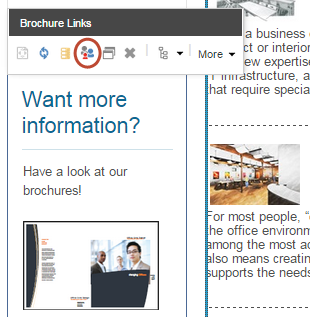
4. In the **Personalize the component** dialog box, click **Add personalization rule**.
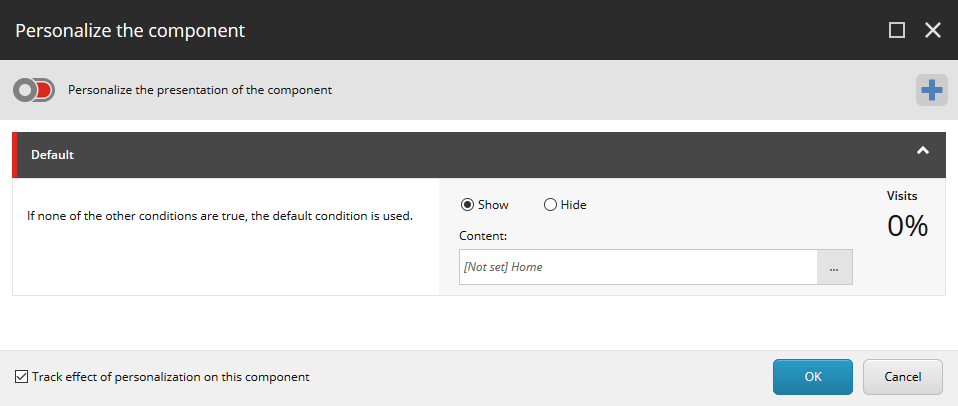
5. Give the new condition an appropriate name, for example, *Only show brochure to leads*.
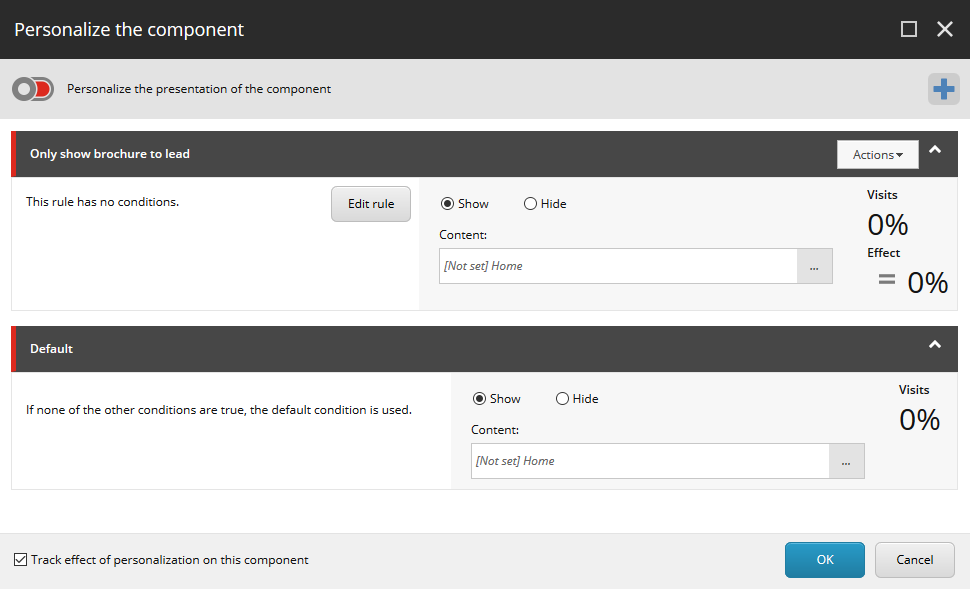
Sitecore evaluates the personalization rules in the order that they appear in the **Personalize the component** dialog box. If the visitor does not satisfy the rule specified in a condition, Sitecore moves on to the next condition, and so on, until the visitor meets one of the conditions. The default condition is used if a visitor meets none of the other conditions.
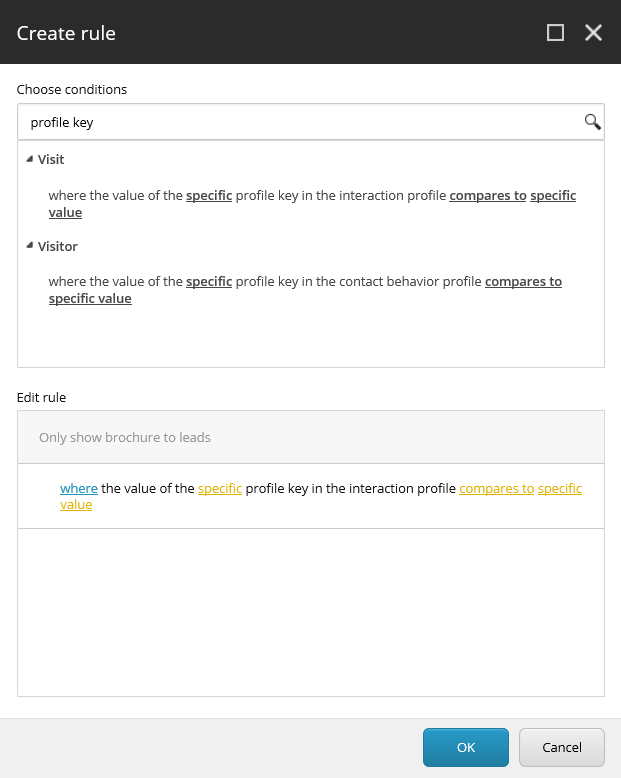
6. To define the conditions for the new component, click **Edit rule** and in the [Create rule dialog box](https://doc.sitecore.com/xp/en/users/100/sitecore-experience-platform/the-rule-set-editor.html "The Rule Set Editor"), in the **Choose conditions** field, select one or more conditions.
In this example, in the **Search** field, you enter the search word *profile key*. Click the following condition:
*where the value of the specific profile key in the interaction profile compares to specific value*.
The condition appears in the **Edit rule** section:
> [!note]
> To create a personalization rule that only applies to visitors whose behavior is mapped to a specified pattern card, you can click the condition *where the current visit matches the specific pattern card in the specific profile*.
7. Edit the values in the condition. To do this, click on the links in the **Edit rule** field.
- The first link contains the words *when* or *where*. If you click the link, Sitecore reverses the condition, alternating between *when* and *except when*, or *where* and *except where*.
- The second link contains the word *specific*. Clicking this link will take you to a dialog box where you can select the item or profile that you want to use.
- Other links can include comparisons or numeric values. Clicking these links takes you to a dialog box where you can select from options relating to the link.
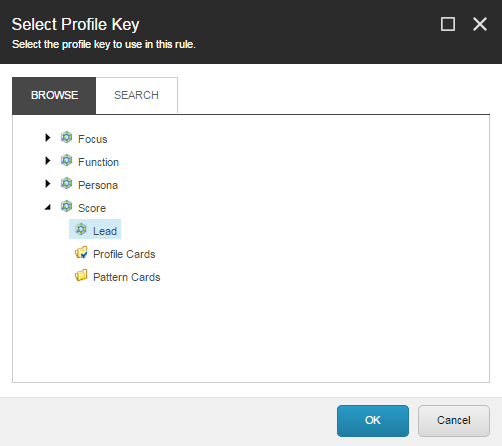
In this example, you want only visitors who have accumulated a lead score of 50 or more to see the brochure download link. In the **Edit rule** field, click *specific* and in the **Select Profile Key** dialog box, expand *Score*, and click *Lead*. Click **OK**.
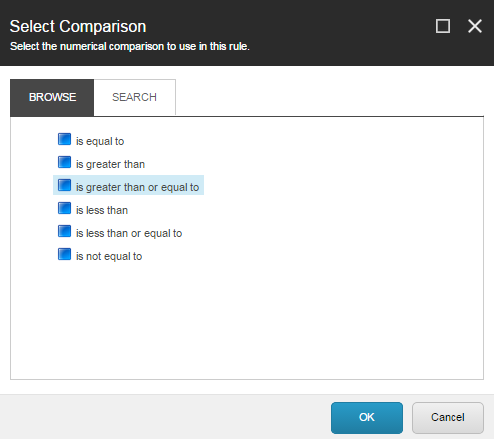
8. To choose a comparison for this rule, in the **Edit rule** field, click *compares to*. In the **Select Comparison** dialog box, click *is greater than or equal to* and click **OK**.
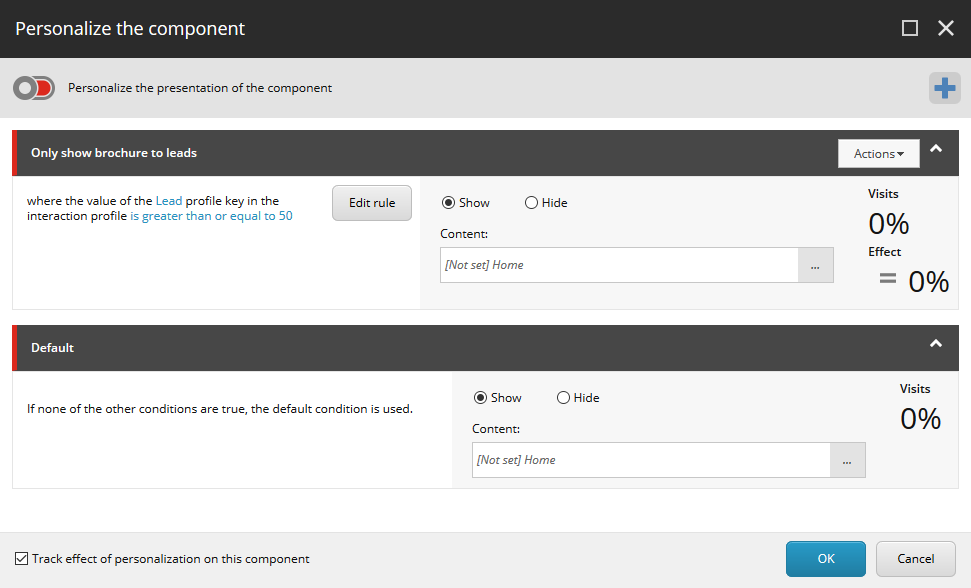
9. To display the brochure download link on the *Our Services* page when the *Lead* profile score of the visitor is higher than 50, click *specific value*, enter *50*, and then click **OK**. Click **OK** to close the **Create rule** dialog box. The **Personalize the component** dialog box now looks like this:
Personalize the content
After you have created a personalization rule, you can specify the content that you want the page or component to display when the conditions in the rule are met. You can hide or show content, as well as adjust the behavior and presentation of a web control.
To hide or display content:
1. In the **Personalize the component** dialog box, click **Hide** for the rule where you want to hide the content. In this example, you want to hide the component when the *Default* condition applies.
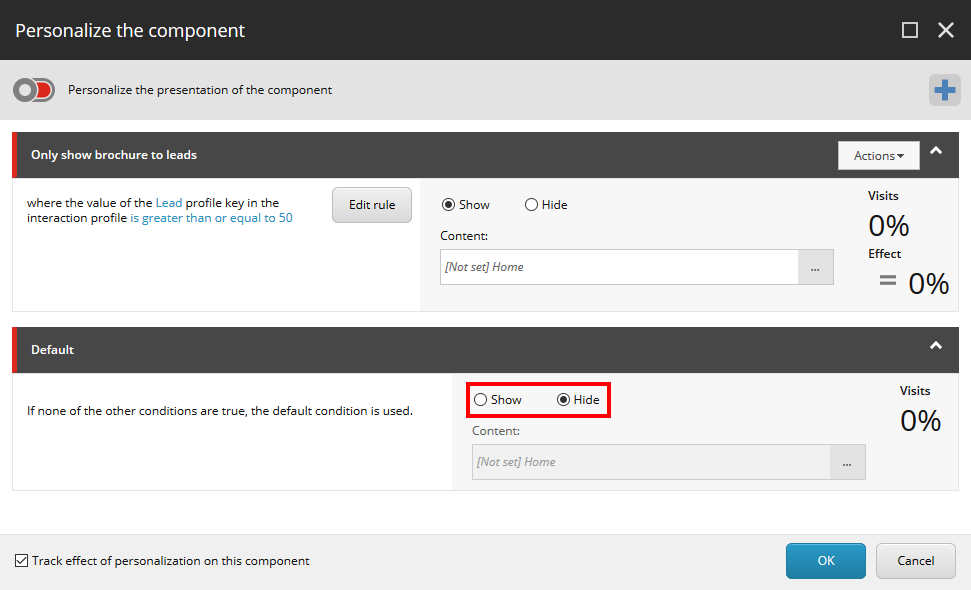
In this example, when a visitor comes to the *Our Services* page, they see the *Download the Office Core brochure* link only if they have a lead score of 50 or more. The *Default* condition state, which visitors see until their profile value is 50, hides the content.
2. To display different content for a rule, in the **Content** field, click **Browse**.
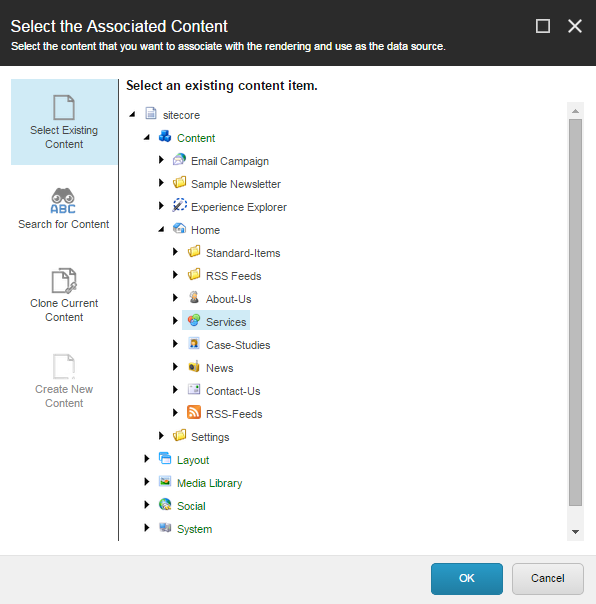
3. In the **Select the Associated Content** dialog box, navigate through the content tree or run a search for the item that you want to display when the conditions are met.
> [!note]
> The item must be compatible with the current rendering item. For example, you must use web forms renderings for web form items, and so on.
4. When you have finished selecting the content for personalization, click **OK**.
When you publish the page, the website shows personalized content based on the conditions in the personalization rule.
Personalize the layout for a component
You also can personalize the way a component is displayed on your web page.
To personalize the layout of a component:
1. In the **Personalize the component** dialog box, enable the **Personalize the presentation of the component** setting. This displays the **Presentation** field.
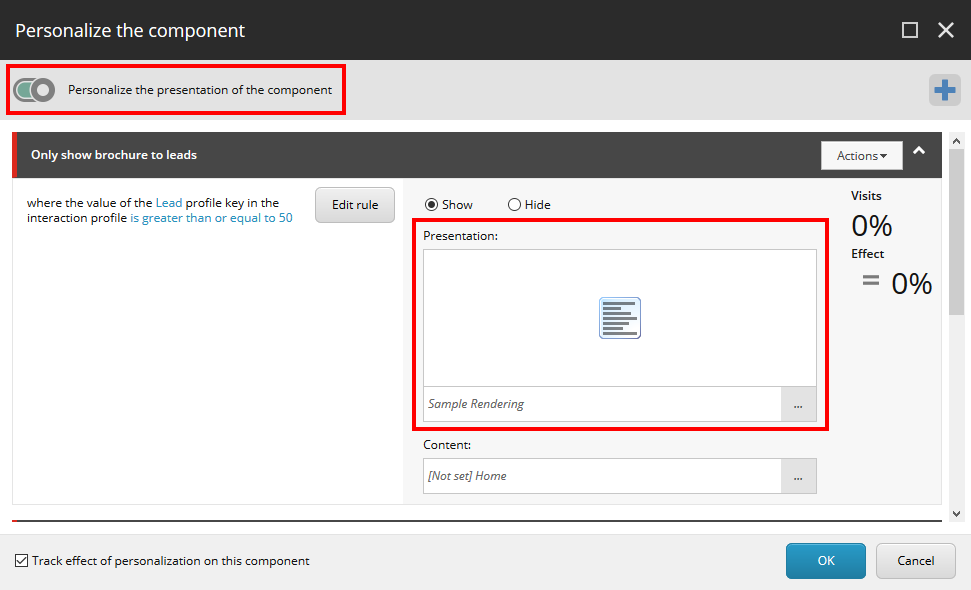
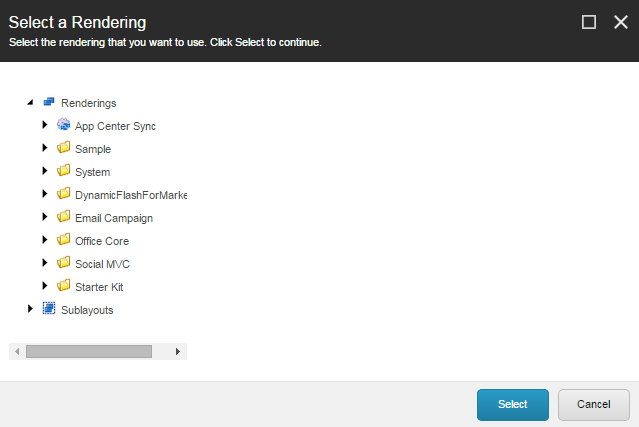
2. In the **Presentation** field, click **Browse** and in the **Select a Rendering** dialog box, select the rendering that you want to use for the content that is associated with this personalization rule, and then click **Select**.
> [!note]
> The new rendering must be compatible with the component.
Enable or disable personalization effect tracking
The [personalization effect tracking](https://doc.sitecore.com/xp/en/users/100/sitecore-experience-platform/personalization-effect-tracking.html "Personalization effect tracking") feature allows Sitecore to calculate the effect of personalization rules without running a personalization test. When tracking is enabled, 10% of the traffic to the component is allocated to effect tracking. This means that 5% of visitors who are in the personalization target group see the default version of the component.
> [!important]
> If you want to [start a personalization test](https://doc.sitecore.com/xp/en/users/100/sitecore-experience-platform/test-personalized-components.html "Test personalized components") on the component, you must *disable* personalization effect tracking.
To disable personalization effect tracking:
- In the **Personalize the component** dialog box, clear the **Track effect of personalization on this component** check box.
- Click **OK**.
Preview the personalized component
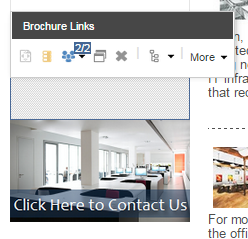
To preview personalized content, in the **Experience Editor**, click the component that you added personalization to. In the floating menu that appears, click the arrow to see the details about the current condition and click another condition to view the other content that you have set up for the component.
In this example, if the visitor has a lead score of 50 or more, the component displays the brochures:
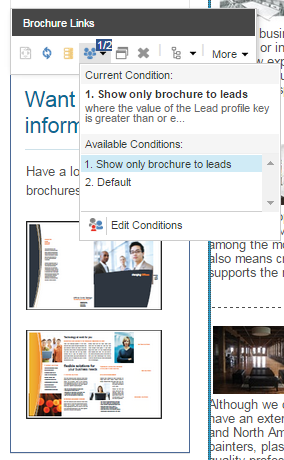
If the visitor has a lead score of less than 50, the brochures are hidden.
> [!note]
> To apply the personalization rules on your website, publish the page.
Analyze the effect of personalization
After the personalized variants have been running on your live website for a while, you can analyze the [effect of personalization on the component](https://doc.sitecore.com/xp/en/users/100/sitecore-experience-platform/analyzing-the-effect-of-personalization-on-a-component.html "Analyzing the effect of personalization on a component") or the [effect of personalization on the entire page](https://doc.sitecore.com/xp/en/users/100/sitecore-experience-platform/the-personalized-experience-dialog-box.html "The Personalized experience dialog box"). You can also view personalization data for all pages in the [Personalization dashboard](https://doc.sitecore.com/xp/en/users/100/sitecore-experience-platform/using-the-personalization-dashboard.html "Using the Personalization dashboard"), or the [Active personalized experiences list](https://doc.sitecore.com/xp/en/users/100/sitecore-experience-platform/using-the-active-personalized-experiences-list.html "Using the Active personalized experiences list").