---
title: "Work with robot detection for forms"
slug: "work-with-robot-detection-for-forms"
abstract: "How to configure robot detection for an instance or a submit action."
---
# Work with robot detection for forms
Sitecore Forms helps you protect your forms from spambots to keep your contact lists healthy and eliminate unwanted traffic for your site. Robot detection is enabled by default.
> [!note]
> To use robot detection with forms, you must install and [enable xDB and xDB tracking](https://doc.sitecore.com/xp/en/developers/100/platform-administration-and-architecture/the-xdb-and-tracker-configuration-settings.html). Robot detection must also be [enabled](https://doc.sitecore.com/xp/en/developers/100/sitecore-experience-platform/configure-robot-detection-functionality.html), which it is by default. For additional information, see [Robot detection overview](https://doc.sitecore.com/xp/en/developers/100/sitecore-experience-platform/robot-detection-overview.html) and [Visitor identification using the robot detection component](https://doc.sitecore.com/xp/en/developers/100/sitecore-experience-platform/visitor-identification-using-the-robot-detection-component.html).
>
> If you are using a tool (such as DevTools or Fiddler) to resubmit a form (that is, to resend the request), the tracker treats all requests the same way. This means, for example, that if the original form submit was treated as human, when the form is resubmitted it will also be treated as human.
Enable or disable robot detection
Robot detection for Sitecore Forms is enabled by default.
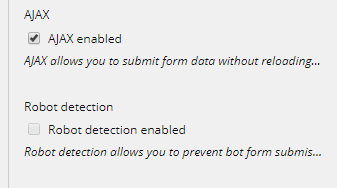
To enable or disable robot detection for each form field:
- In the Forms designer, in the Form elements pane, on the **Settings** tab, select or clear the **Robot detection enabled** check box.
> [!note]
> If you are having problems with robot detection, ensure that your layouts contain the [VisitorIdentification tag](https://doc.sitecore.com/xp/en/developers/100/sitecore-experience-platform/enable-the-web-analytics-tracking-feature.html): `@Html.Sitecore().VisitorIdentification()`
To disable robot detection for a Sitecore instance, for example, because you are running automated performance tests:
- Go to: `App_Config\Sitecore\Marketing.Tracking\Sitecore.Analytics.Tracking.config `and change the following setting to *false*: ``
Enable robot submission for a submit action
In Sitecore Forms, submit buttons can have multiple submit actions. For the default submit actions that involve saving data, robot submission is disabled. For submit actions that do not involve saving data, such as *Redirect to Page* and *Redirect to Url*, robot submission is not blocked.
To enable or disable robot submission for submit actions:
1. In the Content Editor, go to `Settings/Forms/Submit Actions` and click the submit action.
2. In the **Settings** section, select or clear the **Enable Robot Submission** check box.