---
title: "Commerce Shared renderings"
slug: "commerce-shared-renderings"
abstract: "Overview of the Commerce Shared renderings and how they can be used."
---
# Commerce Shared renderings
You can use the renderings in the **Commerce Shared** group in the SXA toolbox for [building different types of pages](https://doc.sitecore.com/xp/en/users/101/sitecore-experience-commerce/build-a-storefront-with-commerce-renderings.html "Build a storefront with Commerce renderings").
The following image is an example of how the Commerce Shared renderings might appear on a storefront page:
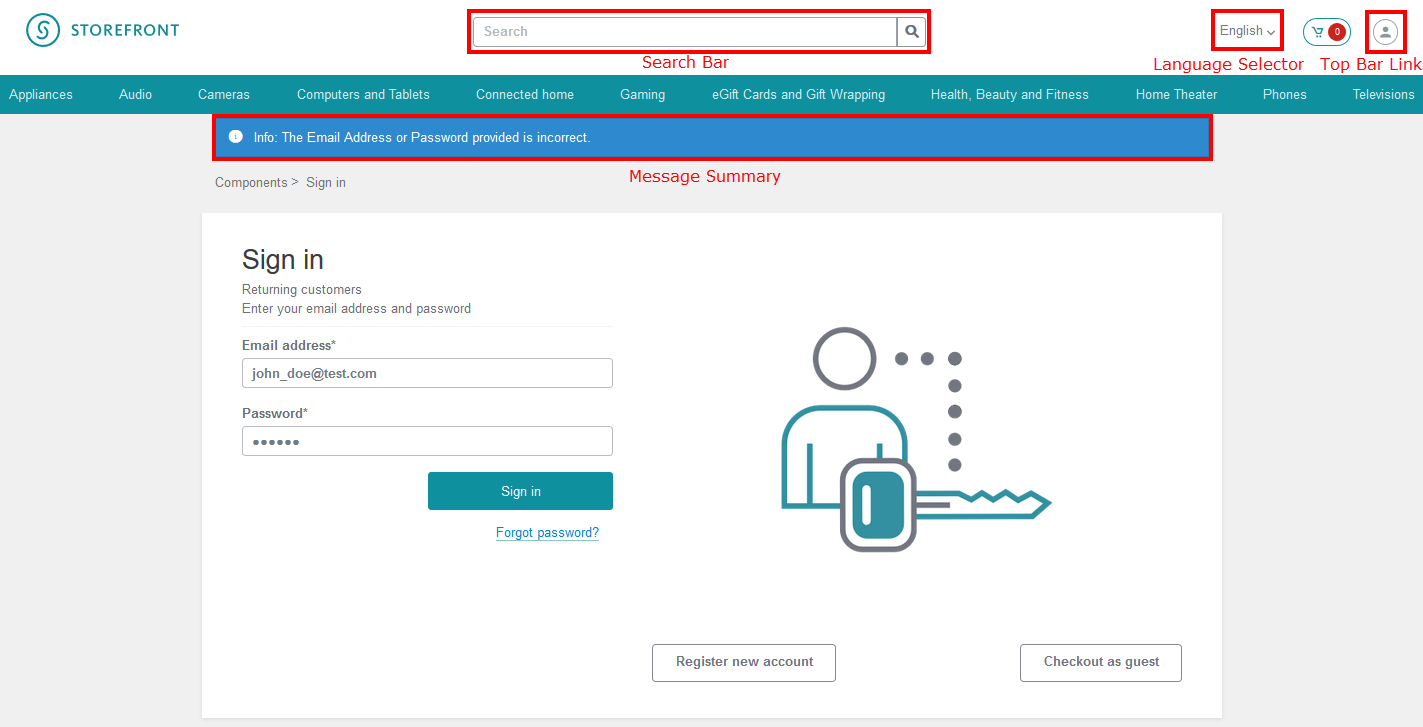
Language Selector rendering
You use the Language Selector rendering to enable customers to select the language that they want to see on the storefront and in Commerce email campaigns. When you add the Language Selector rendering to a page, it appears as hyperlinked text that displays the current language. There are two Language Selector renderings - one in the **Context** section of the Toolbox and one in the **Commerce Shared** section. The two are the same with the only differences being:
- The Commerce Language Selector links the rendering to a language set defined in the Commerce Control Panel (*sitecore/Commerce/Commerce Control Panel*) while the SXA Language Selector links the rendering to a language set defined in the System settings (*sitecore/System/Languages*).
- When using the Commerce Language Selector, the selected language is registered on the contact facet and is used when sending Commerce emails through a Commerce marketing automation campaign.
> [!important]
> The SXA Language Selector does not change the language on the contact facet and does not affect the language in Commerce emails.
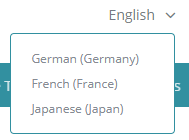
On the live storefront, when you click the language selector link, the list of available languages expands. You can then select a language.
##### Configuration
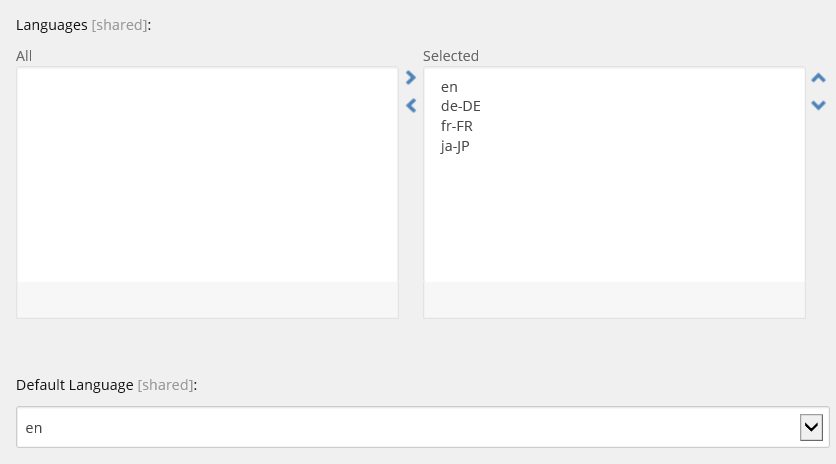
You can define the languages displayed in the Language Selector rendering in the [Language Set item](https://doc.sitecore.com/xp/en/developers/101/sitecore-experience-commerce/en/commerce-engine-and-storefront-configuration-settings.html) (*/sitecore/Commerce/Commerce Control Panel/Shared Settings/Language Sets*):
Each language set has a list of selected languages, and a default language:
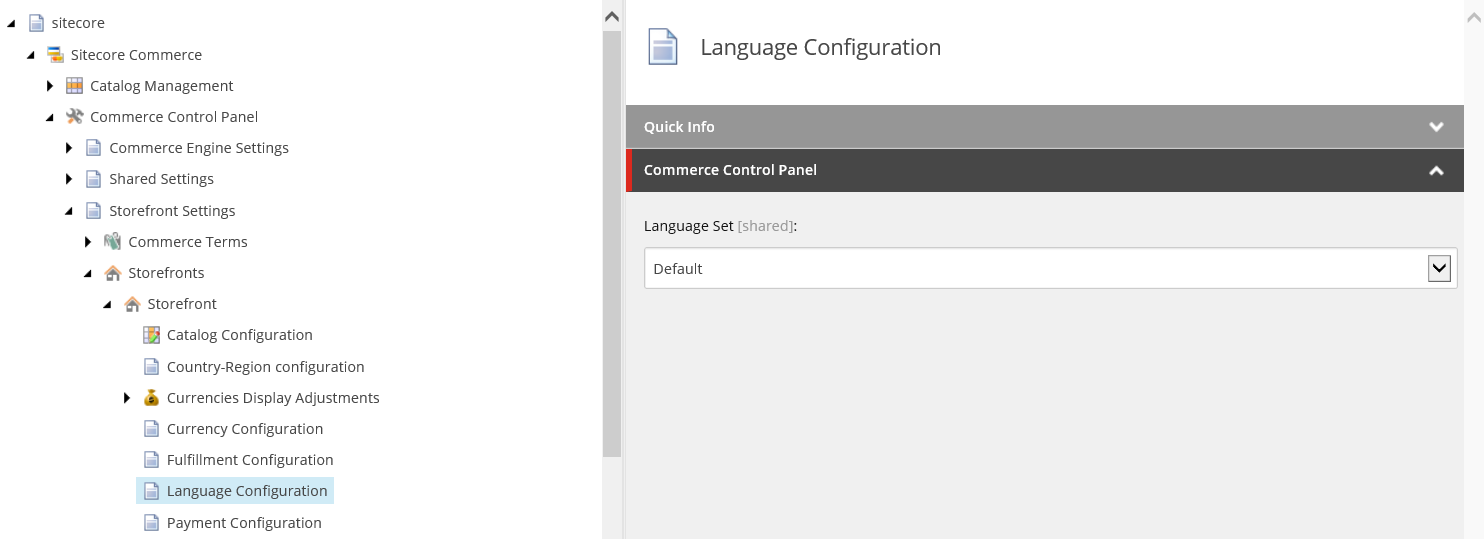
You specify the language set that applies to your storefront in: *sitecore/Commerce/Commerce Control Panel/Storefront Settings/Storefronts//Language Configuration*, in the **Language Set** field:
Top Bar Links rendering
You use the Top Bar Links rendering to display a number of links for the customer. The links displayed depend on the customer's authentication status. For example, if the customer is not logged in, a **Sign in** link is displayed; if the customer is logged in, the **Sign out** link is displayed together with the customer's login name.
**Anonymous customer**
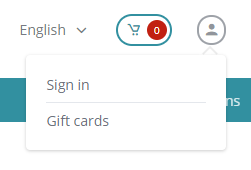
For an anonymous customer (that is, If the customer is not logged into their account), the Top Bar Links rendering displays the following links by default:
- Sign in
- Gift cards
**Customer logged in**
For a customer who is logged in, the Top Bar Links rendering displays the following links by default:
- Username
- Sign out
- Account
- Gift cards
##### Configuration
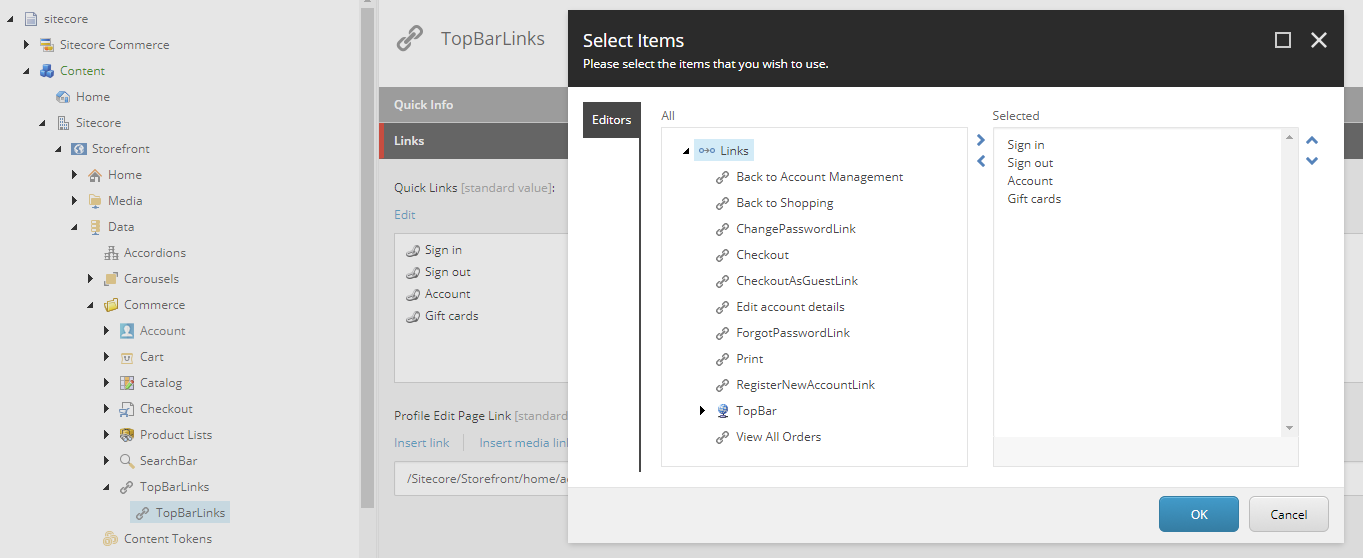
In the associated content item, you can add or remove links from the list of links that are displayed in the rendering. Click the **Edit** link on the **Links** tab to open the **Select Items** dialog box:
The content items for the individual links can be found in: */sitecore/content/Sitecore/\[SITE\]/Data/Links/TopBar*
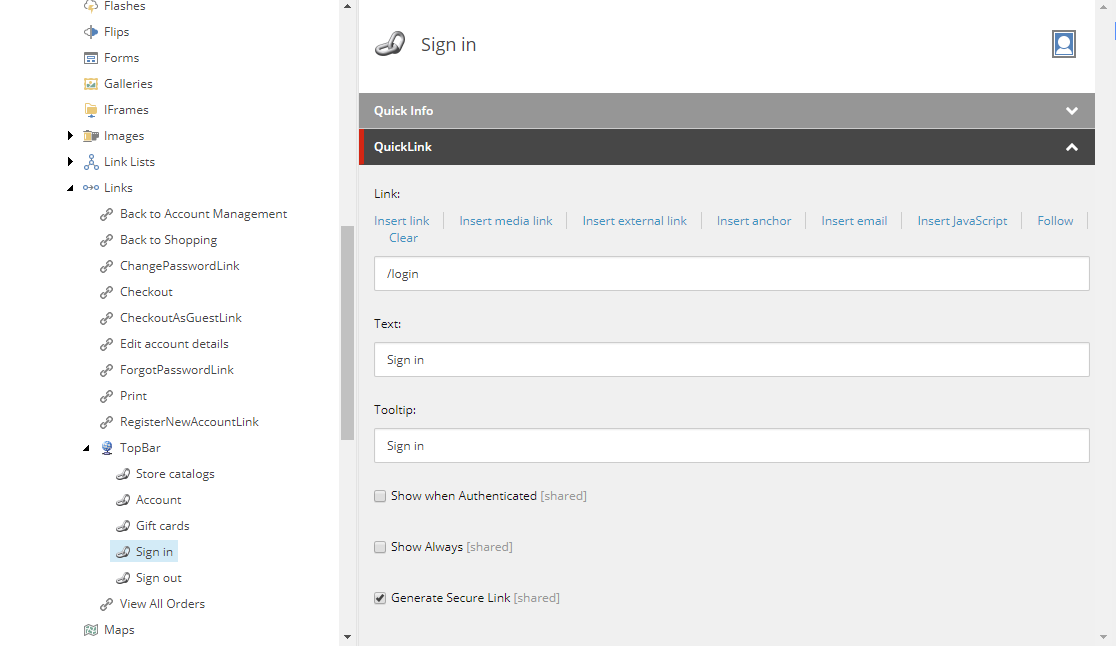
For each link, you can configure the following fields:
- **Link** – leave the field blank if you want to display a static text.
- **Text** – enter the text of the link.
- **Tooltip** – enter a tooltip for the link.
- **Show when Authenticated** –select to only display the link when the customer is logged in.
- **Show Always** –select to always show the link.
- **Generate Secure Link** – select to enforce https:// when this link is clicked.
Search Bar rendering
Use the Search Bar rendering to display a text box with placeholder text and a search button identified by a looking-glass icon.
When the customer clicks the search button, the system redirects them to the search result page. The term that the customer entered in the text box is preloaded.
Message Summary rendering
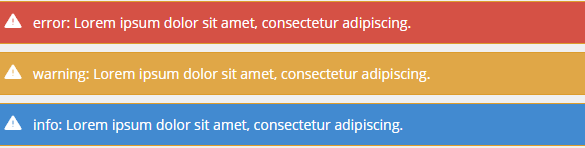
The Message Summary rendering displays messages that have been triggered by other renderings and pushed to the Message Summary. The rendering groups messages by type and displays them in the following order:
- Errors
- Warnings
- Informational messages
The storefront style sheet (CSS) determines the appearance (style) of the different types of messages.
When you drop the Message Summary rendering on a page, it contains placeholder data:
On the live storefront, the rendering is invisible if it does not contain any messages.
##### Configuration
The messages displayed in the Message Summary rendering are Commerce storefront system messages. You can configure the messages in the System Messages folder (*/sitecore/Commerce/Commerce Control Panel/Storefront Settings/Commerce Terms/System Messages*)