---
title: "Render a product list online"
slug: "render-a-product-list-online"
abstract: "Examples of how to use the Product List rendering, the Promoted Products rendering, and the Commerce Search Results rendering to display a product list."
---
# Render a product list online
You use SXA Storefront to build and customize a web store. It is a flexible framework that offers different ways to render product lists on your storefront. This topic describes how to render product lists on your storefront using the following renderings:
- The Product List rendering - use to render products within a category. This rendering is useful when you want to display products as they are structured in the catalog.
> [!tip]
> To better organize your content, use nested folders (available with the Product Lists template). You can have any number of folder levels.
- The Promoted Products rendering - use to render product lists using a query, to display a fixed list of products, or to display related products based on relationship data. This rendering is useful when you want to display a selected list or a query-based list.
- The [Commerce Search Results rendering](https://doc.sitecore.com/xp/en/users/101/sitecore-experience-commerce/use-the-commerce-search-results-rendering.html "Use the Commerce Search Results rendering") - use to render products using a [search scope dynamic query](https://doc.sitecore.com/xp/en/developers/101/sitecore-experience-commerce/en/commerce-search-scopes.html) that can include query tokens and boosting rules. For more information, see [Customizing the Commerce Search Results rendering](https://doc.sitecore.com/xp/en/developers/101/sitecore-experience-commerce/en/customizing-the-commerce-search-results-rendering.html) and [Boosting search results for Commerce](https://doc.sitecore.com/xp/en/developers/101/sitecore-experience-commerce/en/boost-products-in-search-results-for-commerce.html).
There are several things to consider when [comparing the different renderings for product lists](https://doc.sitecore.com/xp/en/developers/101/sitecore-experience-commerce/en/choosing-between-available-renderings-for-product-lists.html). In Sitecore 9.2 and earlier, you can use the Product List and Promoted Products rendering. We recommend that you use the Commerce Search Results rendering for Sitecore 9.3 and later.
This topic compares the three ways of rending product lists using a specific example.
> [!note]
> The procedures in this topic use the Habitat catalog.
Use the Product List rendering to render content
You use the Product List rendering on a product page to display products in a category, for example, smartphones. The Product List rendering is nested in a Catalog Item container. This rendering includes a **Show more** button that lets customers display additional products.
> [!important]
> Do not use the Commerce page components that enable paging for the Product List rendering multiple times on the same page. For example, do not include the Product List rendering alongside the Product List Page Info, Product List Items per Page, Product List Sorting, or Product List Pager renderings on the same page. Instead, use the lazy loading feature to display related products.
To use the Product list rendering to display content:
1. In the Content Editor, go to *sitecore/Content///Home*, right-click the **Product** item and click **Experience Editor**.
2. In the **Experience Editor**, in the **Toolbox**, in the **Commerce Catalog** section, drag the **Catalog Item Container** rendering onto the page.
3. On the **Catalog Item Container** toolbar, click **More, Edit Component Properties** and, in the **General** section, click **Data Source, Browse** . Go to the relevant product category, for example *Smartphones* (*/sitecore/Content/Sitecore/Storefront/Home/Catalogs/Habitat_Master/Habitat_Master-Departments/Habitat_Master-Phones/Habitat_Master-Smartphones*), and then click **OK** to close the **Control Properties** dialog box.
4. In the **Toolbox**, in the **Commerce Catalog** section, click the **Product List** rendering and drag it inside the **Catalog Item Container**.

5. In the **Select the Associated Content** dialog box, click **Product List**, and then click **OK**.
6. On the **Product List** toolbar, click **More, Edit Component Properties**.
7. In the **Lazy Loading** section, select the **Use Lazy Loading** check box and, in the **Max Page Size** field, enter the number of products that you want to display, for example, *3*.
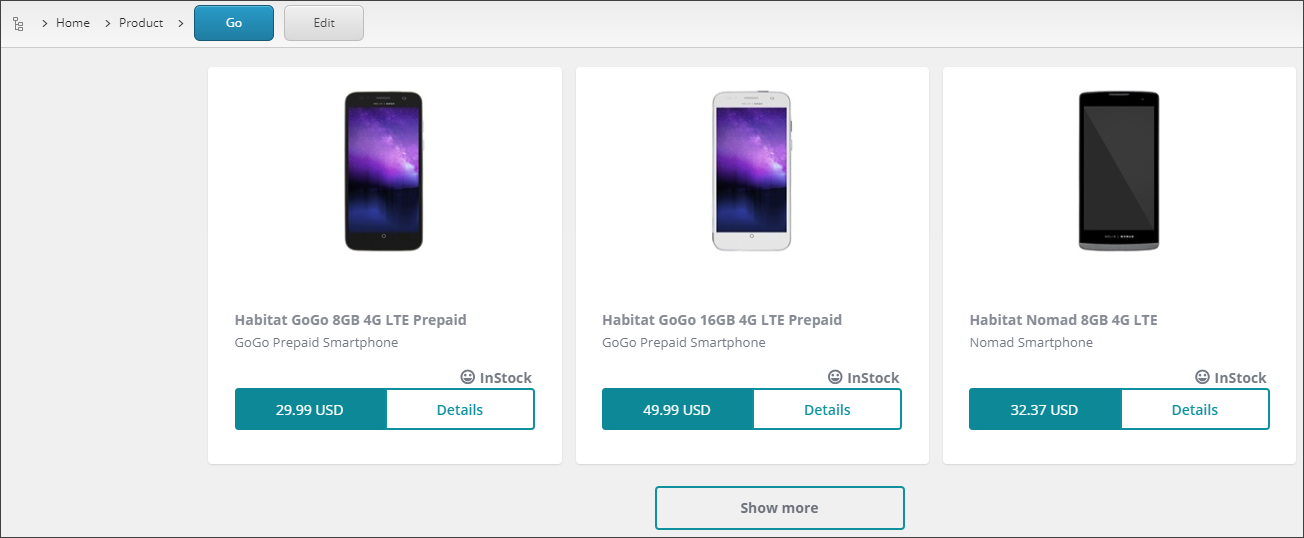
The **Max Page Size** field indicates how many product cards you want to appear in the list when the visitor arrives on the page. This is also the number of items that are added to the list each time the visitor clicks **Show More**.
8. To confirm your changes, click **OK** and, on the ribbon menu, click **Save**.
The rendering looks like this:
Use the Promoted Products rendering to render dynamic content
You can use the Promoted Products rendering to display a dynamic list of products using a query. For example, you can create a query to retrieve the products that you want to display in a product list. You then associate this query with the Promoted Products rendering to display a dynamic list of products.
To display a dynamic list of products using a query:
1. In the Content Editor, go to the folder that contains your product lists, for example, */sitecore/Content///Data/Commerce/Product Lists*.
2. Right-click and click `Insert, Named Search`.
3. In the **Message** dialog box, enter a name for the new product list, for example, *Phones*, and click **OK**.
4. In the tree view, click the newly created product list, for example, *Phones*. On the ribbon menu, on the **View** tab, select the **Standard fields** check box and the **Buckets** check box.
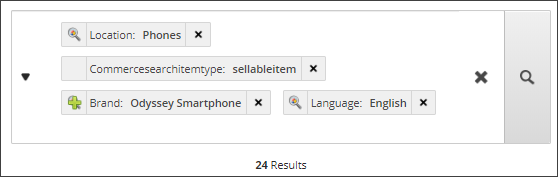
5. On the **Content** tab, in the **Item Buckets** section, click **Build query** beneath the label **Default bucket query** and, in the **Build Search Query** dialog box, build the search query and click **OK** when you are finished. For example, to search for *Odyssey* brand smartphones, create the following query:
- Commercesearchitemtype:sellableitem
- Brand:Odyssey Smartphone
- Location:Phones
- Language:en
6. On the ribbon, click **Save**.
7. To associate the query with the Promoted Products rendering, in the Experience Editor, go to the product page and, from the **Commerce Catalog** section of the Toolbox, drag the **Promoted Products** rendering onto the page.
8. In the **Select the Associated Content** dialog box, click **Promoted Products**, and click **OK**.
9. On the **Promoted Products** toolbar, click **More, Edit Component Properties**.
10. In the **Promoted Products** section, from the **Product List** box, click the product list you want to use, for example, *Phones*.
11. In the **Lazy Loading** section, select the **Use Lazy Loading** check box and, to confirm your changes, click **OK**.
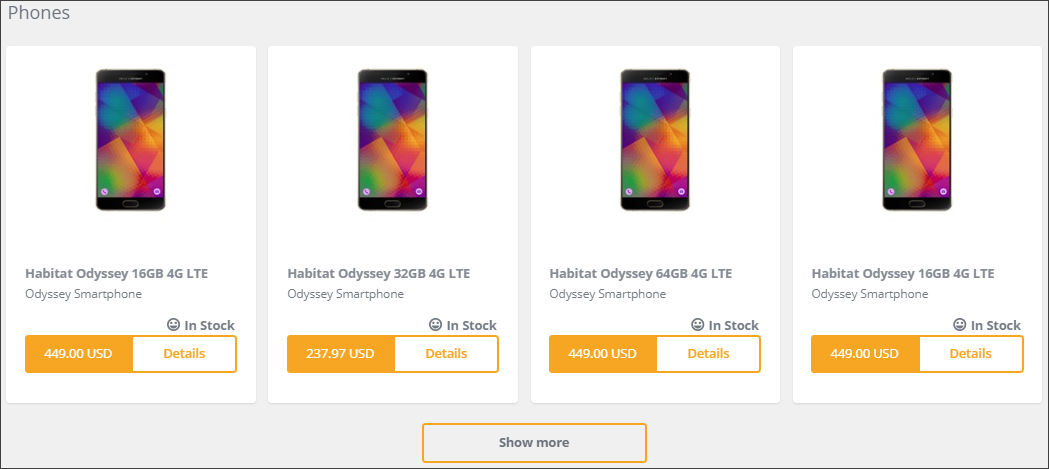
The rendering looks like this:
Use the Promoted Products rendering to render a selected list
You can use the Promoted Products rendering to display a fixed list of products. In this case, there is no **Show more** button.
To display a fixed list of products:
1. In the Content Editor, go to *sitecore/Content///Data/Commerce>*.
2. To create a static list of products, right-click **Product Lists**, click **Insert, Selected Products** and, in the **Message** dialog box, enter *Selected Products*, and click **OK**.
3. On the ribbon, on the **View** tab, clear the **Buckets** check box and the **Raw values** check box.
4. On the **Content** tab, in the **Products** section, go to the folder that contains the products you want to display, for example, *sitecore/Content///Home/Catalogs/Habitat_Master/Departments/Phones*.
5. On the **Content** tab, in the **Products** section, click in the **Title** field and enter a name, for example *Odyssey Phones*.
6. In the **Products List**, go to the folder that contains the products, for example, *sitecore/Content///Home/Catalogs/Habitat_Master/Departments/Phones*. Double-click all the products you want to move to the **Selected List** , for example, all the *Habitat Odyssey* phones. When you are finished, on the ribbon, click **Save**.
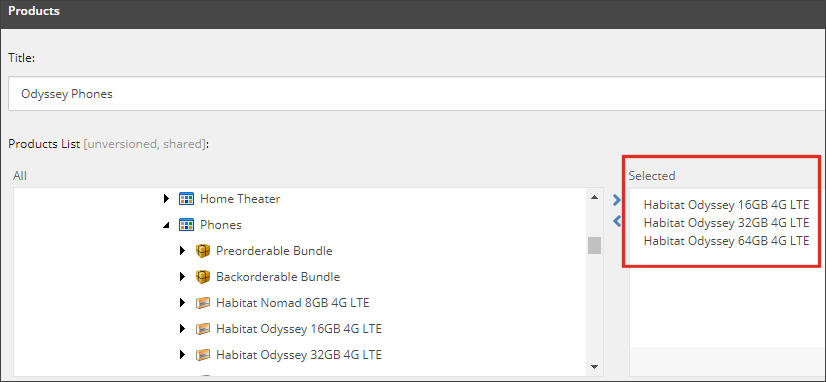
7. To associate the fixed list with the **Promoted Products** rendering, in the Experience Editor, go to the product page and, from the **Commerce Catalog** section of the Toolbox, drag the Promoted Products rendering. onto the page.
8. In the **Select the Associated Content** dialog box, click **Promoted Products**, and click **OK**.
9. On the **Promoted Products** toolbar, click **More, Edit Component Properties**.
10. In the **Promoted Products** section, from the **Product List** box, click *Selected Products*.
11. In the **Lazy Loading** section, select the **Use Lazy Loading** check box and, to confirm your changes, click **OK**.
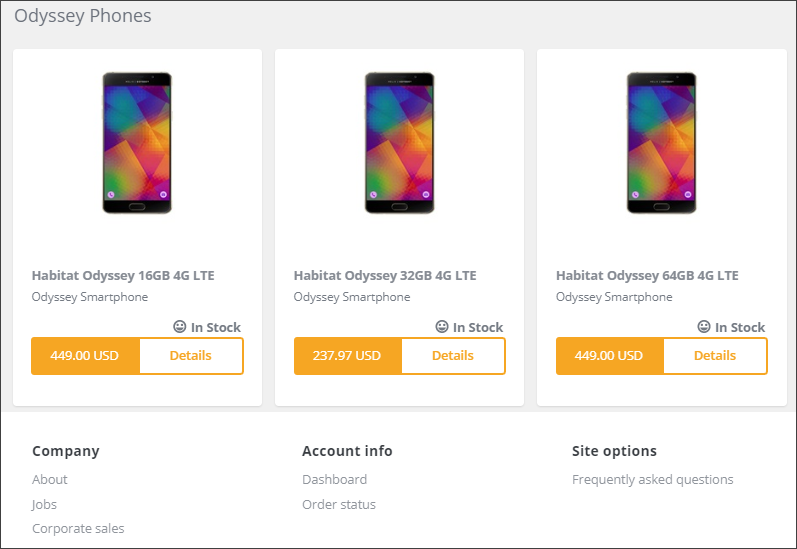
12. To save your changes, on the ribbon, click **Save**.
Use the Promoted Products rendering to display a list of related products
If your commerce system contains data about related products, you can add a list of related products to a product page. You can choose which type of relationship the products in the list have to the product on the page.
> [!note]
> In Sitecore 9.3 and later, we recommend you define a commerce search scope and use the Commerce Search Results rendering to display related products. To see an example in the Storefront site template, in the Content Editor, go to */sitecore/Content/Sitecore/Storefront/Presentation/Page Designs/Commerce Product Page*, right-click *Commerce Product Page* and click Experience Editor.
To display a list of related products:
1. Insert the Promoted Products rendering on a page that has a current catalog item, for example, a product details page.
2. In the **Control Properties** dialog box for the rendering, select an option from the **Relationship Type** drop-down menu, and click OK.
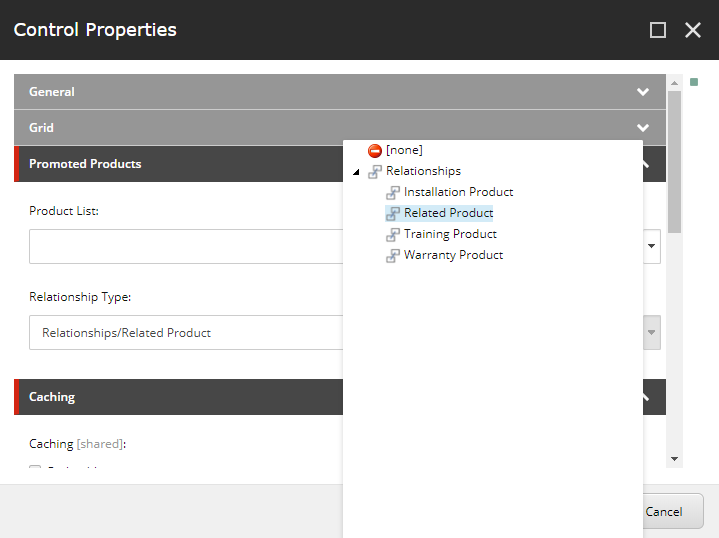
The rendering shows placeholder data in the Experience Editor, but on the live storefront it displays products that are related to the current product. The list of products is derived from the corresponding field on the **Relationships** tab on the catalog item.
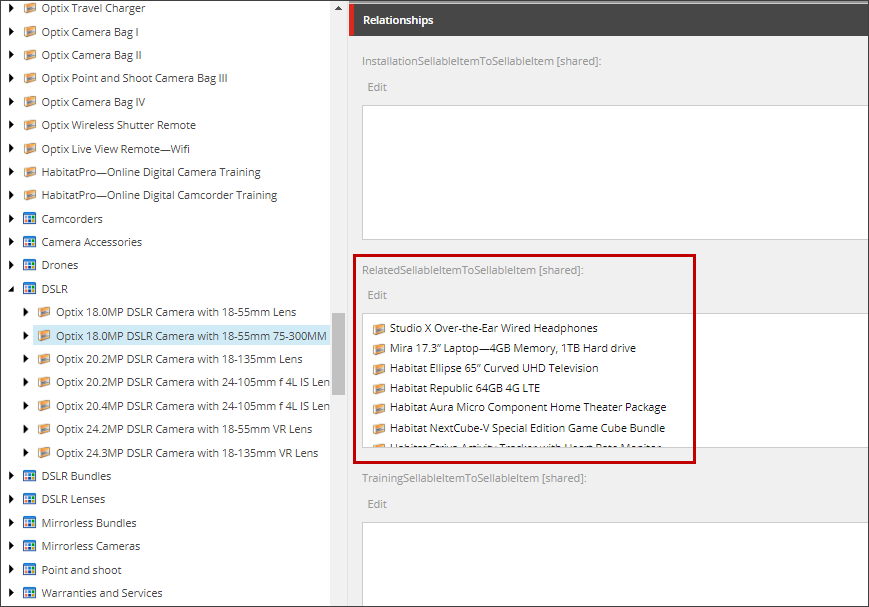
On the live storefront, a header appears above the list:
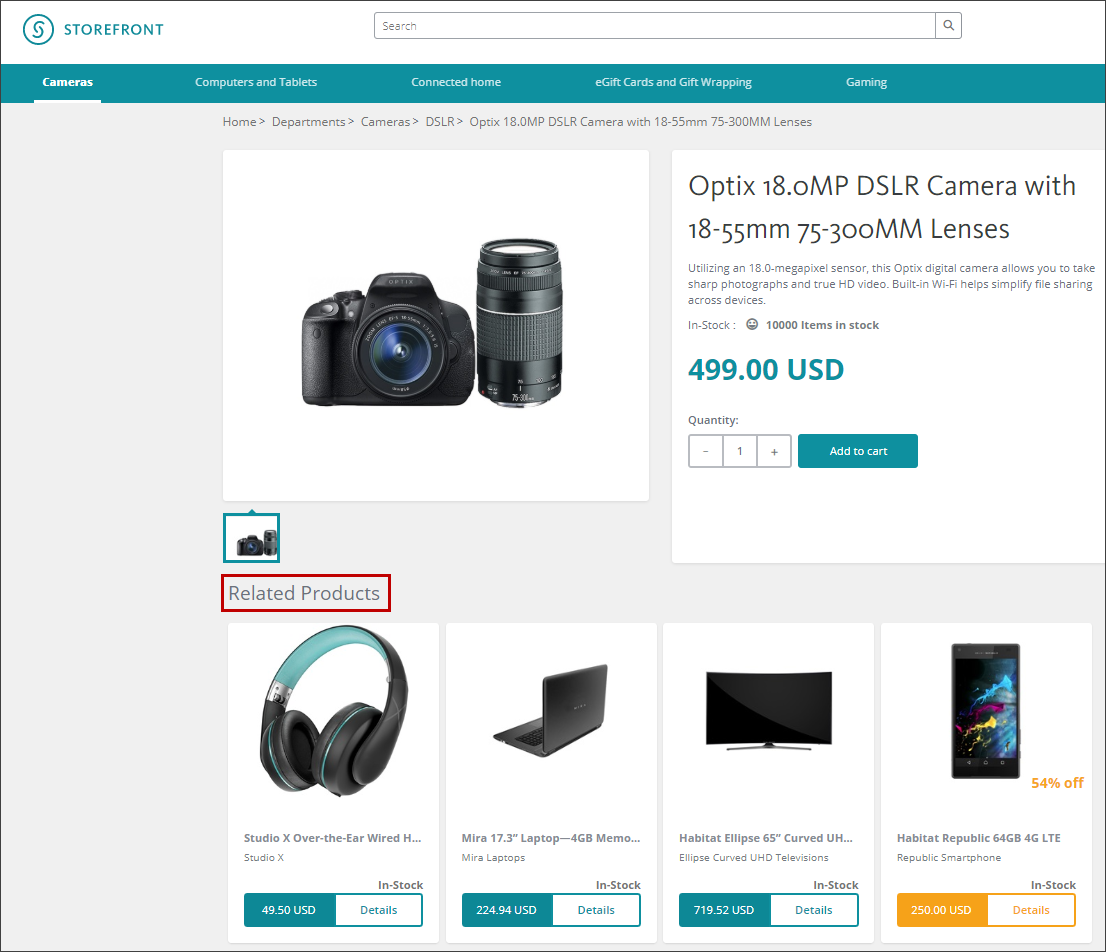
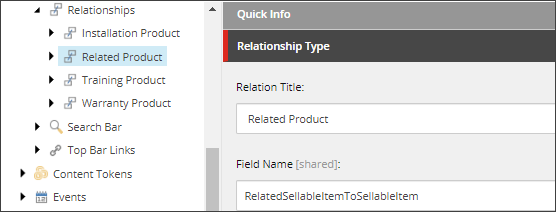
You can configure the header text for each relationship type on the respective relationship type item, in the */sitecore/content///Data/Commerce/Relationships* folder:
> [!note]
> Each instance of the Promoted Products rendering can only display one list. If you fill in both the Product List field and the Relationship Type field in the Control Properties dialog box for a single component, only the product list is displayed. To include more than one list on a page, you must insert multiple instances of the Promoted Products rendering on the page.
Use the Commerce Search Results rendering to display dynamic content
This procedure is quite similar to using the Promoted Products rendering to display dynamic content, except that Sitecore provides SXA search facets as well as Commerce-specific facets that you can use when you build a query and configure facets.
To use the Commerce Search Results rendering to display dynamic content:
1. Go to *sitecore\\Content\\\\\\Settings\\Scopes*, right-click **Scope**, click **Insert, Scope**, enter a name, for example *Optix Products* and click **OK**.
2. On the **Content** tab, in the **Scope** section, click **Build query**, click in the query box and define a search query, and then click **OK**. For example:
- Commercesearchitemtype: sellableitem
- Brand:Optix
- _LatestVersion: true
- Excludefromwebsearchresults: false
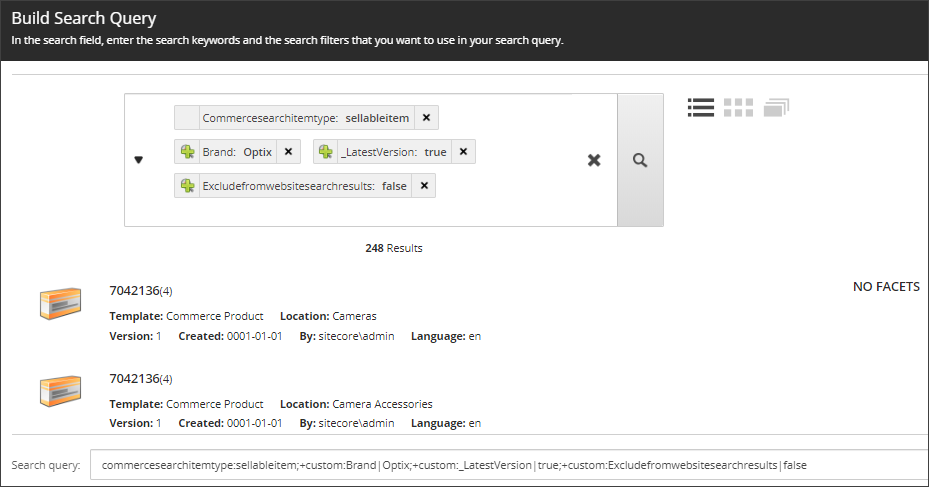
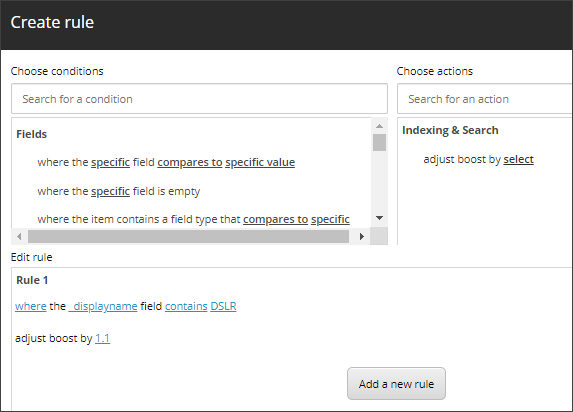
3. In the **Boosting** section, click **Edit rule** and define a boosting rule, for example, to promote DSLR cameras to the top of the search results list, and click **OK**.
- *where the _displayname field contains DSLR adjust boost by 1.1*
4. On the ribbon menu, click **Save**.
5. In the Experience Editor, open a page and, in the Toolbox, from the **Commerce Catalog** section, drag the Commerce Search Results rendering onto the page and, in the **Control Properties** dialog box, configure the rendering properties, and then click **OK**. For example:
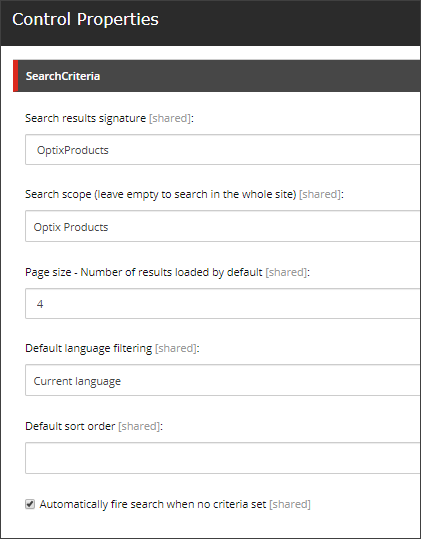
6. In the Toolbox, in the **Search** category, drag the Load More rendering onto the page and, in the **Control Properties** dialog box, enter the same search signature that you used in the previous step, for example, *Optix products*, and click **OK**.
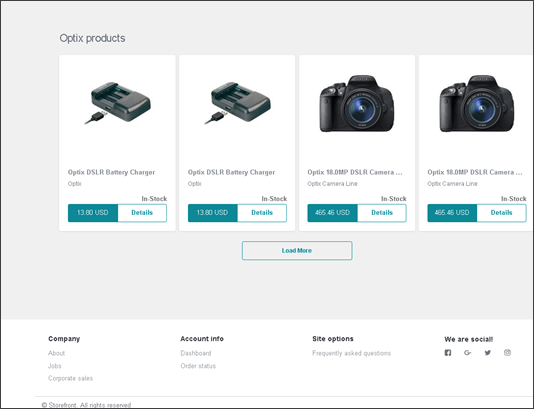
On the live storefront, the rendering looks like this: