---
title: "Work with inventory"
slug: "work-with-inventory"
abstract: "How to create an inventory set, associate a sellable item with it or associate a catalog with it, edit inventory information, or transfer inventory between inventory sets."
---
# Work with inventory
You manage inventory using inventory sets. An inventory set is a container that groups together [sellable items](https://doc.sitecore.com/xp/en/users/101/sitecore-experience-commerce/merchandising.html "Merchandising"). You can also use inventory sets to segment your inventory according to your business needs, for example, by location.
You can manage the following types of information:
- Inventory amounts
- Preorder and backorder status
> [!note]
> Preorder and backorder functionality is not fully implemented in this release.
- Quantities of sellable items
> [!note]
> You do not manage the inventory attributes of [product bundles](https://doc.sitecore.com/xp/en/users/101/sitecore-experience-commerce/bundling.html "Bundling"). [Product bundle availability and inventory](https://doc.sitecore.com/xp/en/users/101/sitecore-experience-commerce/inventory-and-static-bundles.html "Inventory and static bundles") attributes are derived from the individual sellable items contained in the bundle.
Create an inventory set
To create an inventory set:
1. On the [Sitecore Launchpad](https://doc.sitecore.com/xp/en/users/101/sitecore-experience-platform/en/overview-of-the-sitecore-launchpad.html), in the **Commerce** section, click **Business Tools,** and then click **Inventory**.
2. In the **Inventory Sets** section, click **+**.
3. In the **Add Inventory Set** dialog box, enter a **Name**, and a **Display Name**. The description is optional.
The list of inventory sets shown on the **Inventory** dashboard is in alphabetical order.
Delete an inventory set
You can only delete an inventory set when it is not associated with sellable items. Ensure you remove all sellable item associations before attempting to delete the inventory set.
To delete an inventory set:
1. On the Sitecore Launchpad, in the **Commerce** section, click **Business Tools,** and then click **Inventory**.
2. In the **Inventory Sets** section, click the inventory set that you want to delete, and then click the **Remove inventory set** action button.
Associate a sellable item with an inventory set
When you associate a sellable item with an inventory set, you can associate:
- A sellable item (with no variants).
- A sellable item variant.
> [!note]
> You can associate a sellable item with one or multiple inventory sets.
To associate a sellable item with an inventory set:
1. On the Sitecore Launchpad, in the **Commerce** section, click **Business Tools,** and then click **Inventory**.
2. In the **Inventory Sets** section, click the name of the inventory set.
3. In the **Sellable Items** section of an inventory set details page, from the drop-down menu, select **Associate Sellable Item to Inventory Set**.
4. In the **Associate Sellable Item to Inventory Set** dialog box, in the **Sellable Item** field, enter the sellable item name or ID to retrieve a list of all the sellable items that match, and then click the sellable item you want to associate from the list.
5. In the **Associate Sellable Item to Inventory Set** dialog box, fill in the **Quantity** field. Optionally, you can change the default **Invoice Price Currency** value, and enter the **Invoice Unit Price**, **Invoice Price Currency**, and whether the item is available for preorders or backorders, the dates it is available, and the limits for preorders and backorders.
Alternatively, you can associate a sellable item variant to an inventory set from the **Inventory Details** page. When you associate a sellable item that has variants, all the variants are displayed on the **Inventory Details** page. In the following example, only the purple Habitat Odyssey 16GB phone has been associated to the inventory set:
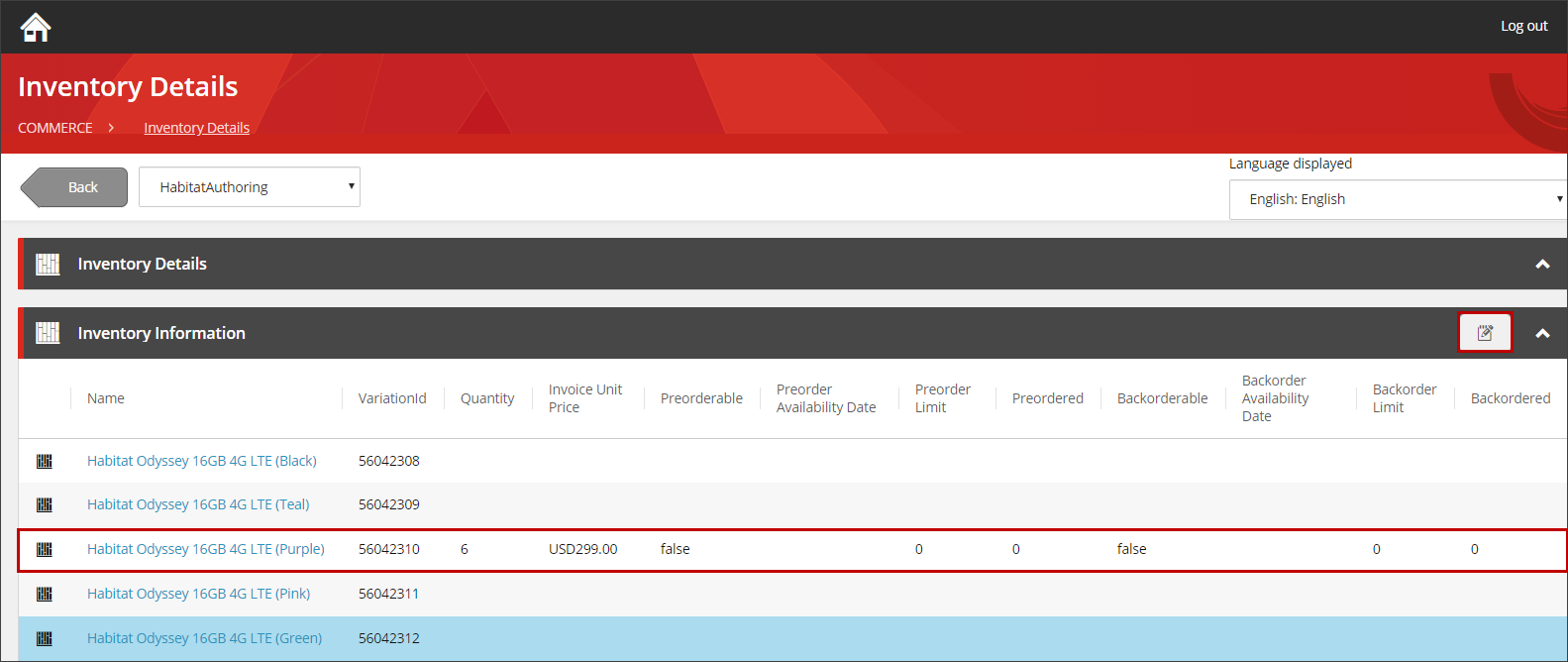
To associate a sellable item variant to an inventory set from the **Inventory Details** page:
1. On the **Inventory Set Summary** page, click a sellable item in the **Sellable Items** list.
2. On the **Inventory Details** page, select the sellable item variant you want to associate to the inventory set and click **Edit sellable item** on the section header.
3. In the **Edit Sellable Item Inventory** dialog box, update the inventory details and then click the check mark.
Search for a sellable item within an inventory set
You can use the search to quickly find a sellable item that is part of an inventory set. This is useful, for example, when you are working with an inventory set that contains a large number of sellable items. The sellable item search within the inventory set provides a similar capability as the search for a sellable item in the [Merchandising tool](https://doc.sitecore.com/xp/en/users/101/sitecore-experience-commerce/merchandising.html "Merchandising"), with the exception that the search is limited to the scope of the inventory set.
To search for a sellable item:
1. On the Sitecore Launchpad, in the **Commerce** section, click **Business Tools,** and then click **Inventory**.
2. In the **Inventory Sets** section, click the name of the inventory set.
3. In the **Search** section, in the **Term** field, enter the sellable item term to search for, and click Search.
You can use any of the following sellable item properties as your search term:
- Name
- Display name
- Product ID
- Variant ID
- Variant display name
The **Results** section lists all the sellable items in the inventory set with the search term you entered. Click the name of a sellable item to view inventory details. On the **Inventory Details** page, you can edit the sellable item inventory settings including the quantity, unit price, and currency as well as the preorderable and backorderable status.
Edit inventory information for a sellable item
You can edit the inventory information associated with a sellable item directly from the **Inventory Set Summary** page by clicking a sellable item. This takes you to the **Inventory Details** page. Alternatively, in the **Sellable Items** section of the inventory set page, you can click the drop-down menu and then click **Edit Sellable Item Inventory**. This opens the **Edit Sellable Item Inventory** dialog box.
To edit inventory information for a sellable item:
1. On the Sitecore Launchpad, in the **Commerce** section, click **Business Tools** , and then click **Inventory**.
2. In the **Inventory Sets** section, click the inventory set you want to modify.
3. In the **Sellable Items** section, in the **Name** column, click a sellable item.
4. On the **Inventory Details** page, in the **Inventory Information** section, click **Edit Sellable Item Inventory**.
5. In the **Edit Sellable Item Inventory** dialog box, edit any of the following inventory details.
- **Quantity**: The amount of the sellable item that is currently in stock for that inventory set.
- **Invoice Unit Price**: The wholesale price for the sellable item associated with an invoice.
- **Invoice Unit Price Currency**: The currency for the sellable item associated with an invoice.
- **Preorderable**: If this option is selected, the sellable item is available to be preordered in that inventory set.
> [!note]
> You cannot set this option on product bundles. It is the status of constituent sellable items themselves that make a product bundle available for preorder. If a product bundle contains at least one preorderable item, then the product bundle is considered preorderable.
- **Preorder availability date**: The date a sellable item is available to be preordered from that inventory set.
- **Preorder limit**: The amount of sellable items a customer can preorder from that inventory set.
- **Backorderable**: If this option is selected, the sellable item can be backordered if it is out of stock in that inventory set.
> [!note]
> You cannot set this option on product bundles. It is the status of constituent sellable items themselves that make a product bundle available for backorder. If a product bundle contains at least one preorderable item, then the product bundle is considered preorderable.
- **Backorder availability date**: When a backordered sellable item will become available in that inventory set.
- **Backorder limit**: The amount of a sellable item a customer can purchase if it is out of stock in that inventory set.
6. Click the check mark to close the dialog box.
> [!note]
> Preorder and backorder functionality is not fully implemented in this release.
Transfer inventory between inventory sets
To transfer inventory between inventory sets:
1. In the **Sellable Items** section of an inventory set details page, click on a sellable item name.
2. In the drop-down list, click **Transfer Inventory**.
3. In the **Transfer Inventory** window, click the target inventory set on the drop-down list.
4. Enter the quantity of the sellable item that you want to transfer to that inventory set.
Associate a catalog with an inventory set
Associating a catalog with an inventory set is optional.
To associate a catalog with an inventory set:
1. In the **Catalogs** section of an inventory set details page, click **Associate**.
2. In the **Associate Catalog** dialog box, click on the name of the catalog to associate on the drop-down list.