---
title: "Archive and restore an item"
slug: "archive-and-restore-an-item"
abstract: "If you have items that you do not want to display on your website, you can choose to archive them."
---
# Archive and restore an item
You can archive items that you do not want to display on your website in the Content Editor. When you archive an item, it is not deleted but stored outside the content tree. Archived items can be restored at any time.
> [!note]
> Read, Write, Create and Delete item access rights are needed to access the Archive menu button.
Archive an item immediately
To archive an item:
1. In the Content Editor, in the content tree, navigate to the item that you want to archive.
- If you want to archive a version of an item, click the **Versions** button  and select the relevant version.
- If you want to archive an item in a specific language, click the **Language** button and select the relevant language.
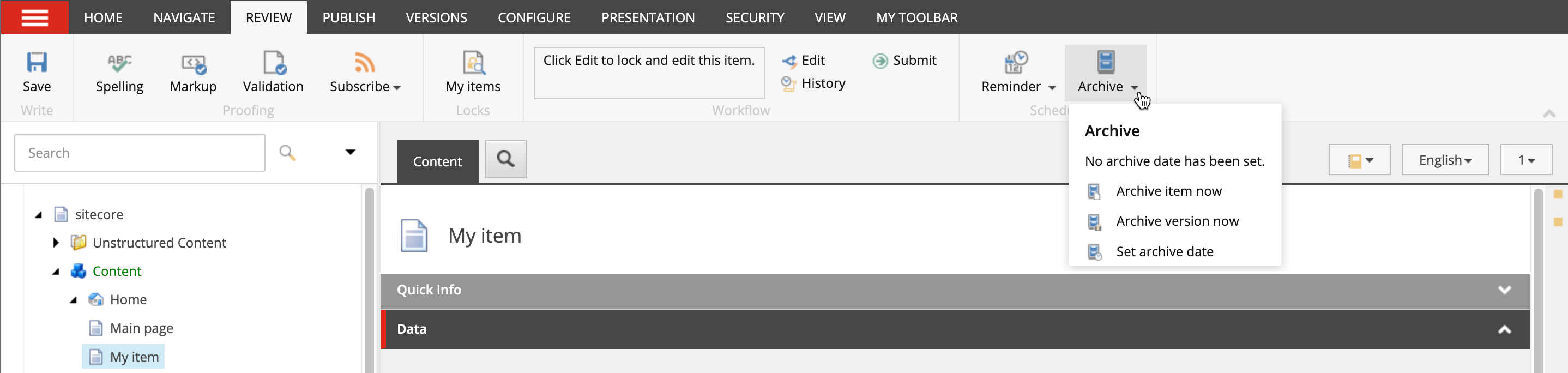
2. To archive the item immediately, on the **Review** tab, in the **Schedule** group, click **Archive**:
- To archive the item in all versions and languages, including all its subitems, click **Archive item now**.
- To archive the current version and language of the item, click **Archive version now**.
3. Click **OK**.
> [!note]
> When you archive an item, it is removed from the content tree, but it remains on the published website until you republish. Therefore, you must republish your website to replicate your changes on your website.
Handle breaking links
If there are links to the item you archive, the **Breaking Links** dialog box opens.

You can select an option to apply to all links. If you want, you can handle links individually and then apply one option to any remaining links.
To handle breaking links:
1. To open the list of breaking links, in the **Breaking Links** dialog box, click **Edit Links**.
2. For each link, you can:
- Edit the item containing the link
- Remove the link
- Link to another item
> [!note]
> If you do not handle a link individually, it remains in the list to be handled collectively.
3. If you selected **Link to another item**, in the content tree, click the item that you want to link to instead. To update the link, click **OK**.
4. In the **Edit Links** dialog box, click **Close**.
5. In the **Breaking Links** dialog, select one of the following options to apply to any remaining links:
- **Remove links** – remove all the links that exist to this page.
- **Link to another item** – change all the links to this page to link to another item.
- **Leave links** – leave broken links to this page. The links will be restored if you restore the item at a later time.
6. Click **Continue**.
Archive an item at a later date
To schedule the archiving of an item on a different date:
1. In the Content Editor, in the content tree, navigate to the item that you want to archive.
- If you want to archive a version of an item, click the **Versions** button  and select the relevant version.
- If you want to archive an item in a specific language, click the **Language** button and select the relevant language.
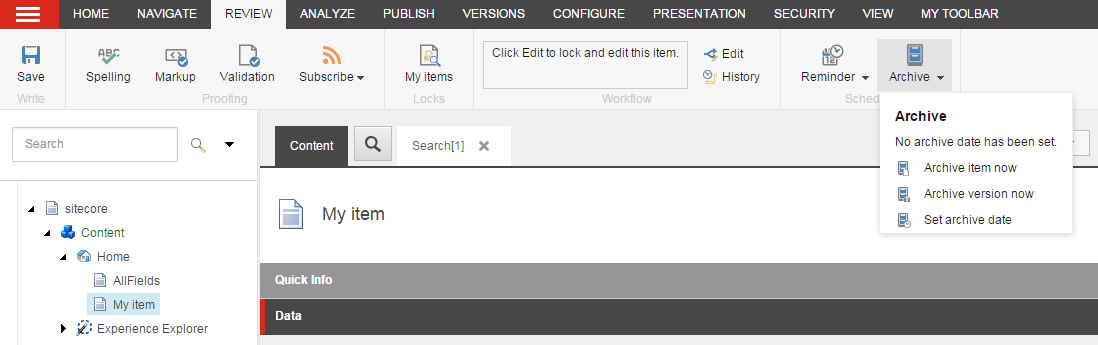
2. On the **Review** tab, in the **Schedule** group, click **Archive** and then click **Set archive date.**
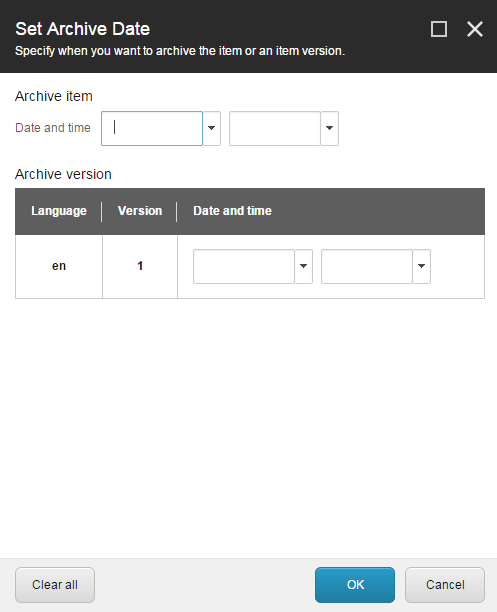
3. In the **Set Archive Date** dialog box, specify the date and time you want to archive the item.
- In the **Archive item** section, specify the date and time that you want to archive the item including all its versions and subitems.
- In the **Archive version** section, specify when you want to archive a specific version of the current item.
When you set a date and time, it is important to remember that:
- If you only specify a date, the item is archived at `12:00` midnight on that date.
- If you only specify a time, the item is archived at that time on the current date.
- If you specify a date or a time that is in the past, the item is archived the next time that Sitecore checks for items to archive.
4. Click **OK** and save your changes.
5. Republish your website in order for the changes to take effect.
When the archive date passes, the item is archived in the Master and Web databases, and the item is removed from the content tree.
> [!note]
> You must republish the website again after the item is archived in order to remove the item from the index.
Restore an archived item
You can restore items from the archive. You can only restore the items that you archived yourself or if you have admin rights.
To restore a content item from the archive:
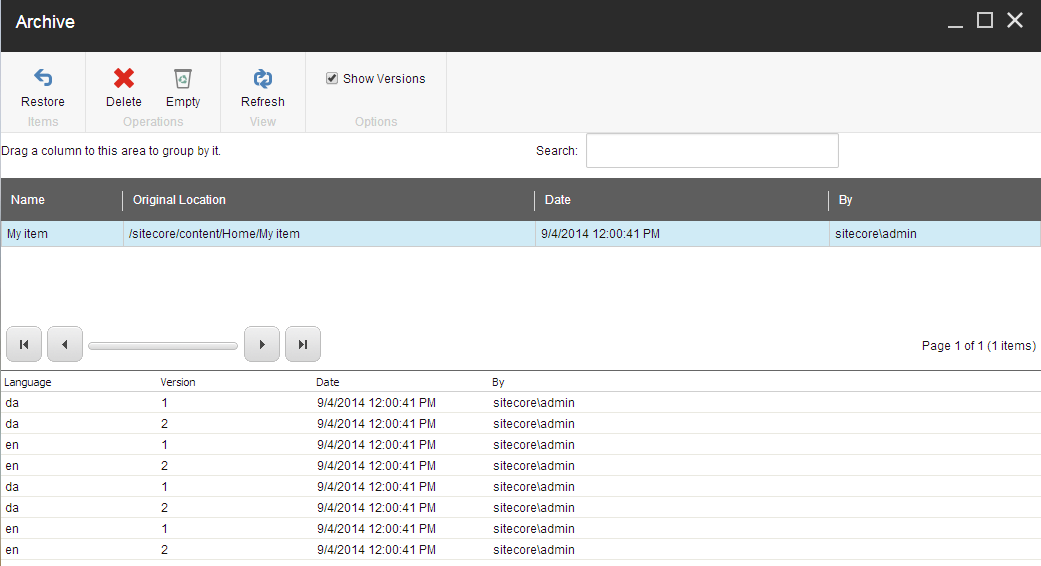
1. In the Sitecore Desktop, click **Sitecore Start**, **All Applications**, and then click **Archive**.
2. In the **Archive** dialog box, select the item that you want to restore.
- To restore all versions and languages of an item, including the subitems, select the item from the list. You can only restore one item at a time.
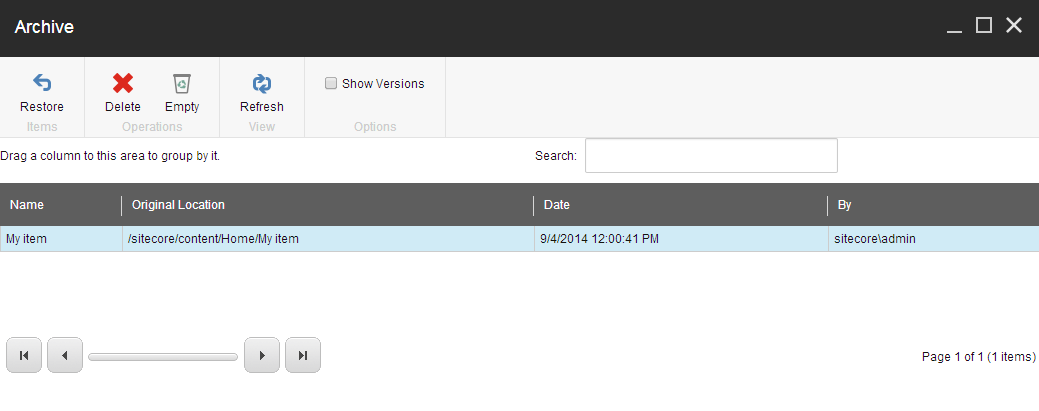
- To restore a version of an item, in the **Options** group, select **Show Versions**, click the item that contains the version that you want to restore and in the lower pane that appears, select one or more versions to restore.
> [!note]
> You can select and restore as many versions of the same item as you want.
3. In the **Items** group, click **Restore** and the items are restored in the content tree.