---
title: "Lock and unlock an item"
slug: "lock-and-unlock-an-item"
abstract: "When you lock an item, you prevent other users from editing the same item at the same time."
---
# Lock and unlock an item
In Sitecore, you can lock the current version of the item you are working on to prevent other users from editing the same item at the same time. If the item that you want to edit is already locked, you cannot edit it, you can only view it. When you have finished editing the item, you must unlock the item to make it available to other users again.
Depending on the setup of your installation, you may be prompted to lock the item before you can edit it. (An administrator or developer can [configure item locking](https://doc.sitecore.com/xp/en/developers/104/sitecore-experience-manager/en/configuring-item-locking.html).)
An administrator can have the authority to edit another user’s locked items. Therefore, an administrator and another user can edit an item at the same time. If a user saves changes to an item, and another user saves changes to the same item afterward, a notification appears, asking the user if the previously saved changes should be overwritten.
> [!important]
> ln Content Editor, locking an item does not keep it from being published as items are unlocked automatically upon workflow action.
>
> If you are working on an item and you want to keep it from being published, you need to [set up the publishing restrictions](https://doc.sitecore.com/xp/en/users/104/sitecore-experience-platform/set-up-publishing-restrictions-for-an-item.html "Set up publishing restrictions for an item") for the item.
Lock an item
To lock an item manually:
1. In the Content Editor or the Experience Editor, navigate to the item or page that you want to edit.
- In the Content Editor, on the **Home** tab, click **Edit** to lock the item.

> [!note]
> In the content tree, you can use the [Quick actions](https://doc.sitecore.com/xp/en/users/104/sitecore-experience-platform/customize-the-content-editor.html "Customize the Content Editor") to see a quick overview of the items that you have locked. Right-click left of the content tree and select My Locked Items.
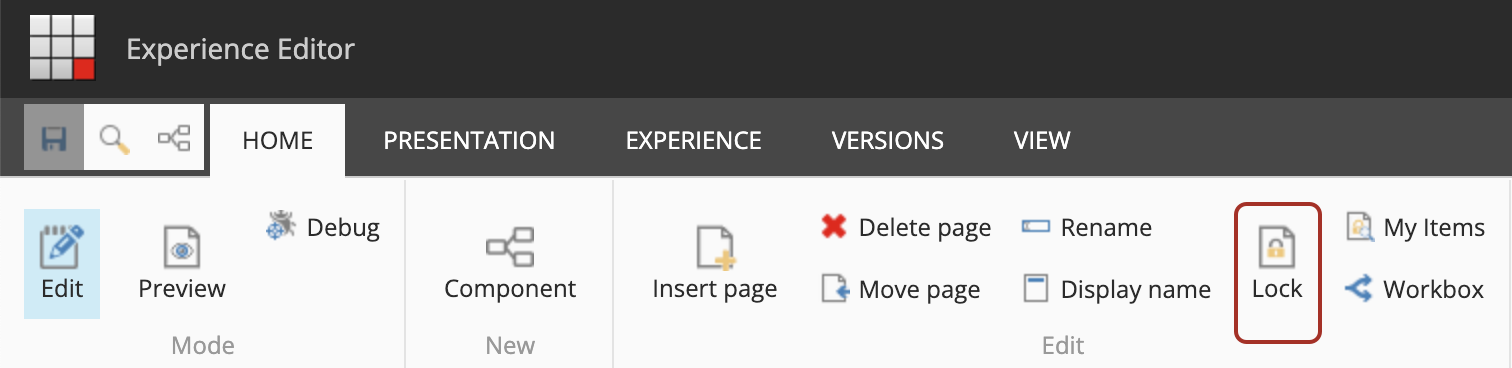
- In the Experience Editor, on the **Home** tab, in the **Edit** group, click **Lock**.
> [!note]
> This only locks the currently selected version of the item. Other versions of the item remain unlocked.
2. When you are finished editing the item, make sure to unlock the item again.
Unlock an item
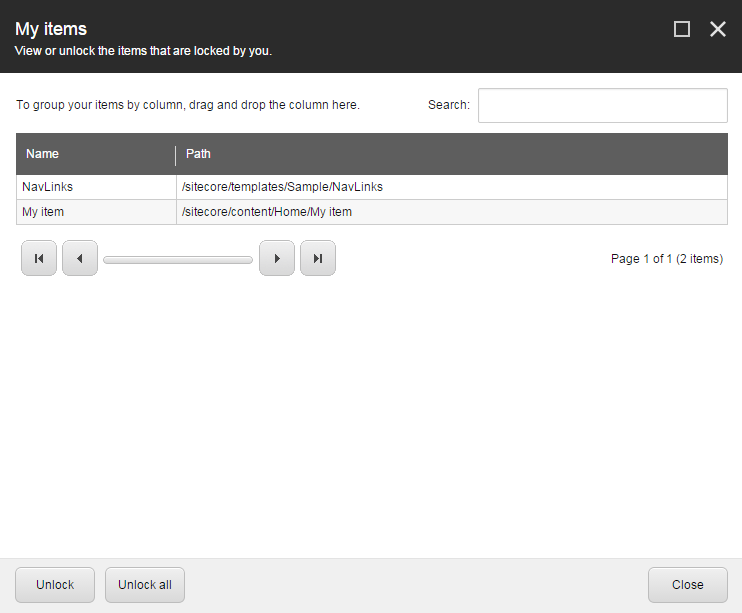
If you have locked and edited numerous items, you can lose track of them. Sitecore keeps track of all the items that are locked, and by who. In this way, you can easily unlock one or more items at the same time.
> [!note]
> When you unlock an item, you also unlock any [associated content](https://doc.sitecore.com/xp/en/users/104/sitecore-experience-platform/manage-associated-content.html "Manage associated content").
To unlock an item
1. To see a list of the items that are locked by you, or to unlock one or more items:
- In the Content Editor, on the **Review** tab, in the **Locks** group, click **My Items**.

- In the Experience Editor, on the **Home** tab, in the **Edit** group, click **My Items**.

> [!note]
> The number next to the My Items button on the ribbon indicates the number of items that you have locked.
2. In the **My Items** dialog box, select the items that you want to unlock and click **Unlock**. To unlock all items at the same time, click **Unlock All**.