---
title: "Navigate to an item in the Experience Editor"
slug: "navigate-to-an-item-in-the-experience-editor"
abstract: "In the Experience Editor, there are multiple methods you can use to navigate to the page or item that you want to work on."
---
# Navigate to an item in the Experience Editor
In the Experience Editor, you can navigate to the page or item that you want to work on using one of the following methods:
- [Navigation bar](https://doc.sitecore.com/xp/en/users/104/sitecore-experience-platform/navigate-to-an-item-in-the-experience-editor.html#UUID-a4abbcbc-c437-2afe-8192-35b84280ab43_N1542729016735 "Navigation bar") – use this method if you want to navigate to the page in a tree structure.
- [Preview mode](https://doc.sitecore.com/xp/en/users/104/sitecore-experience-platform/navigate-to-an-item-in-the-experience-editor.html#UUID-a4abbcbc-c437-2afe-8192-35b84280ab43_N1542803541896 "Preview mode") – use this method if you want to browse the website to get to the page.
- [Search](https://doc.sitecore.com/xp/en/users/104/sitecore-experience-platform/navigate-to-an-item-in-the-experience-editor.html#UUID-a4abbcbc-c437-2afe-8192-35b84280ab43_N1542729069625 "Search") – use this method if you want to search for the specific item. This is very helpful if you need to work on an item or page on another website.
Navigation bar
The navigation bar allows you to navigate to a specific page through a menu structure.
To enable the navigation bar, in the ribbon, on the **View** tab, select **Navigation bar**.
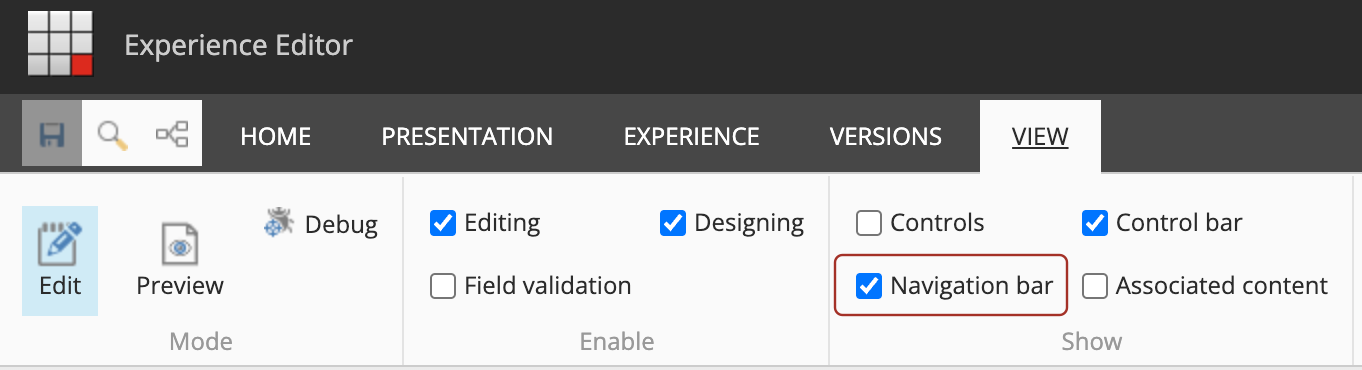
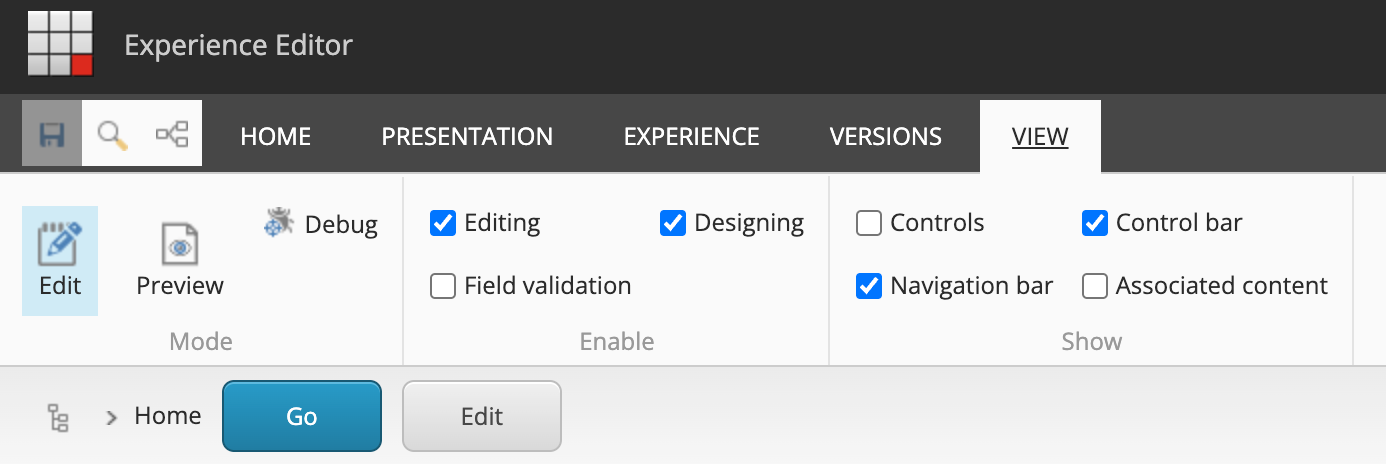
The navigation bar appears below the ribbon.
- To navigate to a page, click the item or the arrow in the navigation bar and then click **Go** to navigate to a page in the menu. If you want to edit the item’s field values in the Content Editor, click **Edit**.
To navigate to a page in a tree structure, click the tree icon , and in the content tree, navigate and click the page that you want to view.
Preview mode
If you enable the preview mode, you can browse to a specific page like on a regular website.
To enable the preview mode, in the ribbon, in the **Mode** group, click **Preview**.
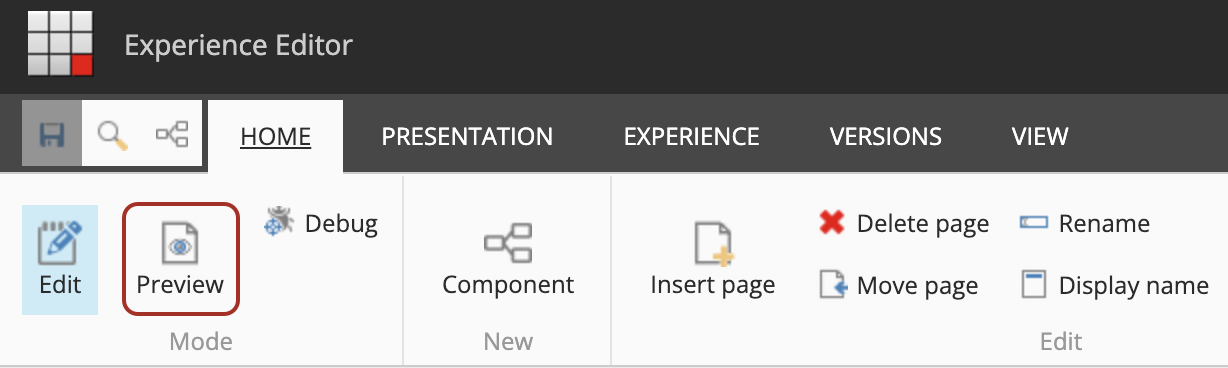
You can now click the items on your website to browse to the relevant page.
Search
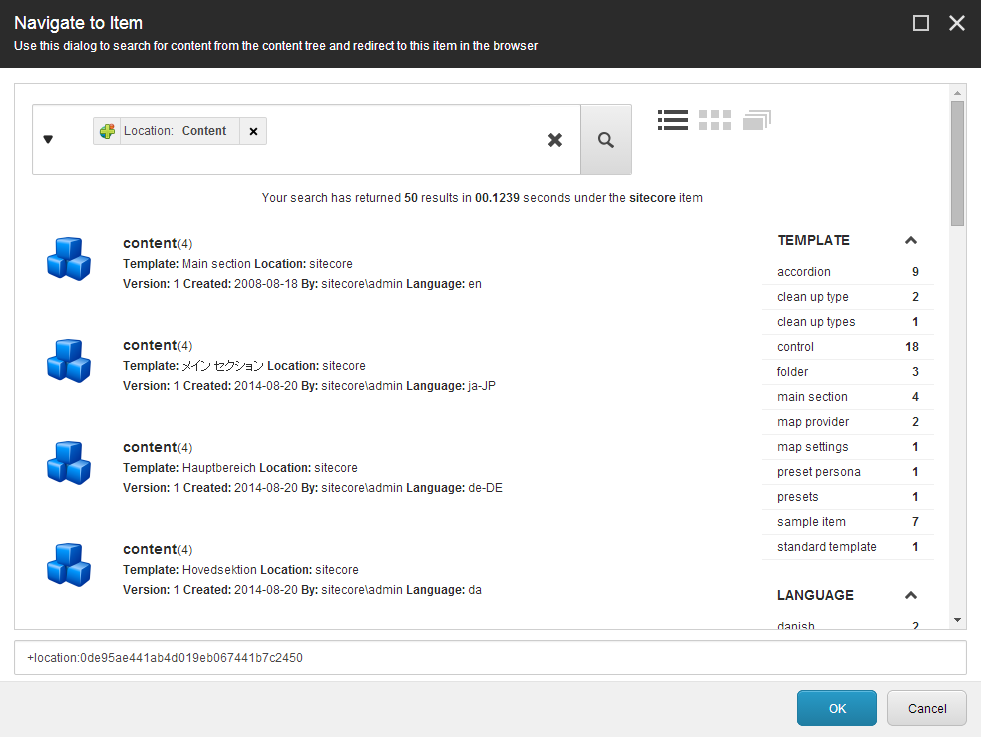
In the Experience Editor, you can use search to navigate to a specific item and from the search results direct the Experience Editor to the specific page where the item is located. In addition, if you work on multiple websites, you can use search to quickly move from one website to another.
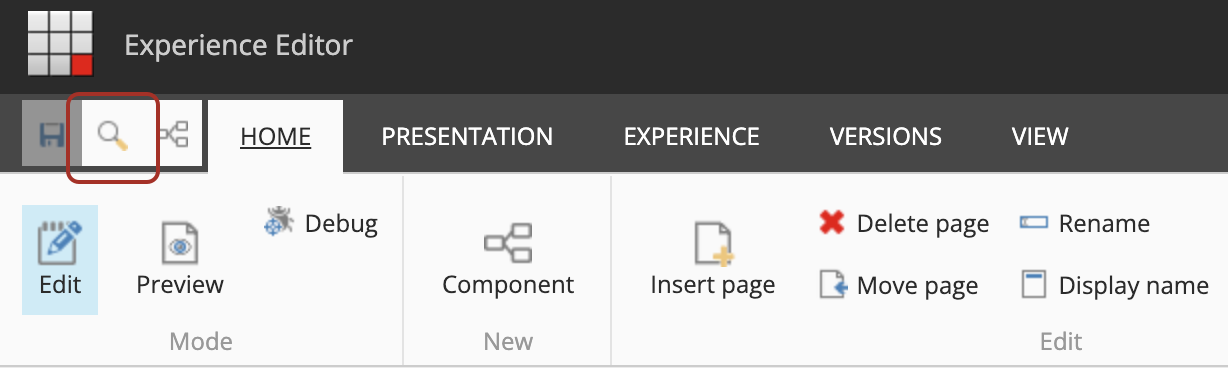
To use search to redirect the Experience Editor to a specific item, click **Search**  in the Experience Editor ribbon.
In the **Navigate to Item** dialog box, you can [search for an item](https://doc.sitecore.com/xp/en/users/104/sitecore-experience-platform/search-for-an-item.html "Search for an item") across all your websites and direct the Experience Editor to that specific item.