---
title: "Configure a page event to appear in the Experience Profile"
slug: "configure-a-page-event-to-appear-in-the-experience-profile"
abstract: "You can use the Content Editor to change the page events that appear in the Experience Profile"
---
# Configure a page event to appear in the Experience Profile
In the xDB, a page event is something that can be triggered on your website by a visitor, or it can be triggered by the system. For example, when a visitor completes a campaign sign-up form and clicks submit, this triggers a goal conversion event and a campaign event.
In the Experience Profile, some page events are pre-configured to appear in the Latest Events or Events panels by default. You can use the Content Editor to change the page events that appear in the Experience Profile, and you can also configure the images that are shown with page events.
This topic outlines how to:
- Configure a page event to appear in the Experience Profile
- Add an image to a page event
Configure a page event to appear in the Experience Profile
To configure the page events that are shown in the Experience Profile:
1. In the **Sitecore Desktop**, open the **Content Editor**.
2. In the content tree, navigate to *sitecore/system/Settings/Analytics/Page Events* and open the Page Events folder.
3. Select the page event item that you want to configure, for example, Download Brochure.
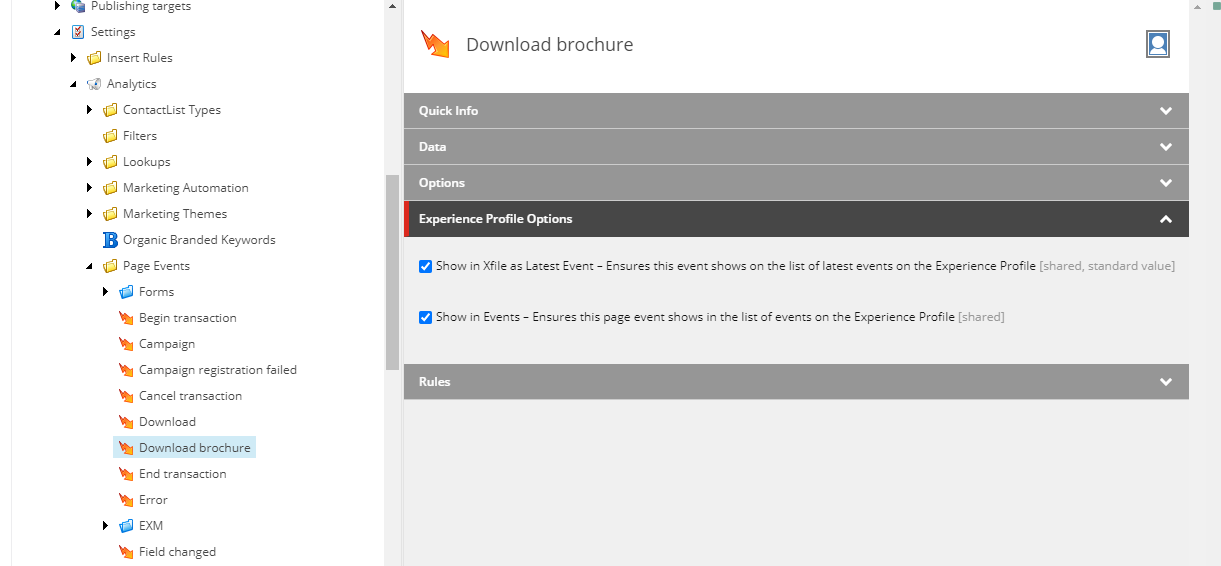
4. In the **Experience Profile Options** section, there are two check boxes for tracking page events in the Experience Profile:
| **Experience Profile Options** | **Description** |
| --- | --- |
| Show in Xfile as Latest Event | When this event is triggered by the contact (visitor) it appears in the Latest Events panel on the Experience Profile. |
| Show in Events | When this event is triggered by the contact (visitor) it appears in the list of Events shown on the Experience Profile. |
5. To make the page event item appear in the Latest Events panel, select the **Show in Xfile as Latest Event** check box.
6. Save your changes.
Add an image to a page event
You can configure which images are associated with page events. To add an image to a page event or change an image:
1. In the **Content Editor**, select a page event item to configure, such as Download Brochure.
2. In the **Data** section, you have several options. You can edit the image, view its properties, open the media library, clear an image, or refresh.
3. To open the **Select Media** dialog box, click **Browse**.
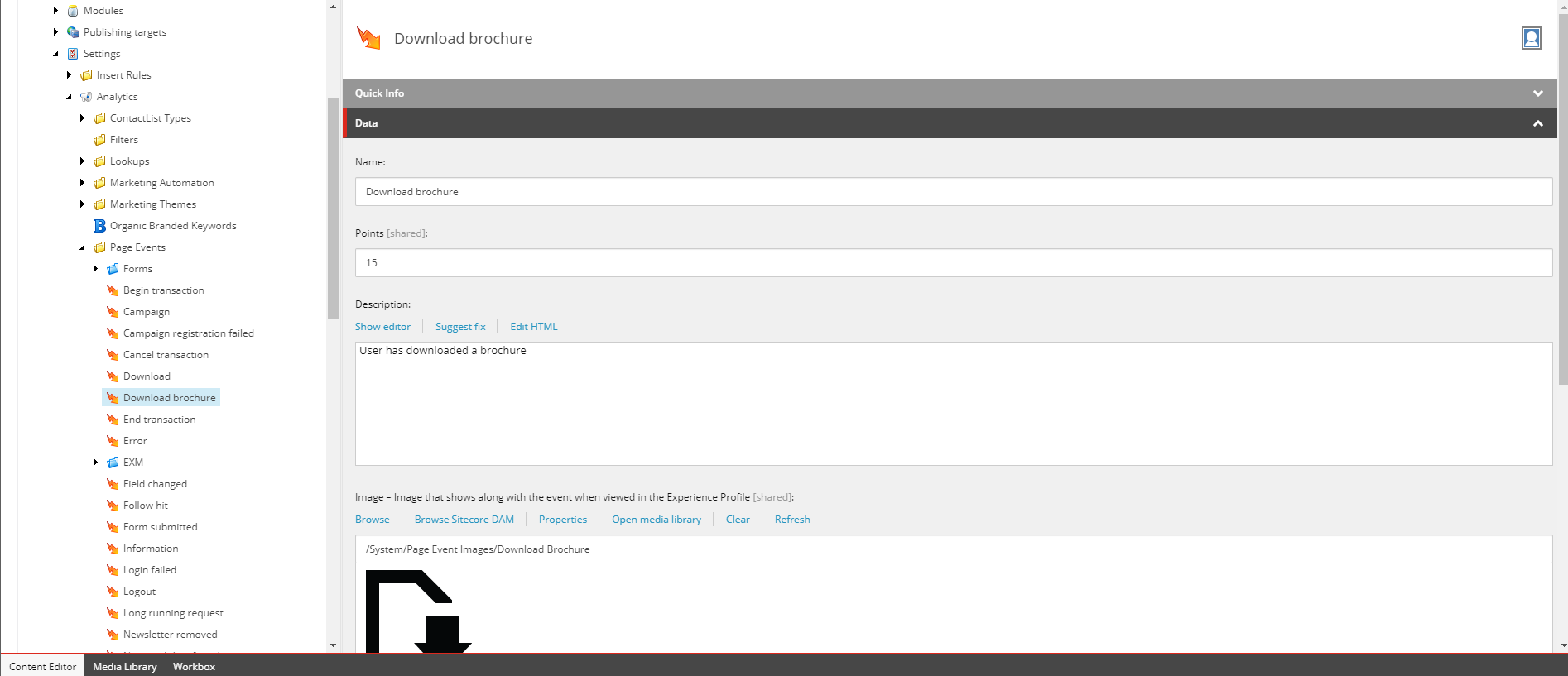
4. In the **Select Media** dialog box, select an existing image or choose an image of your own to upload.
5. Save your changes.