---
title: "Preview a webpage"
slug: "preview-a-webpage"
abstract: "Use the preview functionality to preview your website without publishing it first."
---
# Preview a webpage
The preview functionality lets you preview all your items on your website before you publish them.
The preview functionality lets you:
- Specify a preview date, so that you can see how your website looks at a point in the past or future, according to the [publishing restrictions](https://doc.sitecore.com/xp/en/users/91/sitecore-experience-platform/set-up-publishing-restrictions-for-an-item.html "Set up publishing restrictions for an item") that you have set up.
- See how a webpage looks in different language versions.
- Preview how the page displays on different devices.
We recommend that you only preview items that are *publishable*. That is, when:
- The **Publishable from** field is set to today's date or earlier.
- The **Publishable to** field is set to today's date or later
- The item is in the final workflow state.
If you try to preview an item that isn't publishable, you'll get an an error. That's because the preview simulates what can be published immediately.
This topic outlines how to:
- [Preview a page from the Content Editor or the Experience Editor](https://doc.sitecore.com/xp/en/users/91/sitecore-experience-platform/preview-a-webpage.html#UUID-1fe0a16b-1a7b-20dc-72e3-b3d0799aac51_id__Preview_a_page "Preview a page from the Content Editor or the Experience Editor")
- [Preview a page in the Device Simulator](https://doc.sitecore.com/xp/en/users/91/sitecore-experience-platform/preview-a-webpage.html#UUID-1fe0a16b-1a7b-20dc-72e3-b3d0799aac51_id__Preview_a_page_1 "Preview a page in the Device Simulator")
- [Preview the default website from the Sitecore Desktop](https://doc.sitecore.com/xp/en/users/91/sitecore-experience-platform/preview-a-webpage.html#UUID-1fe0a16b-1a7b-20dc-72e3-b3d0799aac51_section-5c1cae5595b3e-idm45554940918944 "Preview the default website from the Sitecore Desktop")
Preview a page from the Content Editor or the Experience Editor
You can preview the currently selected page in preview mode.
To preview a webpage:
1. Open the preview mode from either the Experience Editor or the Content Editor:
- On the Experience Editor ribbon, in the **Mode** group, click **Other**, **Preview**.
- In the Content Editor, on the **Publish** tab, in the **Publish** section, click **Preview**.
2. Select the preview parameters:
- **Date** - to view how the page will appear on a different date, on the **Experience** tab, in the **Date** group, click the date, or click the blue arrows to select the previous day or the next day.
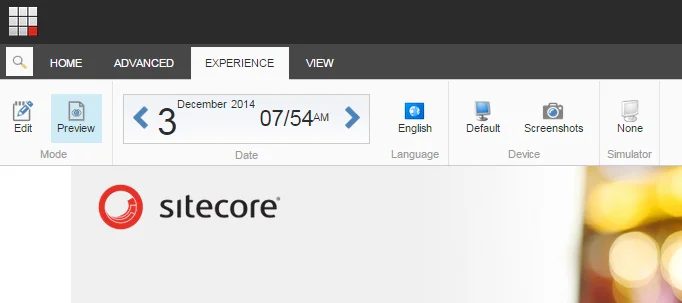
- **Language** – to view the page in a different language, on the **Versions** tab, in the **Language** group, click **Language**  and select the language that you want from the list that appears.
> [!note]
> You must have the necessary security permissions to access the Versions tab.
3. Navigate through the pages to preview your whole website.
> [!tip]
> In the preview mode, you can also use the search functionality to navigate to a specific page that you want to preview.
Preview a page in the Device Simulator
The Device Simulator lets you preview your website in a simulation of a different device, such as an iPhone, iPad, Android Phone, or Blackberry.
The Device Simulator is not a pixel-perfect rendition of the website as it appears on each device. However, it gives you a good indication of how the device presents the website and it lets content authors quickly see how pages look on mobile devices.
To preview a page in the Device Simulator:
1. In the Experience Editor, on the **Experience** tab, in the **Mode** group, click **Other**, **Preview**.
2. In the **Simulator** group, click the device icon and select a device.
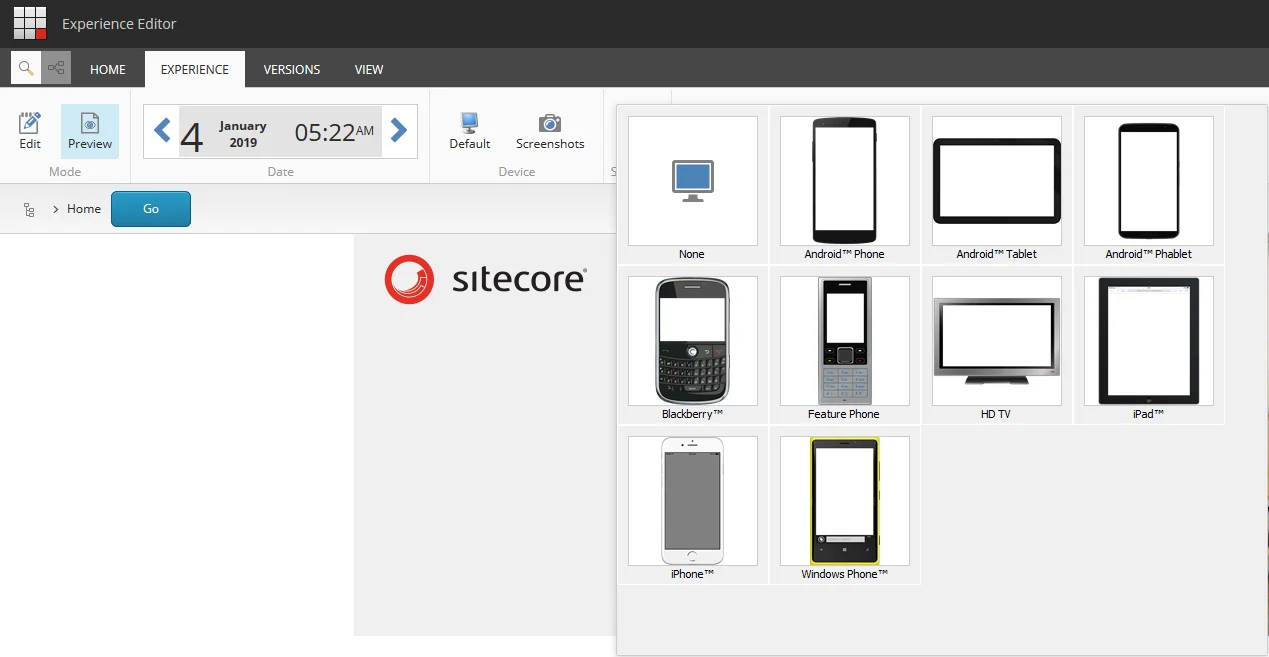
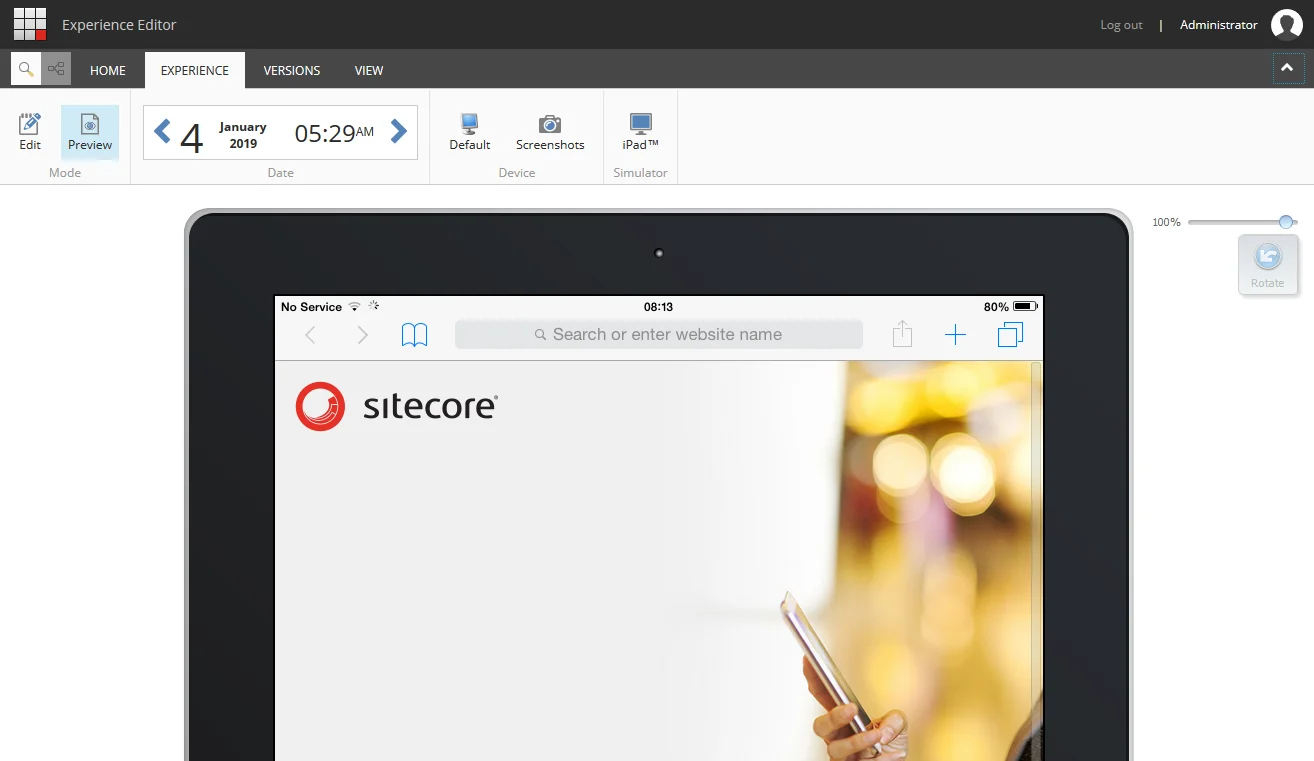
3. In the Device Simulator, all the navigation remains fully functional. You can:
- Browse through the website.
- Click **Rotate** to change the orientation of the device.
- Scroll up and down, as well as left and right.
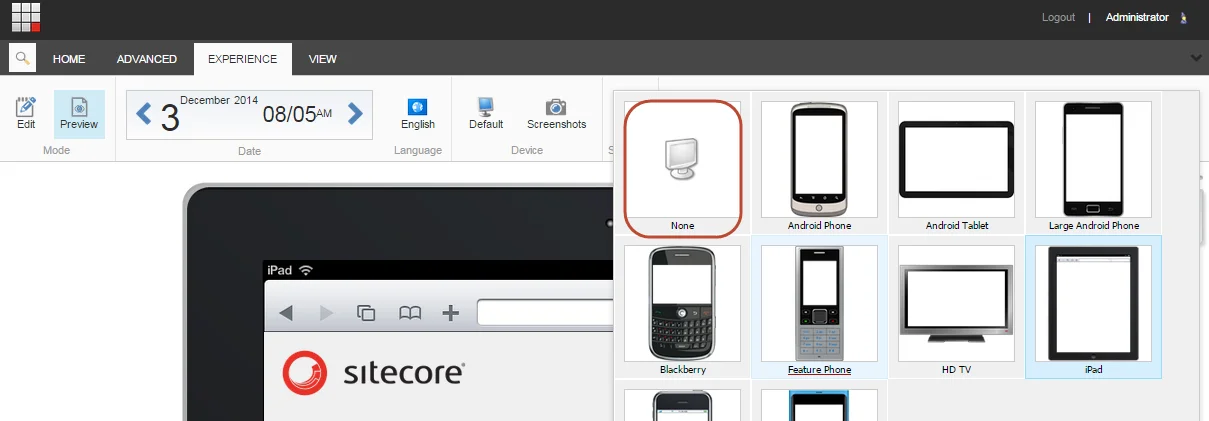
4. To return to the default page preview, click the device icon and in the drop-down menu, click **None**.
Preview the default website from the Sitecore Desktop
You can preview your website from the Sitecore Desktop.
To preview a website from the Sitecore Desktop:
- In the Sitecore Desktop menu, click **Preview**.
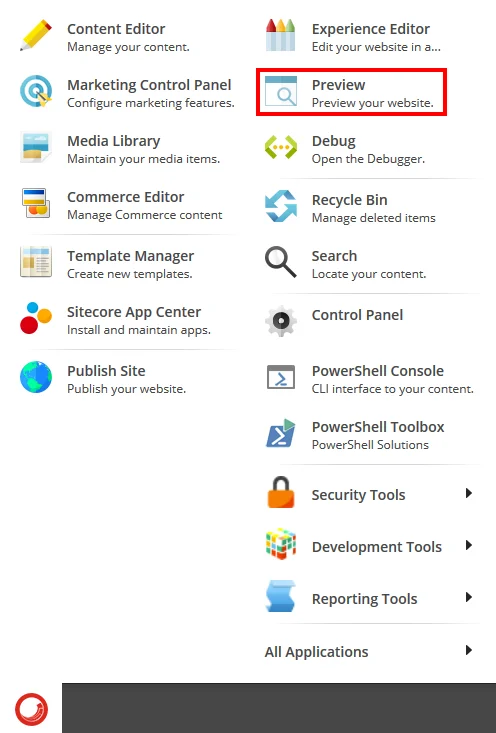
Sitecore displays a preview of the default website in a new window.
> [!note]
> If you do not have permission to view the default website, you receive an error message. (An administrator can change the `Preview.DefaultSite` setting in the `sitecore.config` file. The configuration applies to all users.)