---
title: "Search for an item"
slug: "search-for-an-item"
abstract: "Describes how to search for an item using the Content Editor or Experience Editor."
---
# Search for an item
In Sitecore, you can search for an item in a number of ways:
- From the Content Editor:
- In the content area on a **Search** tab, where the search runs through the selected item only.
- In the content tree, where the search runs through all the items in the content tree, starting from the selected item.
- From the Experience Editor:
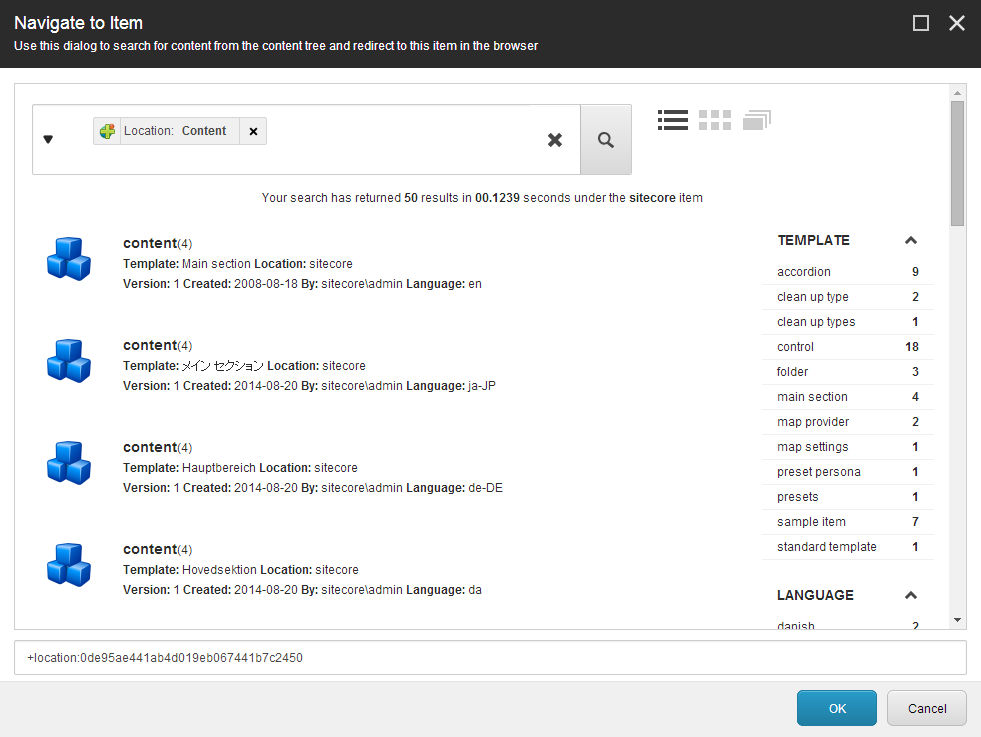
- In the **Navigate to Item** dialog box, where the search runs through all the items in your Sitecore installation.
This topic outlines how to:
- [Search for an item in the Content Editor or the Experience Editor](https://doc.sitecore.com/xp/en/users/91/sitecore-experience-platform/search-for-an-item.html#UUID-6e000109-aaa3-c1e9-a468-255605fd6e99_id__Search_for_an "Search for an item in the Content Editor or the Experience Editor")
- [Search for an item from the content tree in the Content Editor](https://doc.sitecore.com/xp/en/users/91/sitecore-experience-platform/search-for-an-item.html#UUID-6e000109-aaa3-c1e9-a468-255605fd6e99_id__Search_for_an_1 "Search for an item from the content tree in the Content Editor")
- [Add a criterion to a search from the content tree in the Content Editor](https://doc.sitecore.com/xp/en/users/91/sitecore-experience-platform/search-for-an-item.html#UUID-6e000109-aaa3-c1e9-a468-255605fd6e99_id__Add_a_criterion "Add a criterion to a search from the content tree in the Content Editor")
Search for an item in the Content Editor or the Experience Editor
> [!important]
> When you run a search in the Content Editor on a Search tab, you only search through the descendants of the selected item. In the Experience Editor, the search runs through all the items across all your Sitecore websites.
To search for an item:
1. Open the Content Editor or the Experience Editor:
- In the Content Editor, in the content tree, navigate to the item that you want to run your search from. In the editing pane, click **Search**  to open a new search tab.
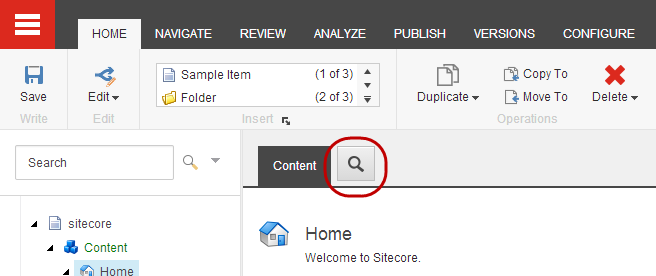
> [!note]
> If you select an item bucket, the Search tab opens by default.
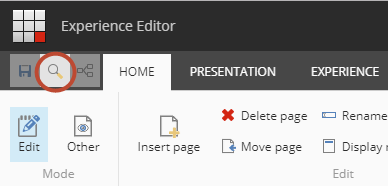
- In the Experience Editor, on the ribbon, click the search icon to open the **Navigate to Item** dialog box, where you can search among all the Sitecore items.
2. In the **Search** field, enter the keywords that characterize the items that you want to search for, or build a query.
> [!tip]
> In the Search field, you can enter \* to search for all available items — in the Content Editor, this means all the descendants of the selected item and in the Experience Editor, this means all items in your Sitecore installation.
3. Press **Enter** or click **Search** .
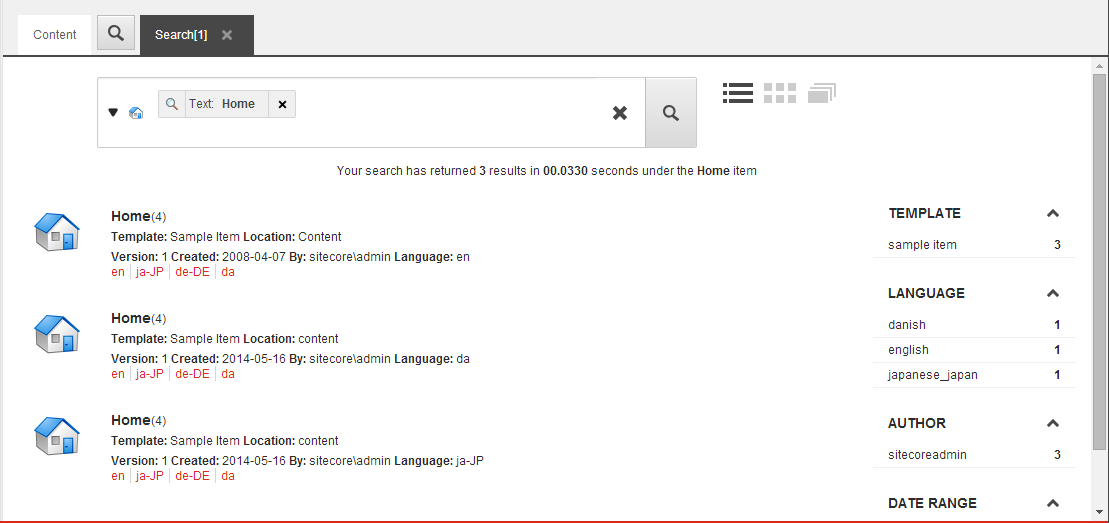
4. To filter the search results, use the facets to the right of the search results, and to change the view of the results, you can click one of the view buttons  to the right of the **Search** field.
> [!note]
> If you change the view, the search is launched again based only on the keywords and filters in the Search field.
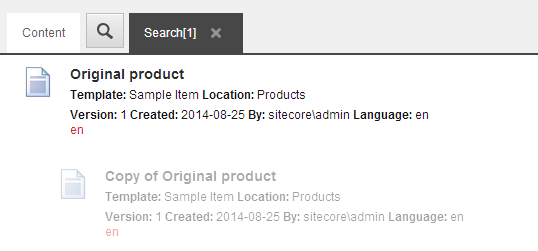
Note that in the search results, a clone is greyed-out and represented with an indent.
5. To open an item from the search results:
- In the Content Editor, click the title of the item to open it in a new tab.
- In the Experience Editor, select the item and click **OK**. The Experience Editor then redirects to the page where the selected item is located.
> [!tip]
> If you are working on multiple websites, you can search for an item on another website and use this search functionality to redirect to the Experience Editor from one site to another.
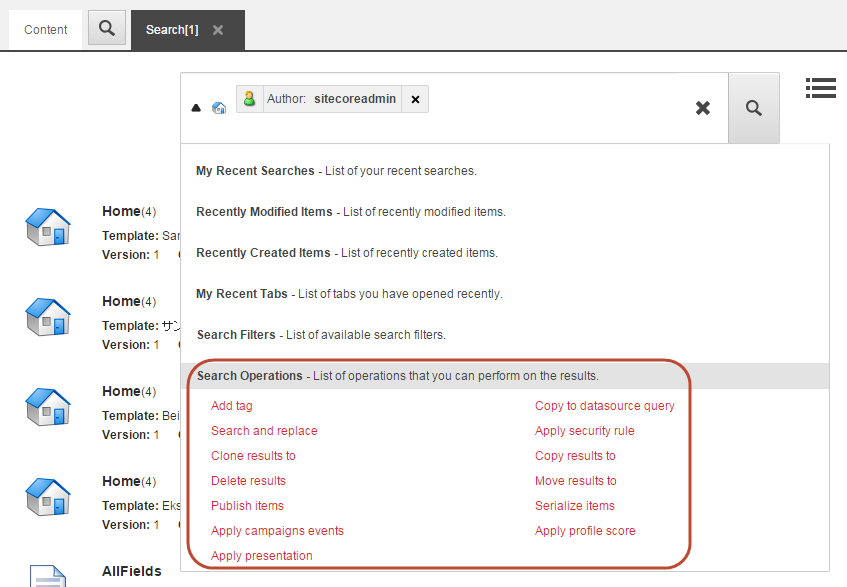
6. Alternatively, you can perform certain operations on all the items directly from the search. To [perform an operation on all the search result items](https://doc.sitecore.com/xp/en/users/91/sitecore-experience-platform/perform-an-operation-on-search-results.html "Perform an operation on search results"), click the down arrow to the left of the search field, expand **Search Operations**, and select the operation that you want to perform on all your search results.
Search for an item from the content tree in the Content Editor
If you want to do a quick and simple search through the content tree, you can use the search function associated with the content tree in the Content Editor.
> [!note]
> The search runs through the entire content tree starting from the selected item. This means that the search results found at the starting point are listed first.
To search for an item using the content tree search:
1. In the content tree, select the item that you want to start the search from.
2. In the **Search** field, enter the keyword that you want to search for. This can be any character, number, word, and so on.
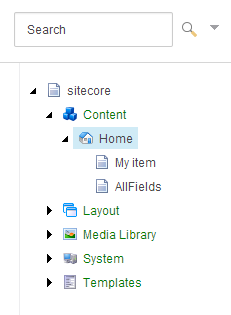
3. Click **Search**  or press **ENTER** to perform the search.
Add a criterion to a search from the content tree in the Content Editor
If you need to search in a specific field or for more than just one item or keyword, you can, from the drop-down menu, perform a search in a specific field and add more criteria to the search.
To add a criterion to your search:
1. In the content tree, select the item that you want to start the search from.
2. In the **Search** field, click the drop-down arrow.
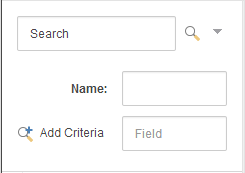
3. To perform a search only in the items' **Name** field, in the **Name** field, enter the name of the item you want to search for.
If you want to search in a different field, click **Name,** and in the drop-down menu that appears, all the fields in the current item are displayed. Click the field that you want to search in and enter the relevant search word.
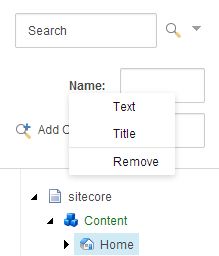
4. To add a custom criterion, in the **Add Criteria** field, enter the name of the criterion and then click **Add Criteria**.
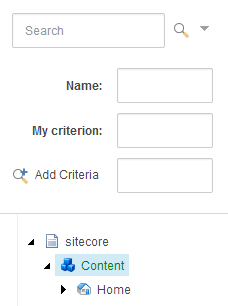
You can click the name of the criterion to change it to one of the predefined criteria.
5. Enter the value for the custom criterion and press **ENTER**. To remove the criterion, click the criterion name and then click **Remove** at the bottom of the menu that appears.
6. To open a search result in the content area, click a search result.