---
title: "Create a contact list or a segmented list"
slug: "create-a-contact-list-or-a-segmented-list"
abstract: "How to create new Segmented lists and Contact lists."
---
# Create a contact list or a segmented list
In the List Manager, you can create two types of lists – a segmented list and a contact list. For each list type, you can create lists with different list sources included:
- **Contact list**
- **Contact list from existing list** – create a new contact list from an existing contact list.
- **Empty Contact list** – create a contact list with no contacts included. For example, use the empty list to collect the visitors that sign up for a newsletter on your website or that trigger a message.
- **Create list from file** – import contacts from a CSV file and create a contact list that includes all the imported contacts.
- **Segmented list**
- **Segmented list from all contacts** – create and segment a list from all the contacts in Sitecore.
- **Segmented list from existing list** – create and segment a list from an existing contact list.
Create a contact list or a segmented list
To create a list:
1. In the List Manager, click **Create** and in the menu that appears, in the **Create list** section, click the list type that you want to create.
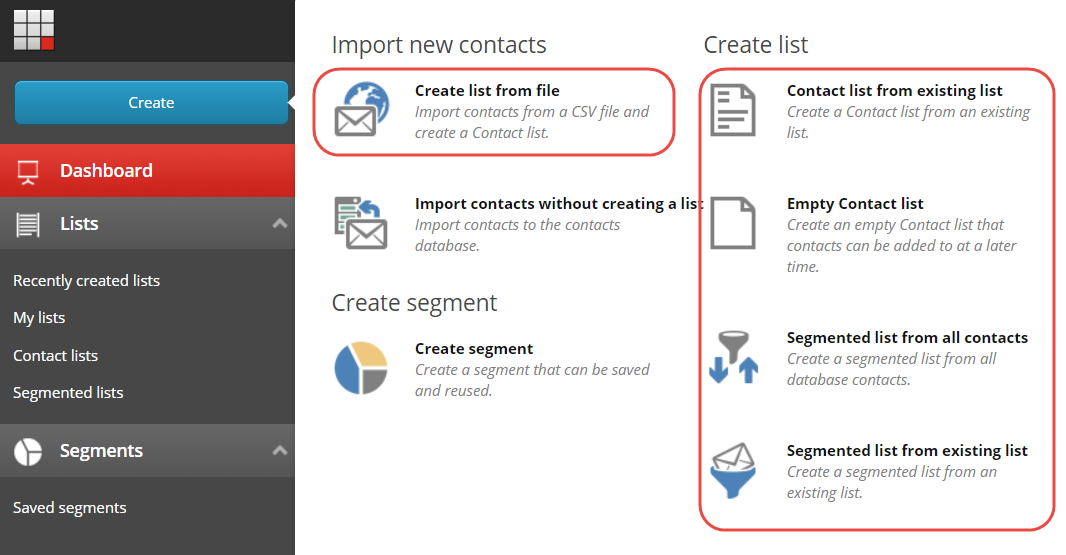
- If you clicked **Create list from file**, import the new contacts in the **Import contacts** wizard.
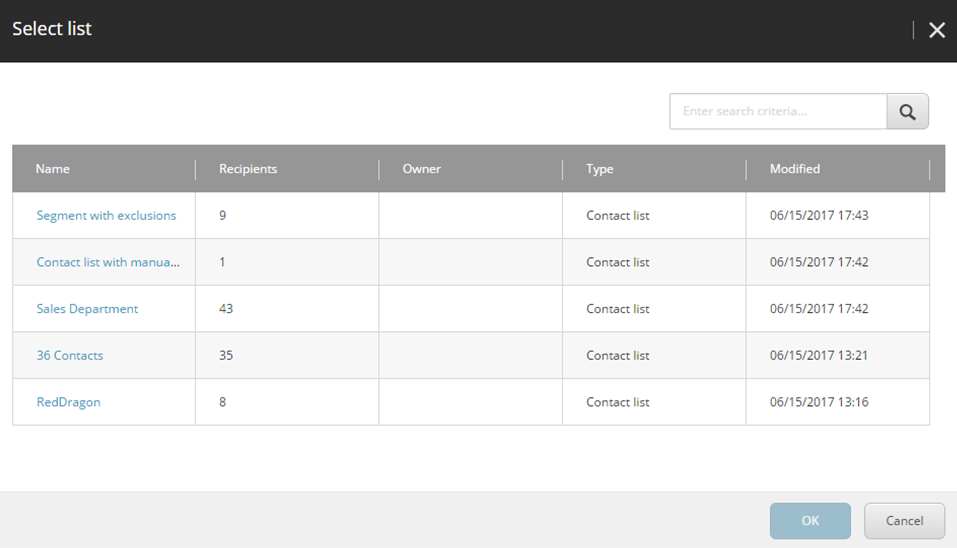
- If you clicked **Contact list from existing list** or **Segmented list from existing list**, in the **Select list** dialog box, search for the list that you want to include in your new list and click **OK.**
You can only use contact lists as the source for a new list. When you have finished creating the list, you can add or exclude additional lists.
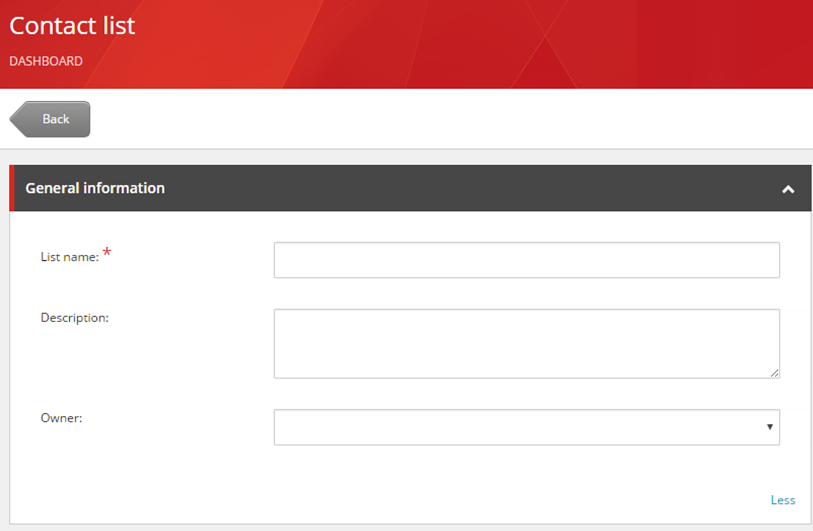
2. In the **General information** section, enter a name for the list and click **Save**. If relevant, you can also add a description or an owner of the list.
> [!note]
> Do not use any of the following special characters in the list name: + -&| ! ( ) { } \[ \] ^ " ~ \* ? : /
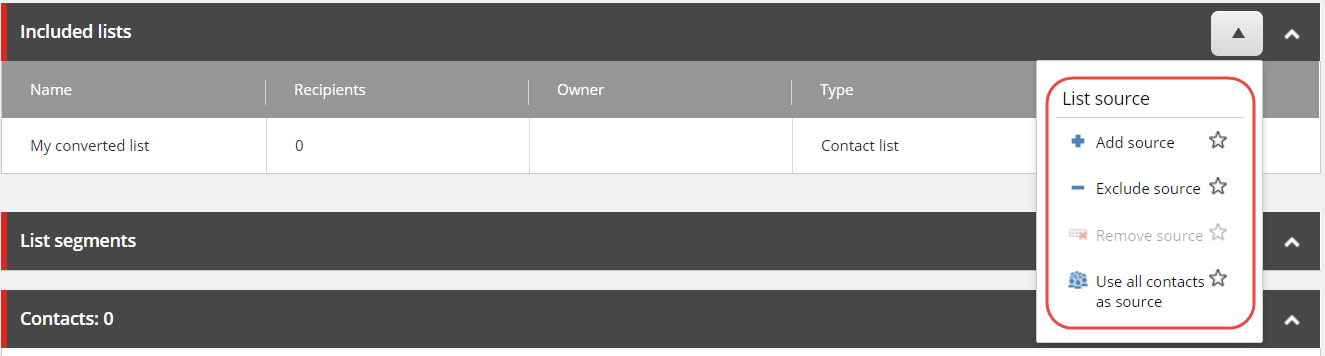
3. For the new list, you can now add or exclude additional list sources. To add or exclude a contact list to your new list, in the **Included lists** section, click the drop-down arrow :
- To add another contact list, click **Add source**.
- To exclude a contact list, click **Exclude source**.
- For a segmented list, to use all your contacts as source for the segmentation, click **Use all contacts as source**.
4. In the **Select list** dialog box, search for or navigate to the relevant list and click **OK**. You can add or exclude as many list sources as you want but only one at a time.
5. Save your changes.
> [!note]
> After you have created a list with multiple sources, you must remove the duplicate contacts from the list to make sure that each contact only appears once in your list.
If you add new contacts to a list source of an existing contact list, the contact list is not updated accordingly. However, when you add or remove a list source of an existing contact list, the contact list is rebuilt, which means that all the new contacts in both existing and new list sources are added to the contact list. Depending on the number of contacts included in your list, this can take a considerable amount of time.
Segment the included contacts in a segmented list
When you create a segmented list, you can add existing segments or create and add new segments to the list to further segment the contacts in the included list source.
To add segments to your segmented list:
1. In the **List segments** section, click the drop-down arrow .
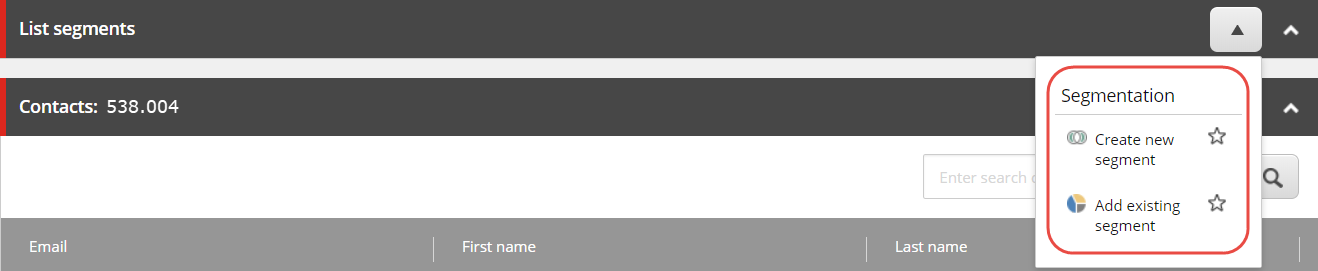
2. In the drop-down menu:
- To create a new segment, click **Create new segment**. In the **Create segment** dialog box, [create the new segment](https://doc.sitecore.com/xp/en/users/93/sitecore-experience-platform/create-a-contact-list-or-a-segmented-list.html "Create a contact list or a segmented list") by adding a name and the relevant rules for the segment.
- To add a saved segment, click **Add existing segment**. In the **Select segment** dialog box, click the segment you want to add to the list and click **OK**.
> [!note]
> You can use the search to quickly find the relevant segment.
3. In the **List segments** section, review the rules and conditions that are used to segment the contacts in the segmented list.
4. To update the **Contacts** section to show only the contacts in the current contact list that meet the specified conditions, click **Save**.
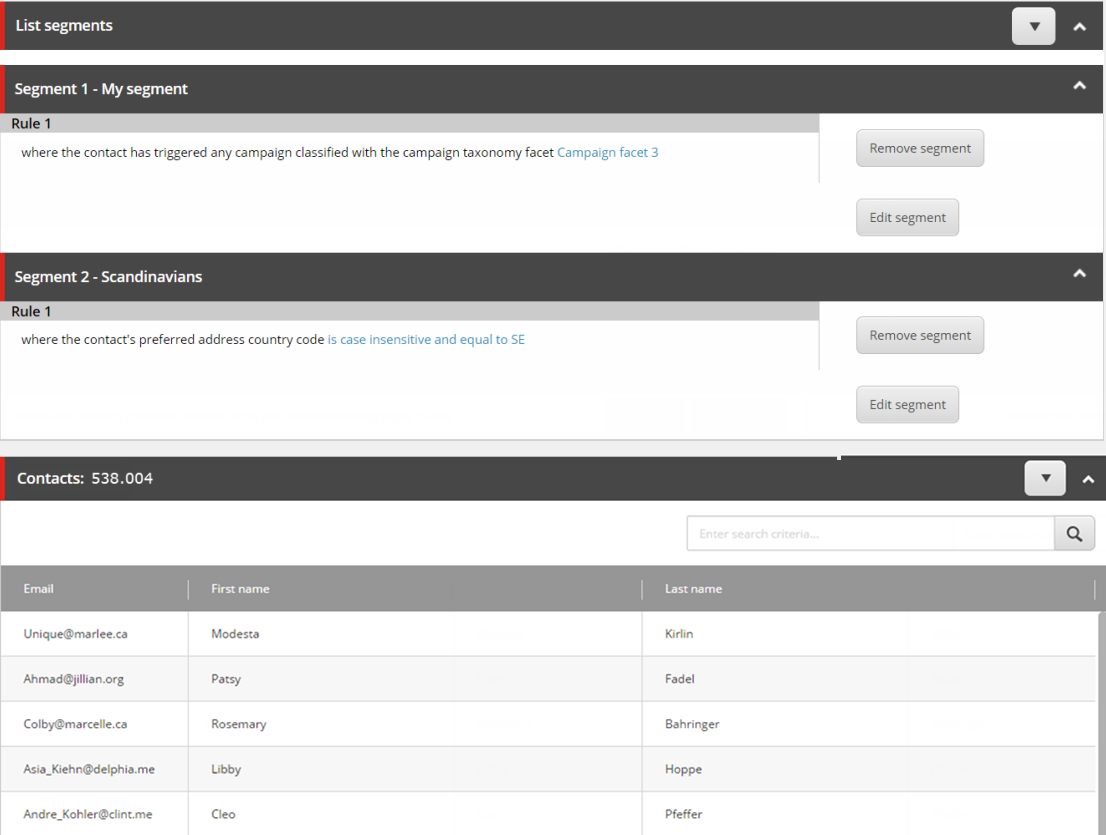
5. You can edit or remove the segment from the list at any time.
- To remove the segment from this list only, click **Remove segment**.
- To edit the segment, click **Edit segment**. When you edit the segment, the segment is updated everywhere that it is used in Sitecore.