---
title: "Setting up RSS feeds"
slug: "setting-up-rss-feeds"
abstract: "This walkthrough describes how to set up RSS feeds."
---
# Setting up RSS feeds
In the Content Editor, you can set up RSS feeds for any item but, typically, you would set it up for items that are updated regularly, for example, news items and blogs.
This walkthrough describes how to set up an RSS feed for an item and outlines how to:
- [Create a folder for the RSS feeds](https://doc.sitecore.com/xp/en/users/93/sitecore-experience-platform/setting-up-rss-feeds.html#UUID-30c22954-aedb-13dd-25fd-f1fea651def2_id__Create_a_folder "Create a folder for the RSS feeds")
- [Create an RSS feed](https://doc.sitecore.com/xp/en/users/93/sitecore-experience-platform/setting-up-rss-feeds.html#UUID-30c22954-aedb-13dd-25fd-f1fea651def2_id__Create_an_RSS "Create an RSS feed")
- [Configure the RSS feed](https://doc.sitecore.com/xp/en/users/93/sitecore-experience-platform/setting-up-rss-feeds.html#UUID-30c22954-aedb-13dd-25fd-f1fea651def2_id__Configure_the_RSS "Configure the RSS feed")
- [Create a link on your website to the RSS feed](https://doc.sitecore.com/xp/en/users/93/sitecore-experience-platform/setting-up-rss-feeds.html#UUID-30c22954-aedb-13dd-25fd-f1fea651def2_id__Create_a_link "Create a link on your website to the RSS feed")
Create a folder for the RSS feeds
First you need to create a folder where you can store your RSS feed items.
To create a folder for the feeds:
1. In the Content Editor, in the content tree, select the **Home** item of the website.
2. On the **Home** tab, in the **Insert** group, click the drop-down arrow and click Insert from template.
3. Click the **Browse** tab and navigate to *Templates/Common/Folder*.
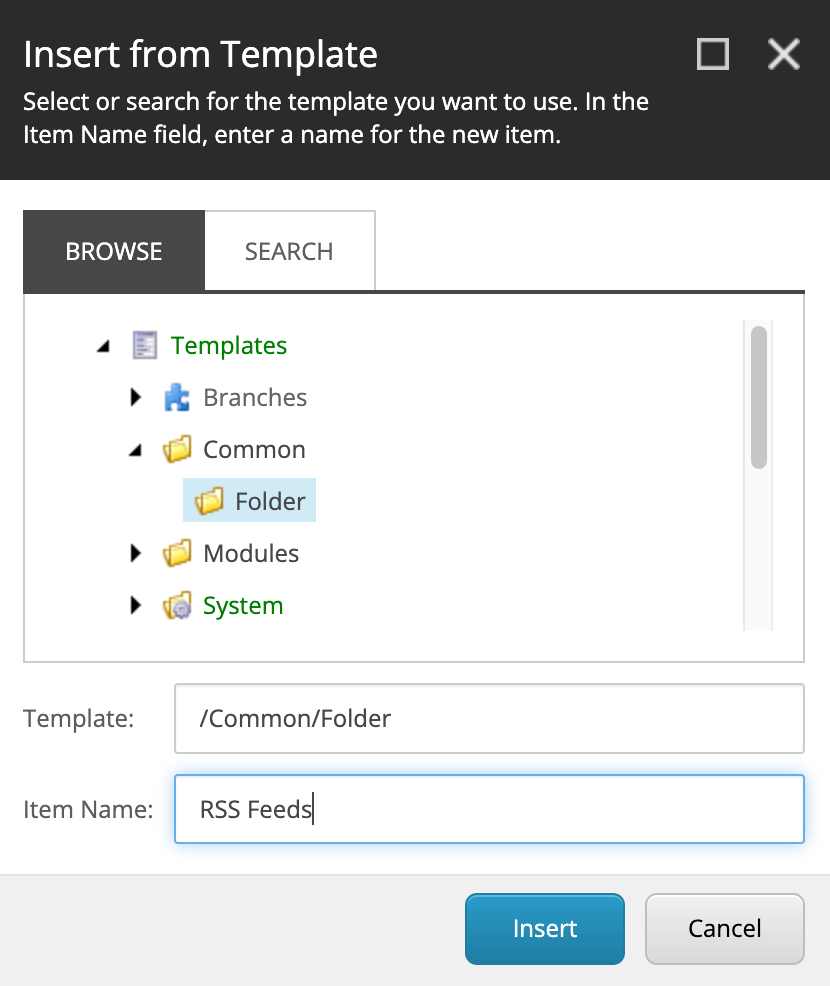
4. Give the new folder a name — *RSS Feeds*.
Create an RSS feed
Now that you have created a folder to store the RSS feeds in, you can create an RSS feed and link it to the item you want to include in the RSS feed.
To create an RSS feed in the Content Editor:
1. In the Content Editor, select the RSS Feeds folder that you just created.
2. On the **Home** tab, in the **Insert** group, click **Insert from Template**.
3. In the **Insert from Template** dialog box, navigate to *Templates/System/Feeds/*, and select RSS Feed to create a feed based on this template.
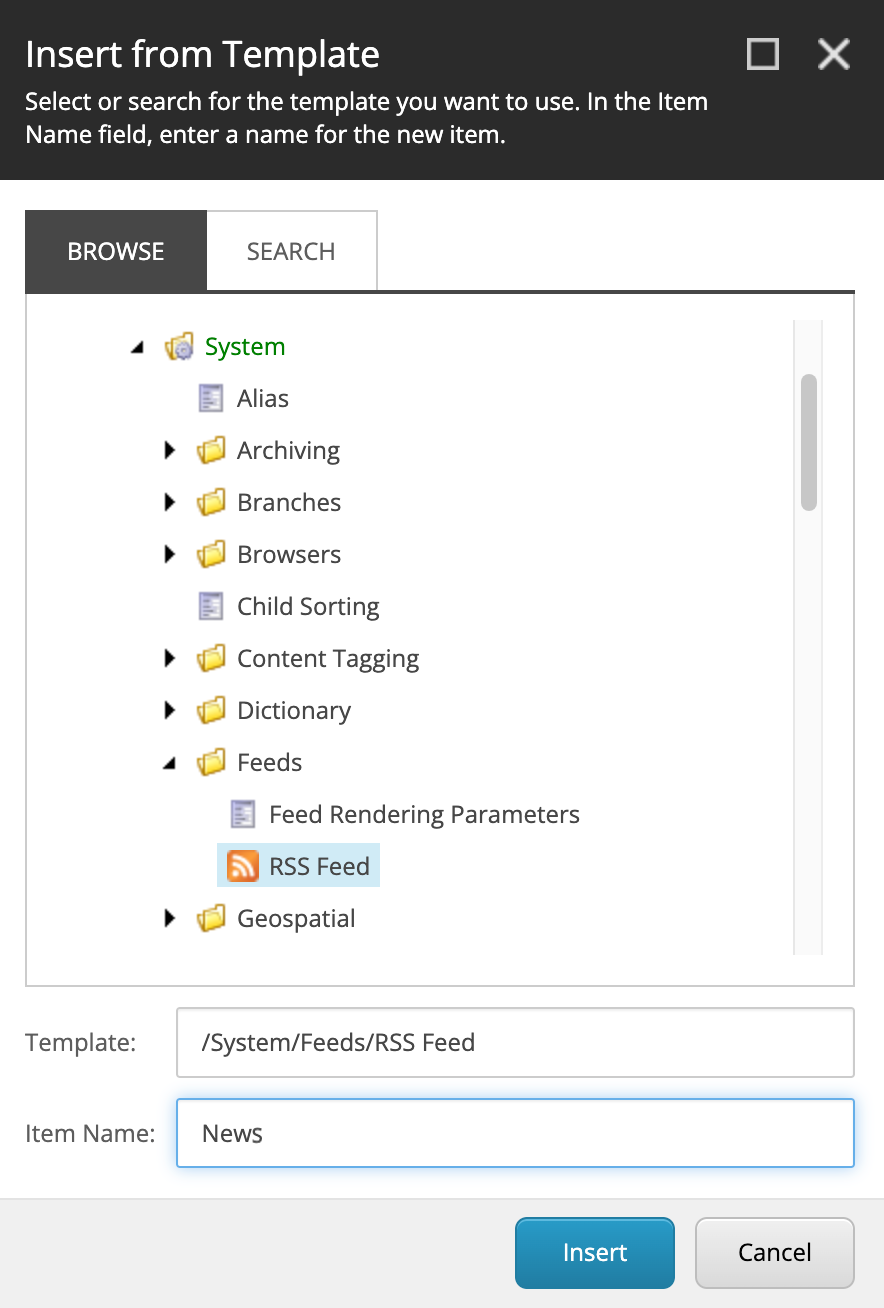
4. In the **Item Name** field, enter a name for the new feed.
5. Click **Insert** and the new feed item is created and opened in the Content Editor.
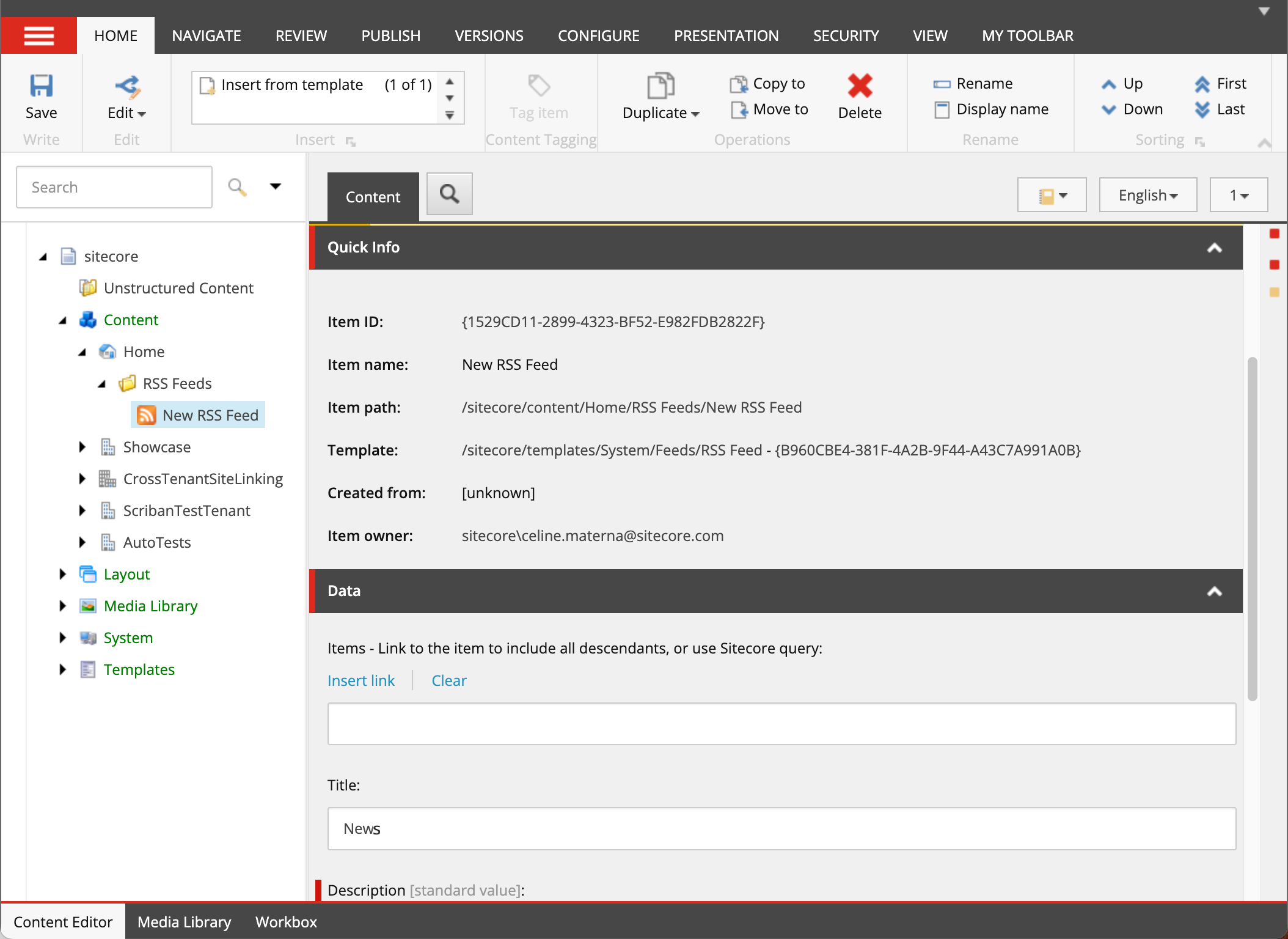
The new feed displays a warning, informing you that the feed is empty and that you must select an item to include in the feed.
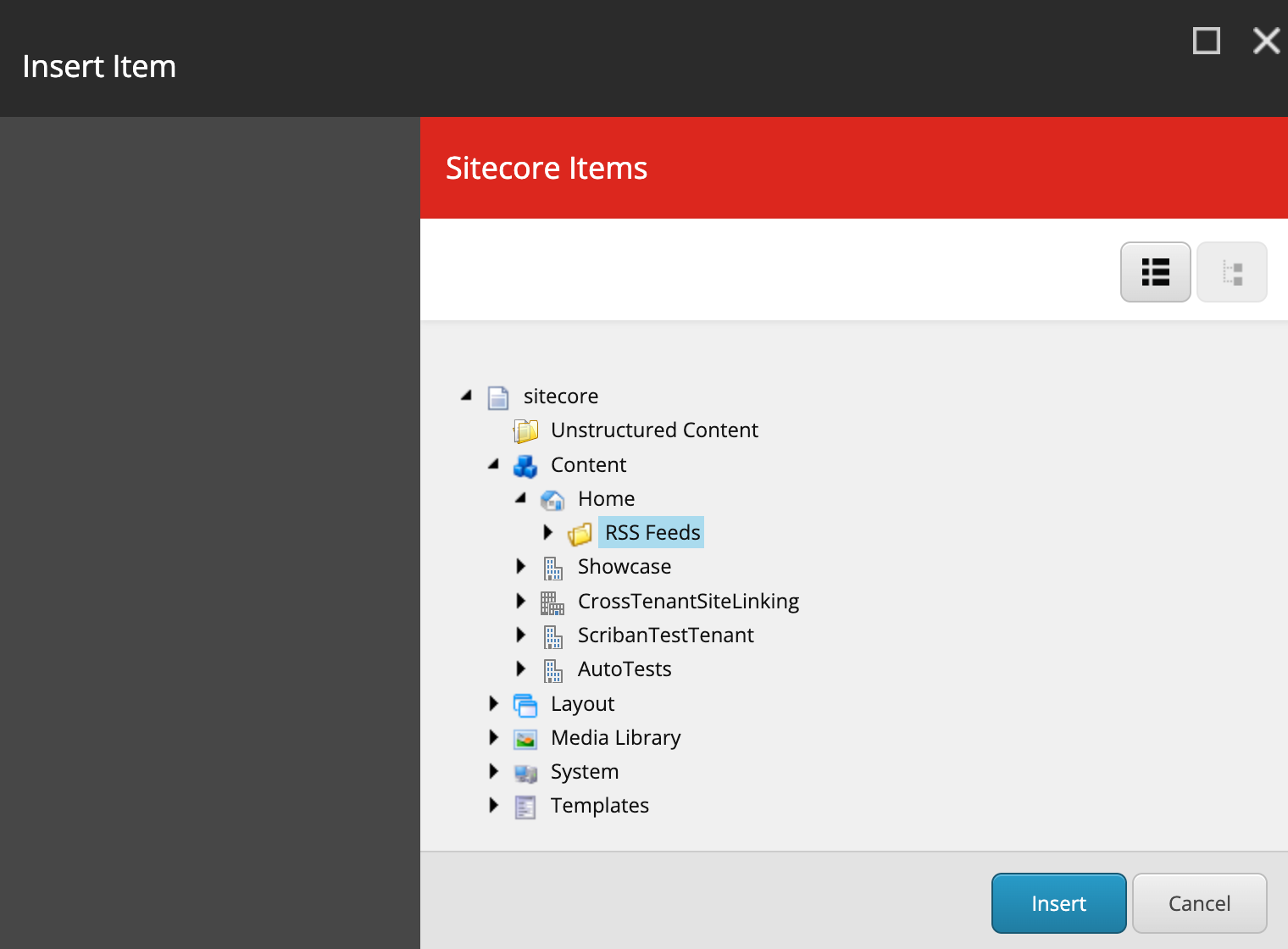
6. On the **Content** tab, in the **Data** section, for the **Items** field, click **Insert Link**.
7. In the **Insert Item** dialog box, click the item that you want to include in the RSS feed and then click **Insert**.
> [!note]
> You can only create an RSS feed to an item that has subitems. If you create an RSS feed to an item that does not have any subitems, Sitecore tells you that the feed is empty.
8. In the **Description** field, enter a description of the RSS feed.
9. Save the new feed item.
Configure the RSS feed
Now, you must configure how the feed information is presented in the RSS feed. The feed should not tell subscribers that the item is updated; instead, it should contain information about the information items that are created or updated.
To configure how the RSS feed is presented:
1. In the Content Editor, expand the item that you linked the RSS feed to and click one of its subitems.
2. On the **Presentation** tab, in the **Feeds** group, click **Design**.
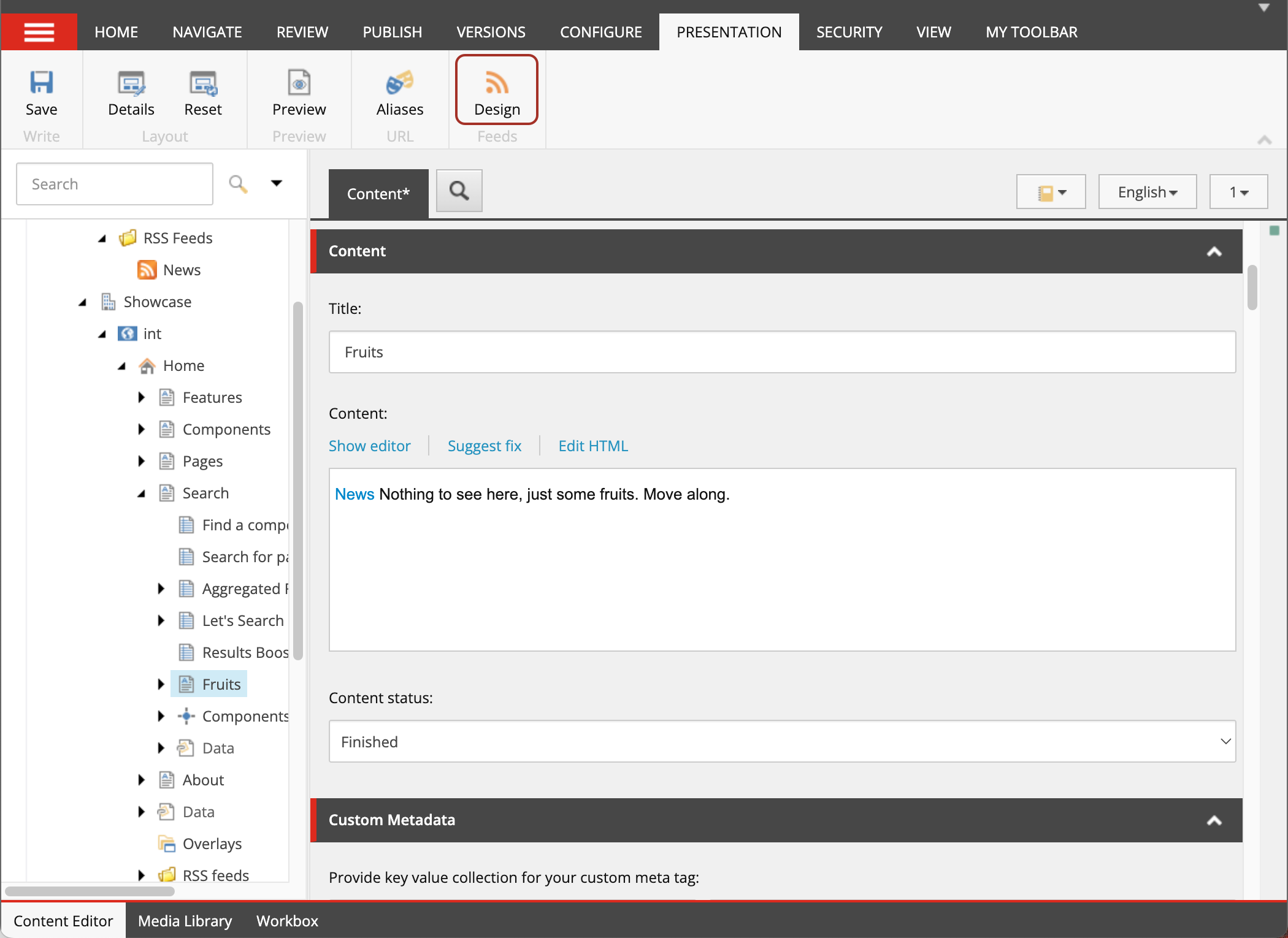
3. In the **RSS Feed Design** dialog box, specify how the feed is presented to the user who subscribes to this RSS feed:
- **Title** - The item field that you want to appear in the title of the feed.
- **Body** - The item field that you want to appear in the body of the feed.
- **Date** - The date field that you want to appear in the feed. This could be, for example, the date the item was created, updated, or the date from which the news applies.
- **Preview** - A preview of the feed based on the selections above.
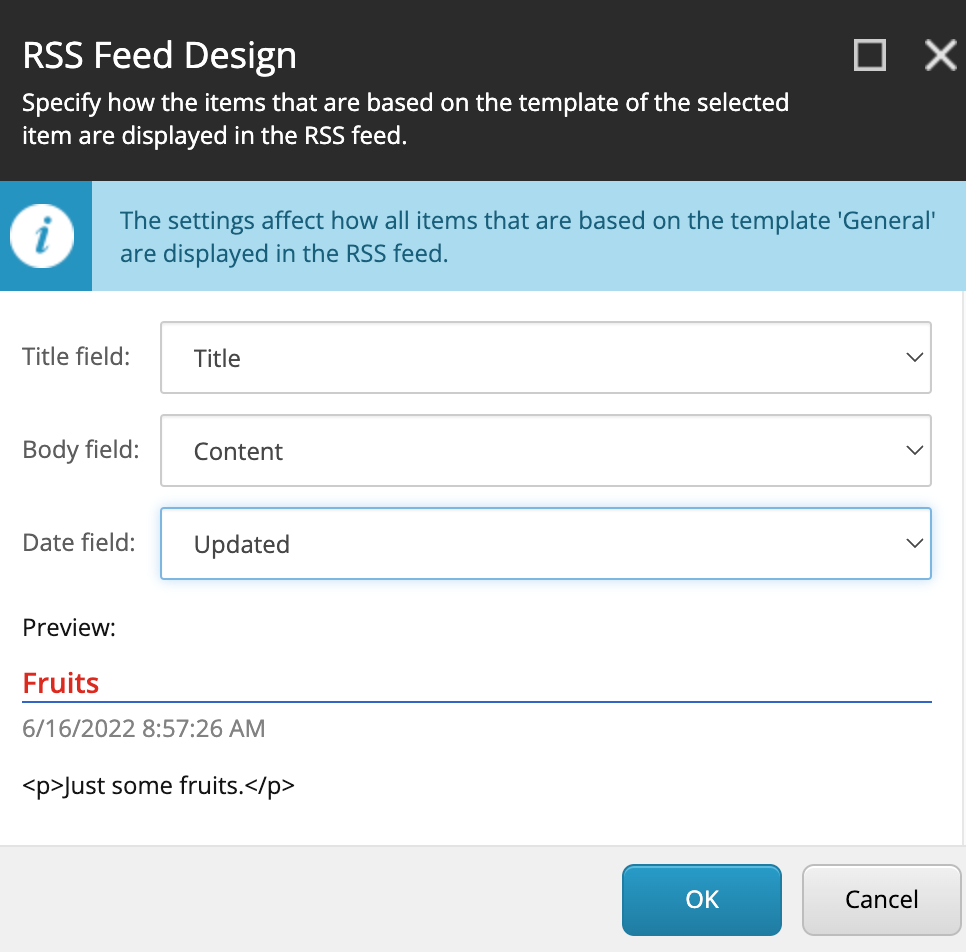
4. When you have filled in these fields, click **OK**.
On the **Presentation** tab, in the **Feeds** group, the **Design** button now has a green check mark  that indicates that an RSS feed has been designed for this item.
> [!important]
> When you specify a design for an item, all the other items that are based on the same template are presented in the same way in the feed. If some of the subitems are based on a different template, you must also specify how those items should be presented in the feed and make sure to set up RSS feed rendering correctly.
5. In the Content Editor, save your changes.
When you have configured how the feed should be presented, the RSS feed item should no longer display any warnings.
Create a link on your website to the RSS feed
After you have configured the RSS feed, you must create a link to the feed in the parent item so that users can subscribe to the feed from your website.
To create a link to the content item:
1. In the Content Editor, open the item that you created an RSS feed for - for example, News.
2. In the content area, on the **Content** tab, expand the **Page Title and Text** section and click **Show editor**.
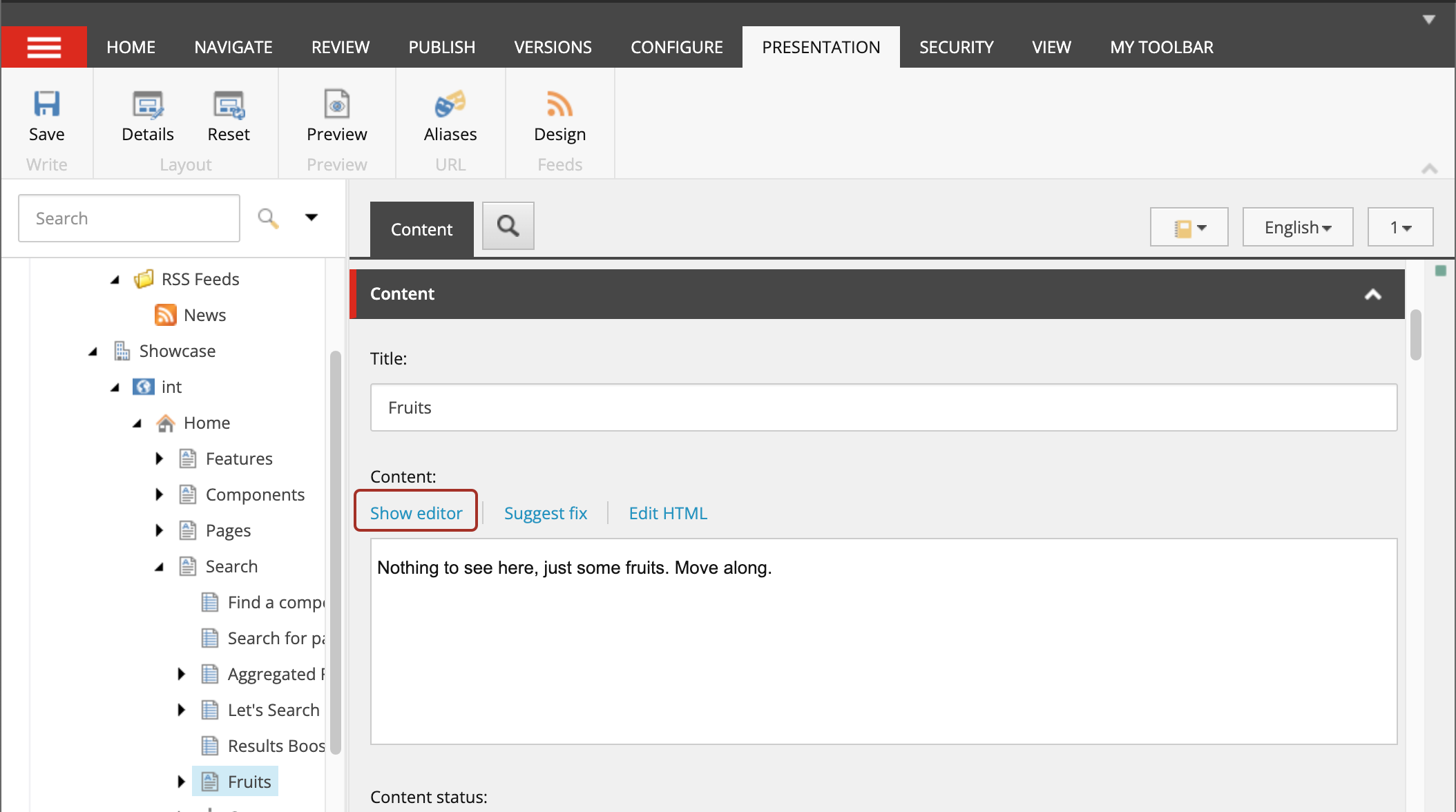
3. In the text editor, enter the text for the link, select the text and then click **Insert Sitecore Link** .
4. In the **Insert a Link** dialog box, on the **Internal Link** tab, navigate to the RSS feed item that you created earlier, or search for the RSS feed on the **Search** tab.
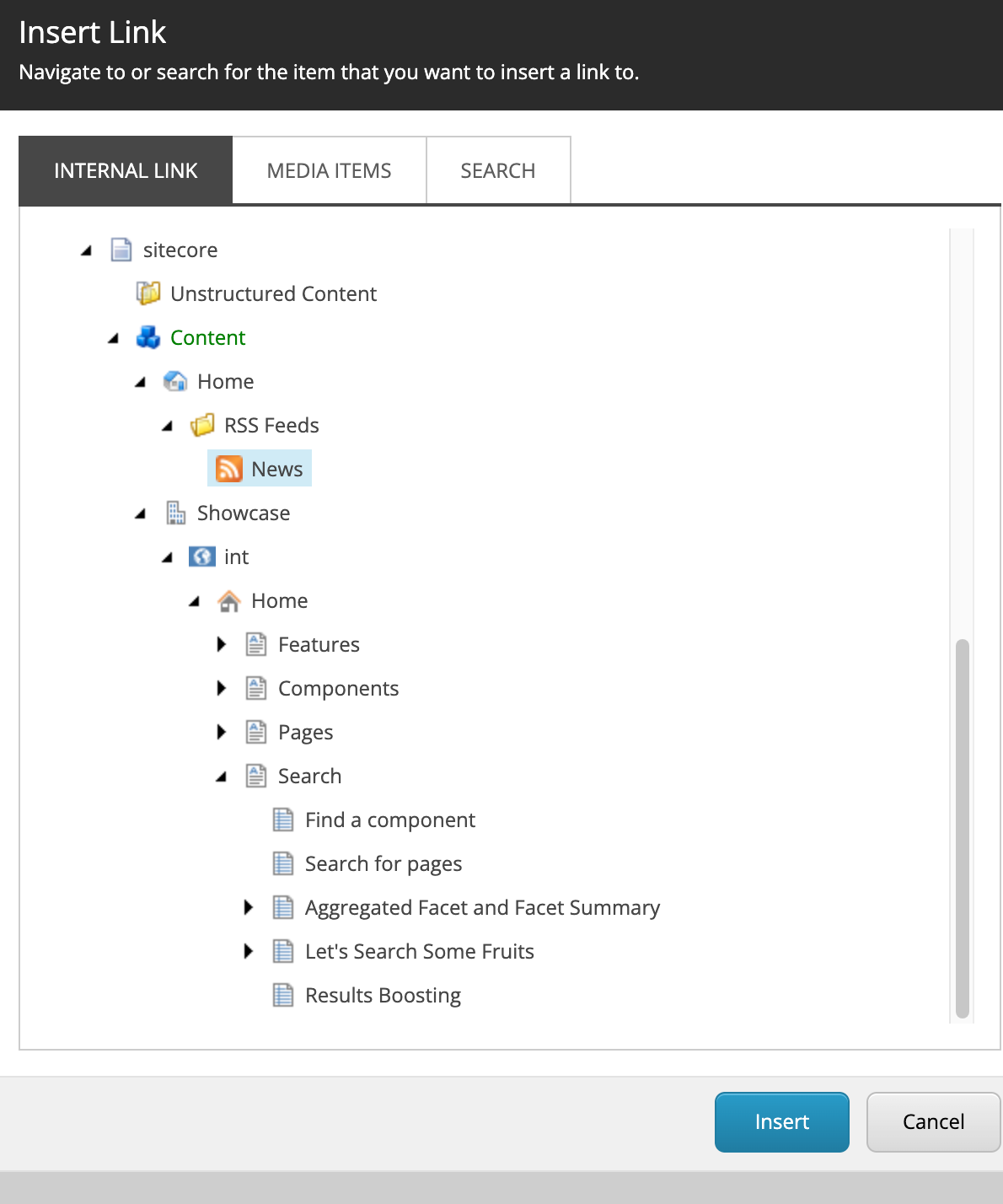
5. Click **Insert** to create the link.
6. Save your changes.