---
title: "Walkthrough: Running A/B tests on an email campaign message"
slug: "walkthrough--running-a-b-tests-on-an-email-campaign-message"
abstract: "Provides step-by-step instructions to test two or more variants of the same email campaign."
---
# Walkthrough: Running A/B tests on an email campaign message
A/B testing lets you to create two or more variants of the same email campaign and test which one receives the best response from the recipients.
We recommend that you test a maximum of two to three variants. You can create as many variants of the message as you like, but when you add more variants, you need a larger pool of recipients for the test results still to be clear and reliable.
You can only perform A/B testing on regular email campaigns, not on automated campaigns. It is not possible to test the messages based on the following templates: *Simple HTML message*, *Plain text message*, or *Existing page*.
Before you run an A/B test, we recommend that you [plan the criteria for the test](https://doc.sitecore.com/xp/en/users/exm/103/email-experience-manager/performing-a-b-tests-on-an-email-campaign-message.html "Performing A/B tests on an email campaign message"), such as how many recipients you want to send the test to, the timing of the test, and the number of message variations to include.
To prepare for, run, and complete an A/B test, you must carry out the following tasks:
- [Create one or more message variants](https://doc.sitecore.com/xp/en/users/exm/103/email-experience-manager/walkthrough--running-a-b-tests-on-an-email-campaign-message.html#UUID-b2323330-6944-6aea-00ea-bf25b2a1e1b5_id__Create_a_message "Create a message variant")
- [Start an A/B test](https://doc.sitecore.com/xp/en/users/exm/103/email-experience-manager/walkthrough--running-a-b-tests-on-an-email-campaign-message.html#UUID-b2323330-6944-6aea-00ea-bf25b2a1e1b5_id__Start_an_AB "Start an A/B test")
- [Select and send the winning message](https://doc.sitecore.com/xp/en/users/exm/103/email-experience-manager/walkthrough--running-a-b-tests-on-an-email-campaign-message.html#UUID-b2323330-6944-6aea-00ea-bf25b2a1e1b5_id__Select_and_send "Select and send the winning message").
> [!note]
> This task is only needed if you choose to select the winner yourself. You can also set up the test so that a winner is automatically selected.
Create a message variant
When you run an A/B test, you test different variations of the same message. For each variation in the message that you want to test, you must create a new variant of the original message. The original message is the first variant (*Variant A*), and any new message variants that you create are named Variant B, Variant C, and so on.
To create a new variant of a message:
1. Open the message that you want to perform an A/B test on.
2. Either add a new variant, or duplicate the original variant and all its content:
- To add a new variant, on the **Message** tab, click **Add variant** . This creates a new message variant based on the same template as the original message but where no content is replicated.
> [!note]
> Choose this option if you want to test comprehensive differences between the message variations, such as larger components or the layout of the message.
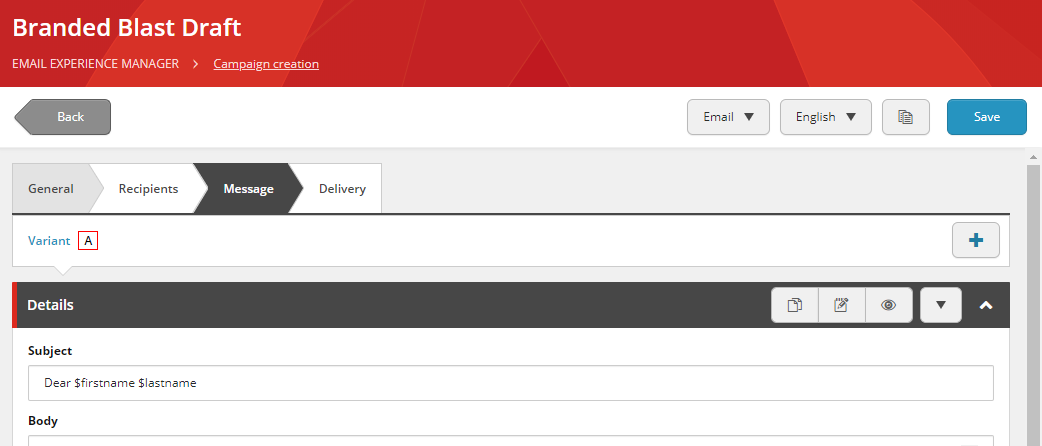
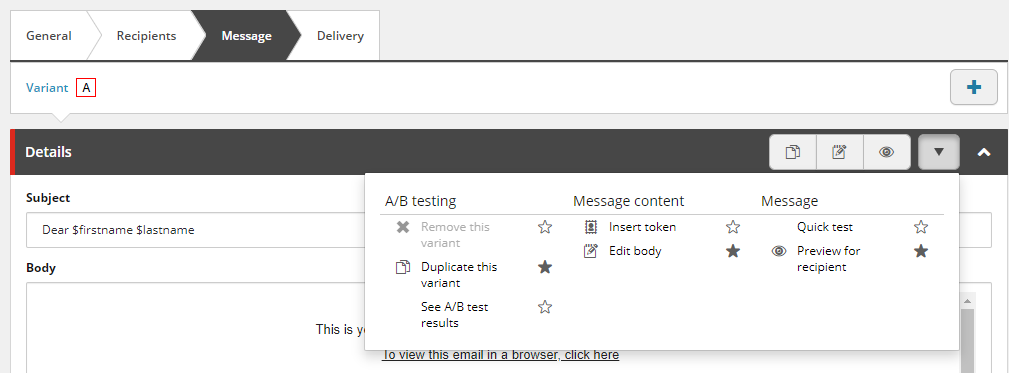
- To duplicate the original variant, click **Actions** and then **Duplicate this variant**. This creates a new variant of the original message by duplicating it and all of its content.
> [!note]
> Choose this option if you want to test minor differences between the variants, such as the subject line, images, or the name of a button.
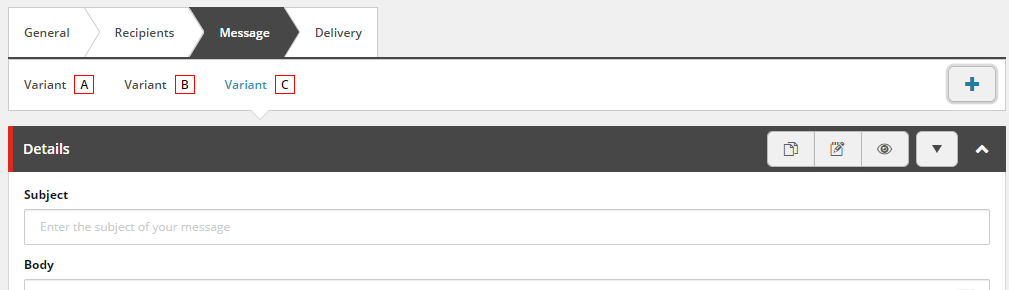
The message variants are displayed on individual tabs where you can easily toggle between the variants.
3. Make the necessary changes to the new message variant, for example, you can [change the message layout](https://doc.sitecore.com/xp/en/users/exm/103/email-experience-manager/edit-the-content-and-layout-of-an-email-message.html "Edit the content and layout of an email message"), change the images, or add new components.
> [!note]
> If you base your A/B test message on an [imported HTML template](https://doc.sitecore.com/xp/en/users/exm/103/email-experience-manager/add-content-to-an-email-message-that-is-based-on-an-imported-html-file.html "Add content to an email message that is based on an imported HTML file") only the Variant A contains the layout. For the other variants, you have to add the message layout manually.
4. When you have created all the message variants for the test, click **Save**.
Start an A/B test
After creating the message variants for the A/B test, decide how you want to send the messages, and choose how select the winning message should be selected.
To start an A/B test:
1. Open the message you want to send and, on the **Delivery** tab, click the variants that you want to include in the delivery.
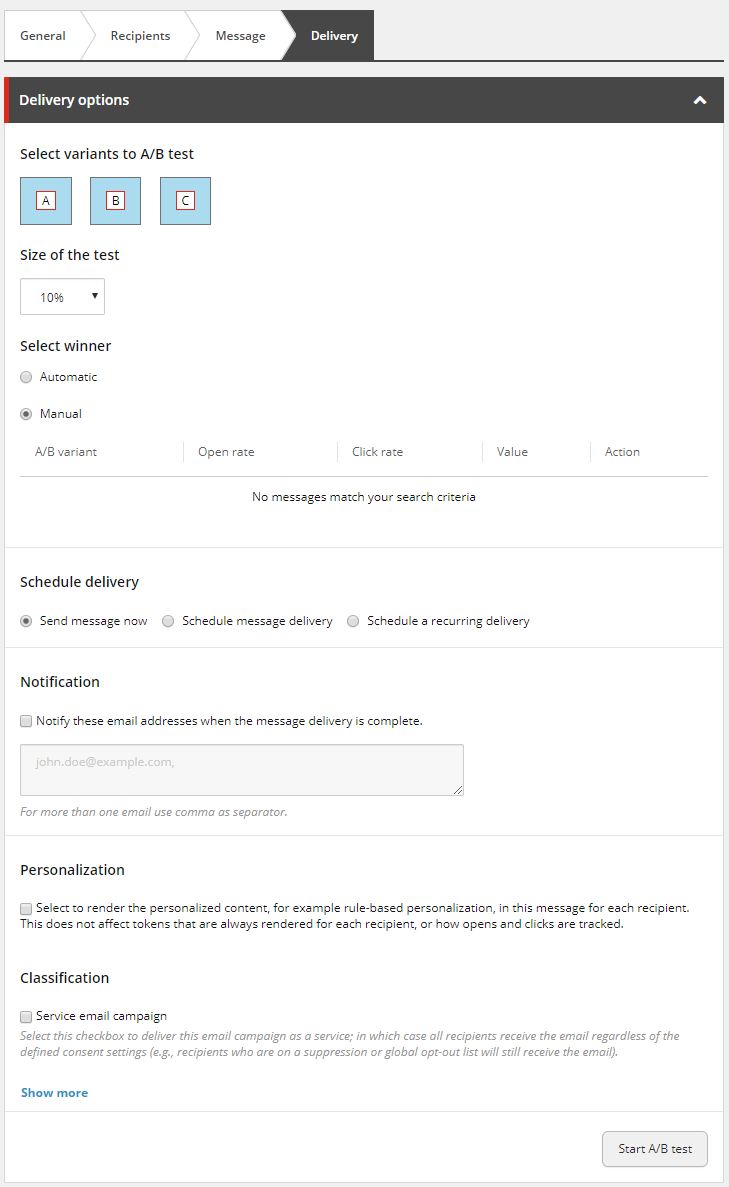
2. In the **Size of the test** drop-down menu, click the percentage of recipients that you want to include in this test. This set of recipients is randomly generated from the full list of recipients.
3. Under **Select winner**, to specify how you want to choose the winner, click one of the following options:
- Click **Automatic** to make the system select the winning variant for you, based on either best value per visit or highest open rate. Then, in the **Automatically select winner after** fields, specify how long you want the test to run before the winner is selected.
Click **Best value per visit** to make the winning variant the one that generates the most value on the website per visitor. Alternatively, click **Highest open rate**, to make the winning variant the one that was opened most often.
> [!note]
> The value is calculated according to the engagement value points that are set up on your website.
- **Manual** – you review the reports of the A/B test and select the winner variant based on your own criteria.
4. Under **Schedule delivery**, to specify when you want to start the A/B test, click one of the following options:
- Click **Send message now** to start the A/B test immediately.
- Click **Schedule message delivery** to schedule the delivery of the A/B test message for a later time. Specify the date and time for when you want to start the A/B test.
- Click **Schedule a recurring delivery** to schedule the A/B test message to send recurrently at a certain interval. Specify the interval, the date, and time for when you want to send the recurring A/B test.
> [!note]
> When you schedule a recurring delivery of an A/B test message, a recurring message is only sent if the winner of the previously sent test message has been selected, either automatically or manually.
5. If you want to send a notification to certain email addresses when the dispatch of the A/B test has completed, under **Notification**, select the check box and enter the relevant email addresses. If you chose to have the winning variant selected and sent automatically, the notification is sent after the final message has been sent.
6. If you want to send the message in the recipients' preferred language, click the **More** link, then, under **Multi-language**, click **Use preferred language**.
7. Click **Start A/B test** (or click **Schedule test** if you scheduled the A/B test).
8. If you selected **Use preferred language** in the **Multi-language** section, review the default language in the **Message delivery confirmation** dialog that appears.
The A/B test starts and changes the status of the message to Sending. When the system finishes sending the message to the limited set of recipients, the button label changes to **Resume**, but remains inactive until the winning variant is selected.
If you choose to schedule the A/B test, you can cancel the message up until the date and time it is sent, by clicking **Cancel scheduling** on the **Delivery** tab of the message.
Select and send the winning message
If you chose automatic selection of the winner before running the A/B test, the winning message is automatically sent to the rest of the recipients in the recipient list after the test has completed. The winning message is not sent to any of the recipients that were included in the A/B test.
If you chose manual selection of the winner, you need to review the A/B test reports yourself and select the variant that you think is the best. Make sure that you give your recipients enough time to read and react to the message.
To select the A/B test winner manually:
1. In the navigation menu, under **Email campaigns**, click **In progress**.
In the list, you can see the status of the message. The messages with the Select winner status are ready for you to select a winner.
2. Open the message and click the **Delivery** tab. Under **Select winner**, you can see the results of the A/B test so far.
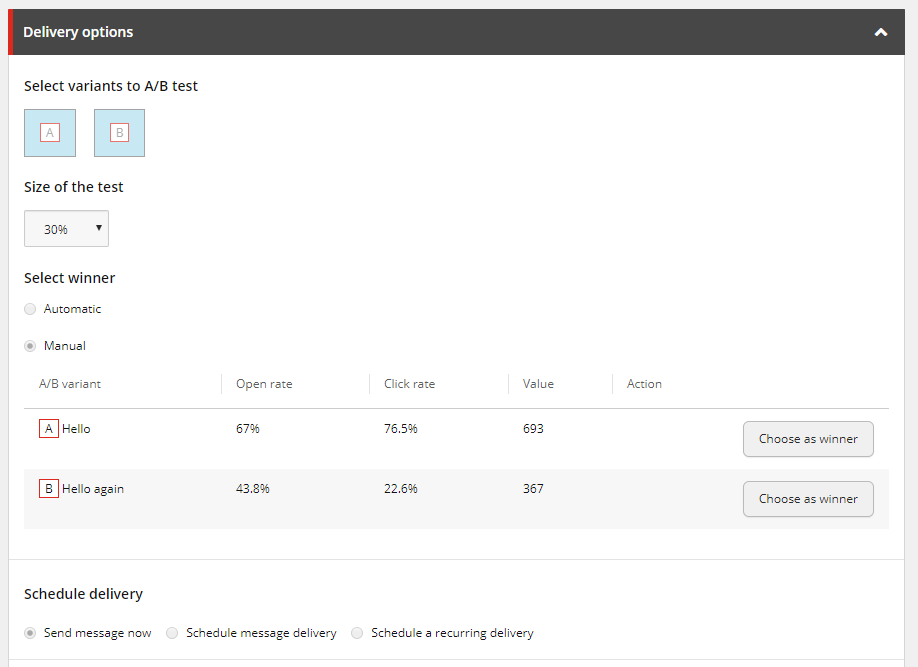
The table lists each variant with the current statistics:
- **Open rate** – the percentage of recipients that have opened the message.
- **Click rate** – the percentage of recipients that have clicked a link in the message.
- **Value** – the number of engagement value points that the recipients have generated on the website after opening the message.
3. Based on these results, determine which variant you would like to send to the rest of the message recipients and click **Choose as winner**.
4. When you are ready to send the winning message to the rest of the recipients, click **Resume**.