---
title: "Add a document and page to your project"
slug: "add-a-document-and-page-to-your-project"
abstract: "Build your project by adding documents and pages."
---
# Add a document and page to your project
Projects in IDC consist of an InDesign book that contains one or more document items that contain one or more page items.
Add a document
When you open a project in the Project panel, you can add documents to the project.
To add a document:
1. In the **Project** panel, click the Documents folder, and click **Add**.
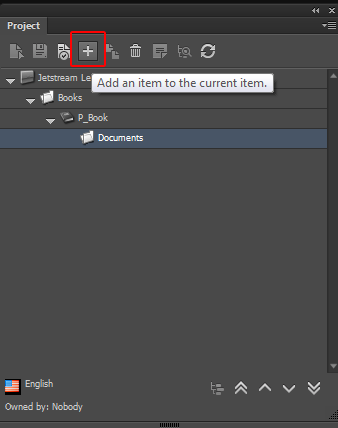
2. In the **Add new document item** dialog box, enter the name of the new document item and select a branch.
The document branches are stored and created in Sitecore. If you have sufficient access rights, you can change the branches or create additional branches. Ask your administrator for more information.
3. Click **OK**.
Add a page
You can add pages and page folders to documents. If you want to add a page folder:
- Click the document and click **Add an item**.
To add a page:
1. Select the Pages folder and click **Add**.
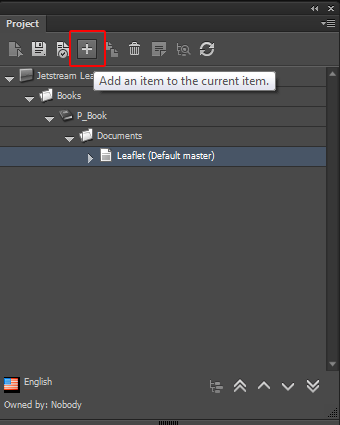
2. In the **Add New Page** dialog box, enter the name of the new page item and select one of the page branches from the **Branch** drop-down list.
The page branches are created and stored in Sitecore. You can only change the page branches or create additional page branches if you have sufficient rights. Ask your administrator for more information.
3. Click **OK**.