---
title: "Add or duplicate a snippet"
slug: "add-or-duplicate-a-snippet"
abstract: "Add and reuse collections of page items."
---
# Add or duplicate a snippet
In the **Project** panel, the page items on your InDesign pages are arranged in snippets . Snippets contain the InDesign page items such as text frames, images, shapes, and so on.
A page in the project structure can contain one or more snippets. In the **Project** panel, page items that are referenced from Sitecore content items have the content and field reference in parentheses.
In the following screenshot, the Hotel snippet items (image, description, and title items) are content items fetched from Sitecore.
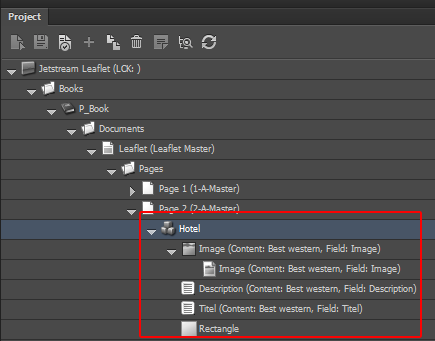
Snippets allow you to arrange your InDesign content in the project structure. For example, you can use a snippet with text frames and a shape to present a particular section of your document.
This topic outlines how to:
- [Add a snippet](https://doc.sitecore.com/xp/en/users/print-experience-manager/add-or-duplicate-a-snippet.html#UUID-cd6f2f1a-4bc2-0d81-82d9-9da36b03601d_id__Add_a_snippet "Add a snippet")
- [Duplicate a snippet by copying and pasting](https://doc.sitecore.com/xp/en/users/print-experience-manager/add-or-duplicate-a-snippet.html#UUID-cd6f2f1a-4bc2-0d81-82d9-9da36b03601d_id__Duplicate_a_snippet "Duplicate a snippet by copying and pasting")
- [Duplicate a snippet in the Project panel](https://doc.sitecore.com/xp/en/users/print-experience-manager/add-or-duplicate-a-snippet.html#UUID-cd6f2f1a-4bc2-0d81-82d9-9da36b03601d_id__Duplicate_a_snippet_1 "Duplicate a snippet in the Project panel")
- [Create a master snippet](https://doc.sitecore.com/xp/en/users/print-experience-manager/add-or-duplicate-a-snippet.html#UUID-cd6f2f1a-4bc2-0d81-82d9-9da36b03601d_id__Create_and_apply "Create and apply a master snippet")
Add a snippet
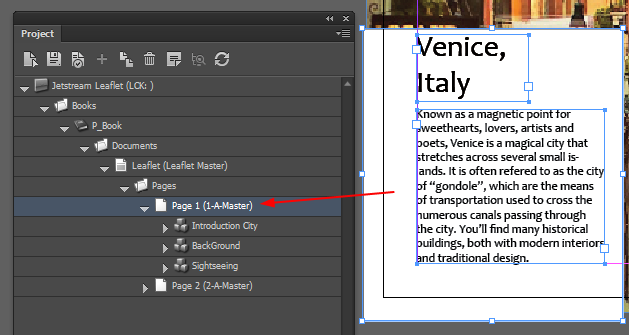
You can add snippets to your page structure by simply dragging items from your InDesign page to the page in the **Project** panel.
To add a snippet to a page:
- Select a (group of) items on your InDesign page and drag them to a page in the **Project** panel.
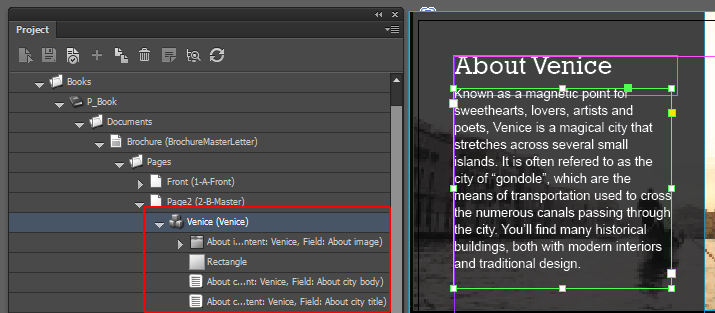
The items are added to the project structure in a new snippet. In the following screenshot, two page items are referenced from Sitecore, and the rectangle is a shape added in InDesign.
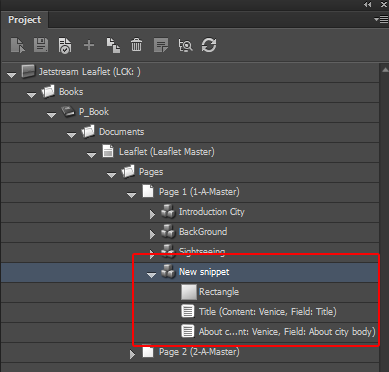
You can rename the snippet by right-clicking it. You can [assign a different Sitecore content item](https://doc.sitecore.com/xp/en/users/print-experience-manager/add-sitecore-data-to-indesign-pages.html "Add Sitecore data to InDesign pages") to the snippet by dragging the Sitecore content item from the **Content** panel to the snippet in the **Project** panel.
Duplicate a snippet by copying and pasting
If you quickly want to reuse a snippet on your InDesign page, you can copy and paste the snippet on your InDesign page.
To duplicate a snippet by copy and paste:
1. In the **Project** panel, double-click the snippet that you want to copy. All snippet items are now selected on the InDesign page.
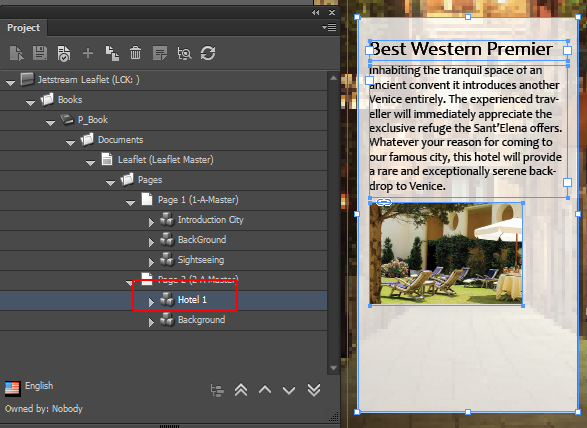
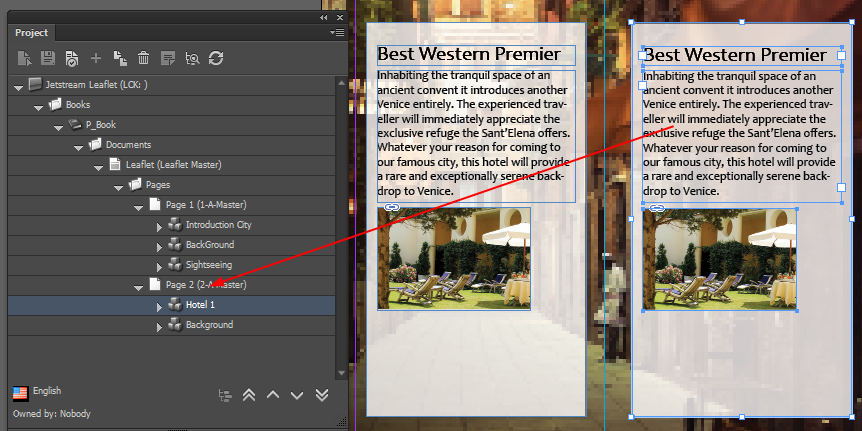
2. On your InDesign page, copy and paste the frames and position them on the page.
3. Drag the frames from the InDesign page to the page item in the **Project** panel to add them to the project structure.
A new snippet is added to the page. Right-click the snippet to rename it.
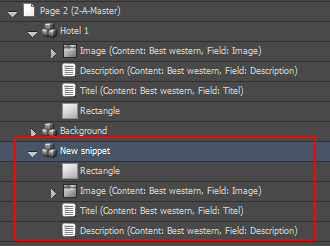
You can now assign a different content item to the snippet by dragging it from the **Content** panel to the snippet in the **Project** panel.
Duplicate a snippet in the Project panel
If you want to duplicate a snippet more than once, it is convenient to duplicate it in the **Project** panel.
To duplicate a snippet in the **Project** panel:
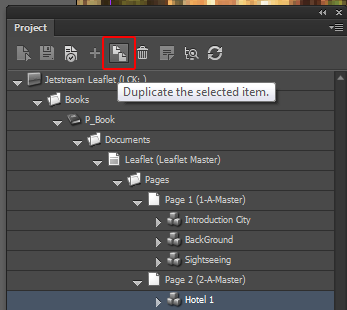
1. In the **Project** panel, navigate to the snippet that you want to duplicate and click **Duplicate the selected item**.
2. In the dialog box, click **Yes** to include the child items.
3. In the **Duplicate** dialog box, enter the number of duplications that you need and click **OK**.
In the following screenshot, the snippet is duplicated four times.
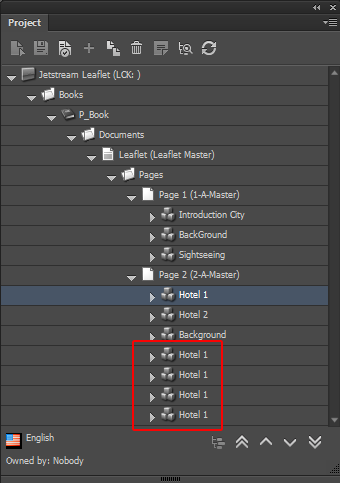
Now you can rename the snippets and assign different content items to them. To work on the layout of the new snippets, you first need to load the page.
Create and apply a master snippet
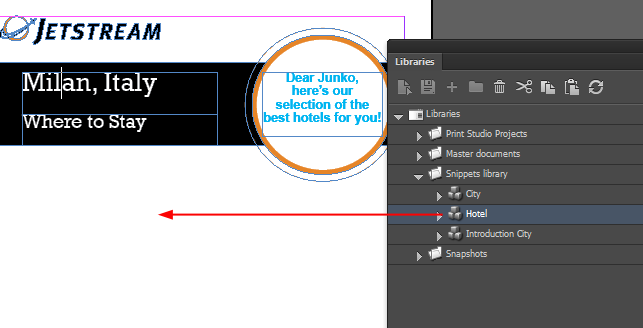
If you want to reuse a snippet in different documents, you can use a master snippet to add the snippet to different documents from the **Libraries** panel.
1. In the **Project** panel, select the snippet item and drag it to the appropriate folder in the Snippets library in the **Libraries** panel.
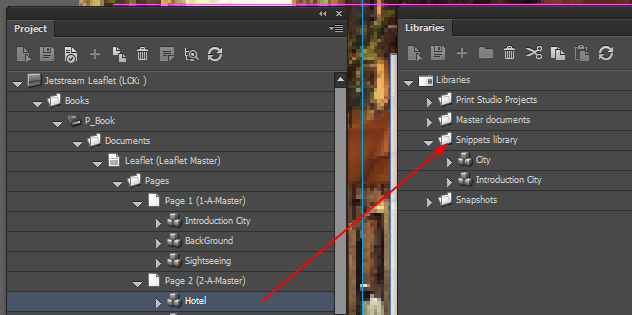
The page snippet is saved to the selected folder as a new master snippet where it is available for later usage.
2. To add a page snippet based on a master snippet, in the **Libraries** panel, select the master snippet and drag it to the page directly or drag it to the page in the **Project** panel.
You can adjust the snippet without changing the master snippet.