---
title: "Change items in the Project panel"
slug: "change-items-in-the-project-panel"
abstract: "Change the name and scaling of items in the project tree."
---
# Change items in the Project panel
If you work with projects, you may occasionally need to rename items in the tree structure. For automated productions it may be convenient to arrange the scaling of images automatically. In the **Project** panel, you can right-click text and image items in the tree to change them.
This topic outlines how to:
- [Rename an item in the tree](https://doc.sitecore.com/xp/en/users/print-experience-manager/change-items-in-the-project-panel.html#UUID-fdd98f97-b001-db18-c76d-c8be34aea255_id__Rename_an_item "Rename an item in the tree").
- [Change a text frame item](https://doc.sitecore.com/xp/en/users/print-experience-manager/change-items-in-the-project-panel.html#UUID-fdd98f97-b001-db18-c76d-c8be34aea255_id__Change_a_text "Change a text frame item").
Rename an item in the tree
Especially in large project structures, item names that make sense help you find your way around in your project. At any time, you can rename document, page, snippet, and image items in the project structure.
To rename an item in the tree:
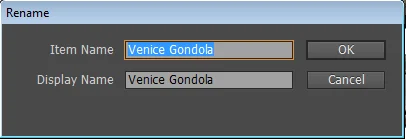
1. In the **Project** panel, right-click the item in the tree.
2. In the **Rename** dialog box, enter the new item name and/or display name and click **OK**.
Change a text frame item
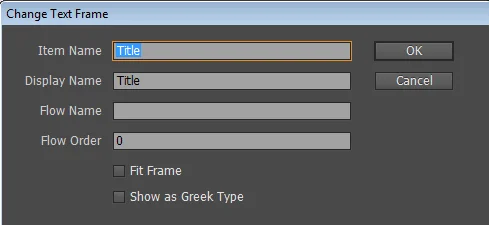
In the **Project** panel, you are able to change the name and flow of text frame items. The text in a frame can flow between [connected frames](https://doc.sitecore.com/xp/en/users/print-experience-manager/thread-text-frames-in-projects.html "Thread text frames in projects"). In the **Change Text Frame** dialog box, you can define the order of connected text frames with the flow order value.
To change a text frame item:
1. In the **Project** panel, right-click the text item.
2. In the **Change Text Frame** dialog box, enter the **Item Name** and **Display Name**. In the **Flow Name** field and **Flow Order** field define the order of connected text frames to create a set of connected text frames.
3. If you want the text frame to fit automatically to the frame's content, select **Fit Frame**. If you want to display the text in the frame as Greek type, select **Show as Greek Type**. This setting is not used often and is merely available for making text uneditable in other applications.