---
title: "Edit and publish a document"
slug: "edit-and-publish-a-document"
abstract: "Create your own document by editing a design and publish as a PDF or Flash file."
---
# Edit and publish a document
The Document Publisher enables you to create your own documents based on designs by creative professionals. The designs that are available for you to edit are in collections. Once you have [chosen a collection and a design to work with](https://doc.sitecore.com/xp/en/users/print-experience-manager/create-a-document.html "Create a document"), you can change the content and create a document that fits your own needs.
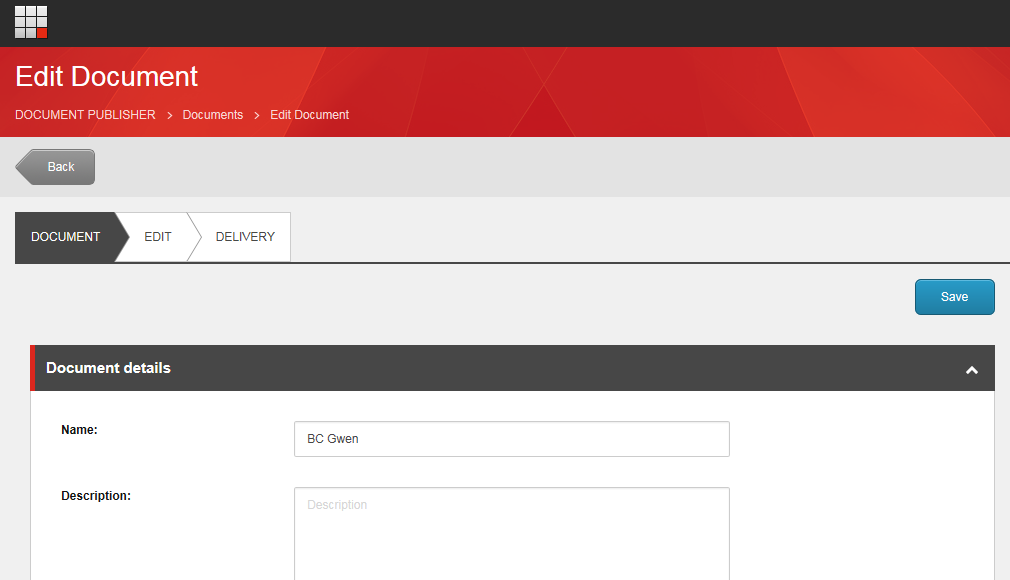
In the Document Publisher, in the **Edit Document** window, there are three tabs:
- **Document** – change the document name, description, and design.
- **Edit** – make changes to the design by (re-)positioning items, changing content text, and images.
- **Delivery** – publish your document.
This topic outlines how to:
- [Open a document for editing](https://doc.sitecore.com/xp/en/users/print-experience-manager/edit-and-publish-a-document.html#UUID-7678abfc-4823-f16b-ba28-73a2c1a68634_id__Edit_a_document "Open a document for editing")
- [Assign content to a group of items or a single item](https://doc.sitecore.com/xp/en/users/print-experience-manager/edit-and-publish-a-document.html#UUID-7678abfc-4823-f16b-ba28-73a2c1a68634_id__Assign_content_to "Assign content to a group of items or a single item")
- [Edit an image](https://doc.sitecore.com/xp/en/users/print-experience-manager/edit-and-publish-a-document.html#UUID-7678abfc-4823-f16b-ba28-73a2c1a68634_id__Edit_an_image "Edit an image")
- [Edit a text frame](https://doc.sitecore.com/xp/en/users/print-experience-manager/edit-and-publish-a-document.html#UUID-7678abfc-4823-f16b-ba28-73a2c1a68634_id__Edit_a_text "Edit a text frame")
- [Publish a document](https://doc.sitecore.com/xp/en/users/print-experience-manager/edit-and-publish-a-document.html#UUID-7678abfc-4823-f16b-ba28-73a2c1a68634_id__Publish_a_document "Publish a document")
Open a document for editing
Your documents are listed in the **All Documents** section of the Document Publisher.
To edit a document that you [created](https://doc.sitecore.com/xp/en/users/print-experience-manager/create-a-document.html "Create a document") earlier:
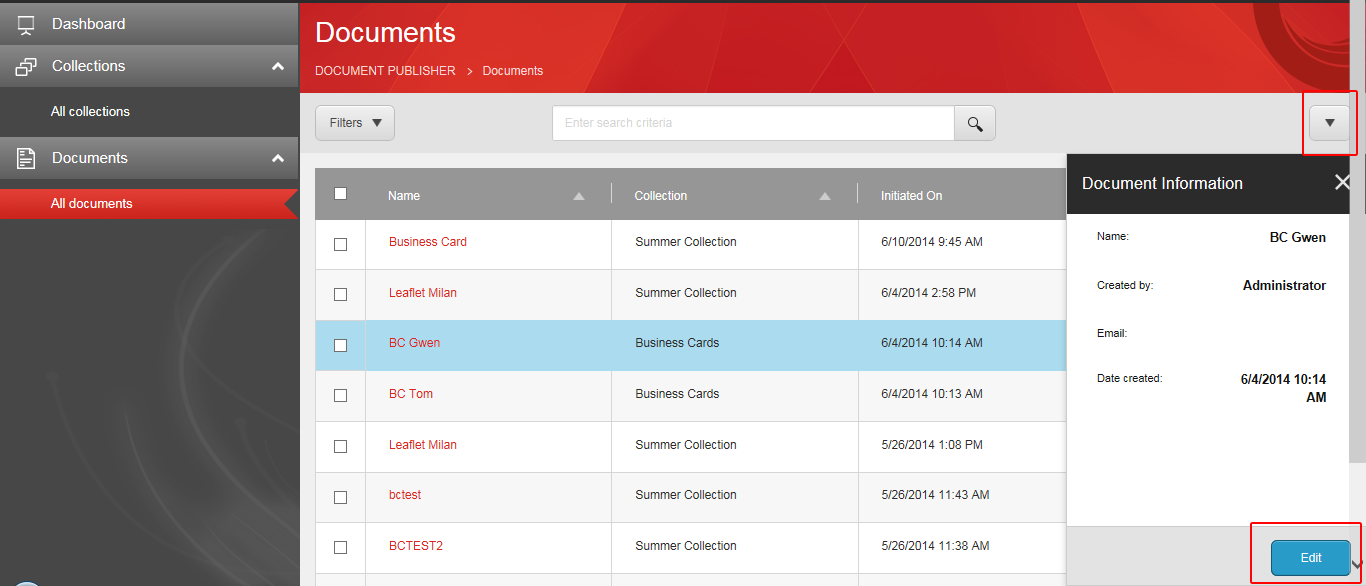
1. In the **All documents** section, click the name of the document.
You can also select the document and click **Edit** or use the drop-down menu.
2. On the **Document** tab, you can change the name of the document. You can also add some general information.
3. Click **Browse** to select a design from the collection.
Assign content to a group of items or a single item
The Document Publisher lets you work with Sitecore content in your documents. On the **Edit** tab, you can change the content for (groups of) items by assigning different Sitecore content items.
To assign content to a group of items:
1. On the **Edit** tab, in the right panel, select the relevant group and click **Select data**. For example, you can change the title and description of a city for a leaflet. In the example, these items are grouped in the Introduction City snippet.
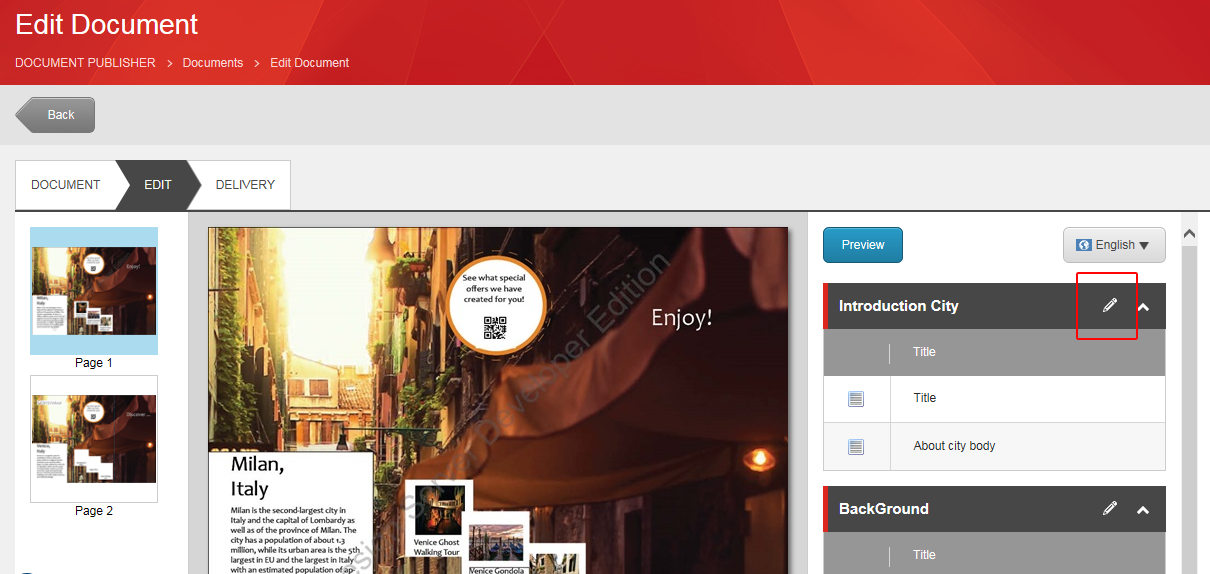
2. Select the Sitecore content item and click **Insert**.
3. Click **Preview** to see the changes. The content of all the items in the group changes to the content item you selected.
To assign content to a single item:
1. On the **Edit** tab, select the item in the right panel, and click **Select data**.
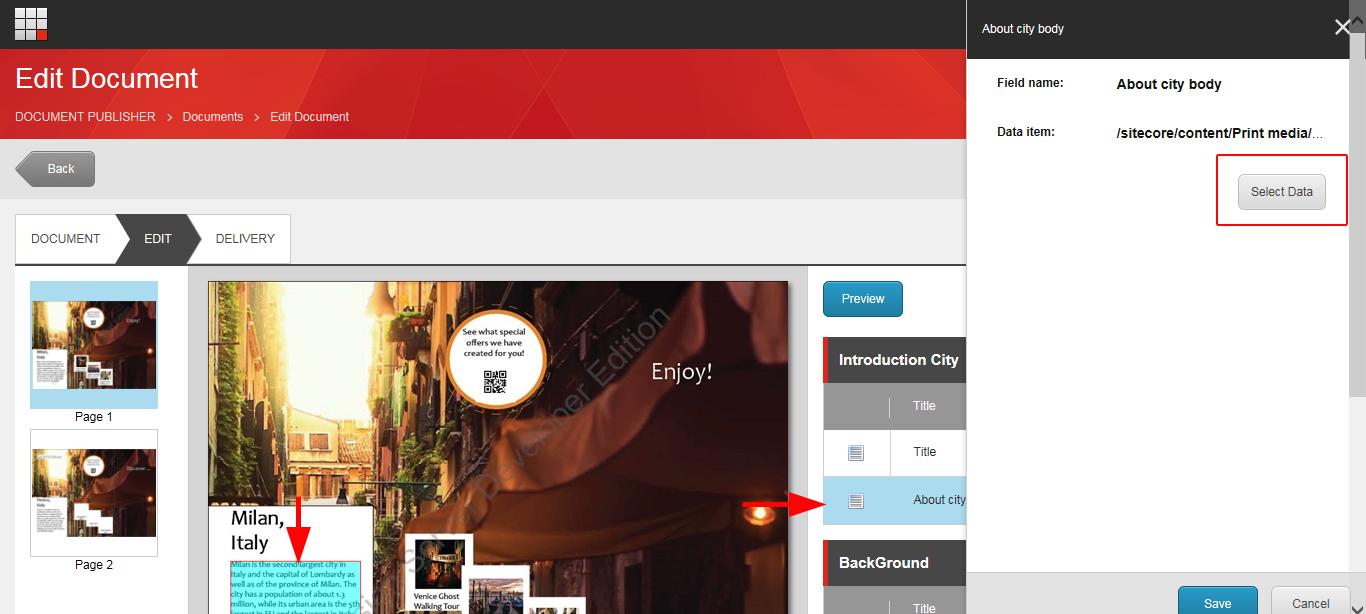
2. Select the new content item and click **Insert**.
Edit an image
If you have permission, you can change images that are referenced from the Media Library. The Media Library is Sitecore’s main file repository for storing and managing all media files including images. The selection of images that are available for you to use is set by the Design Manager user.
- In the **Edit Document** window, in the right panel, select the image you want to edit and click **Browse** to search the Media Library for a new image.
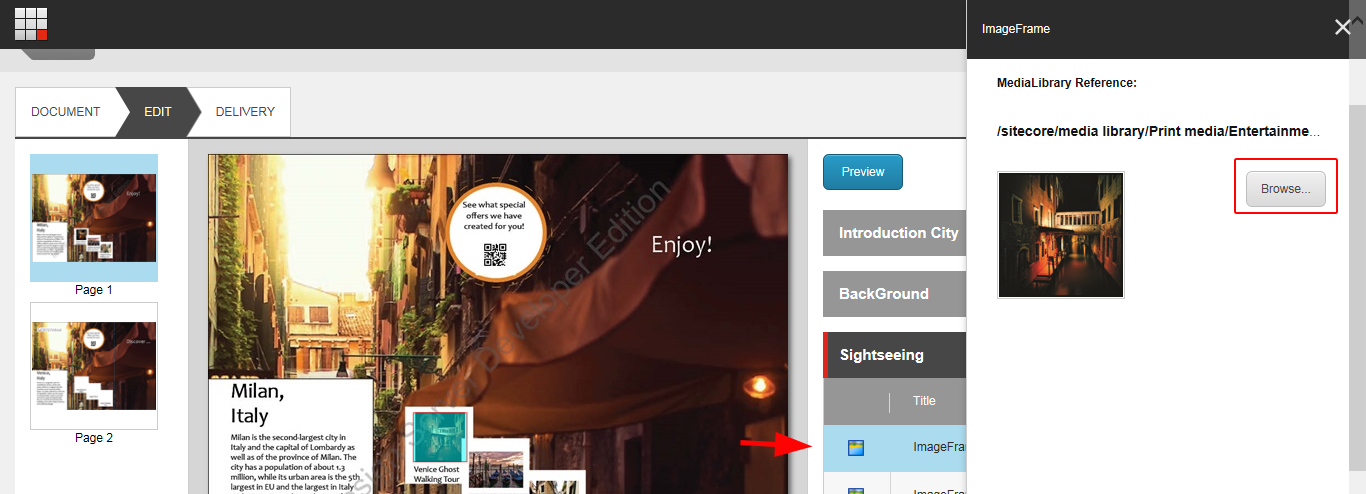
Click the image you want to use and click **Select.**
The new image is loaded to your document. If necessary, you can adjust the width, height, and position of the image.
Edit a text frame
You can also change text directly. For example, you can change the title of a leaflet from Enjoy! to Discover …
1. In the **Edit Document** window, in the right panel, click the text item.
2. In the **Content** field, change the text and click **Save**.
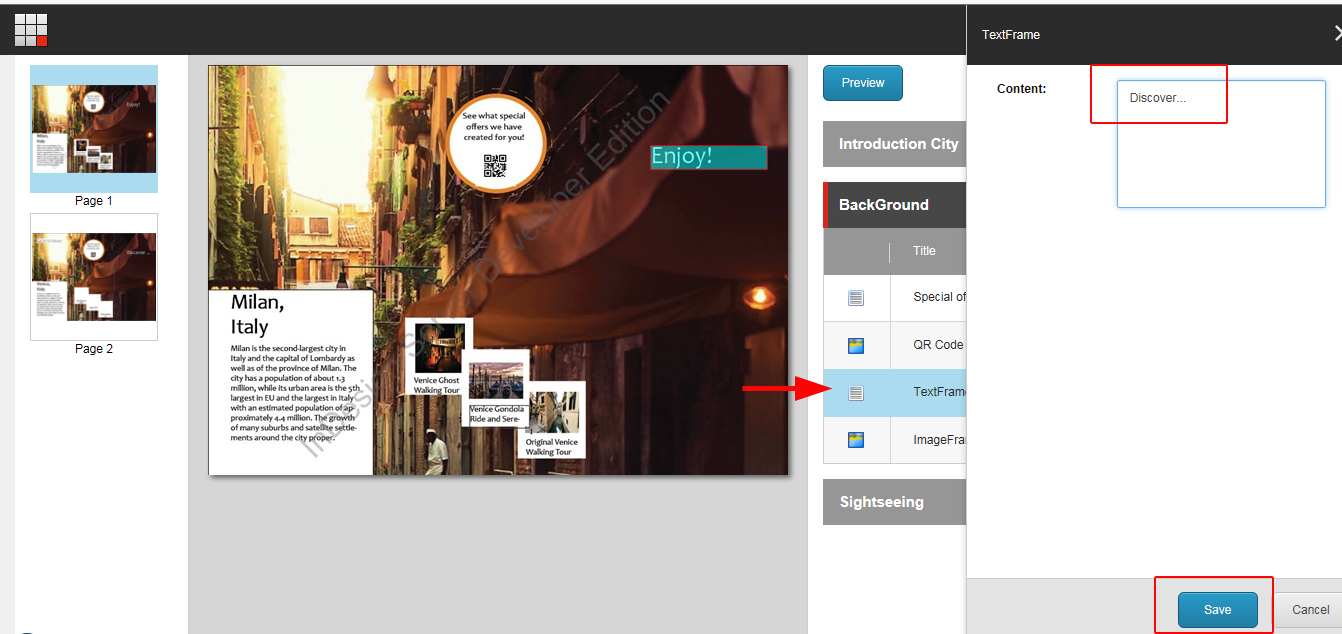
3. Click **Preview** to see the changes.
Publish a document
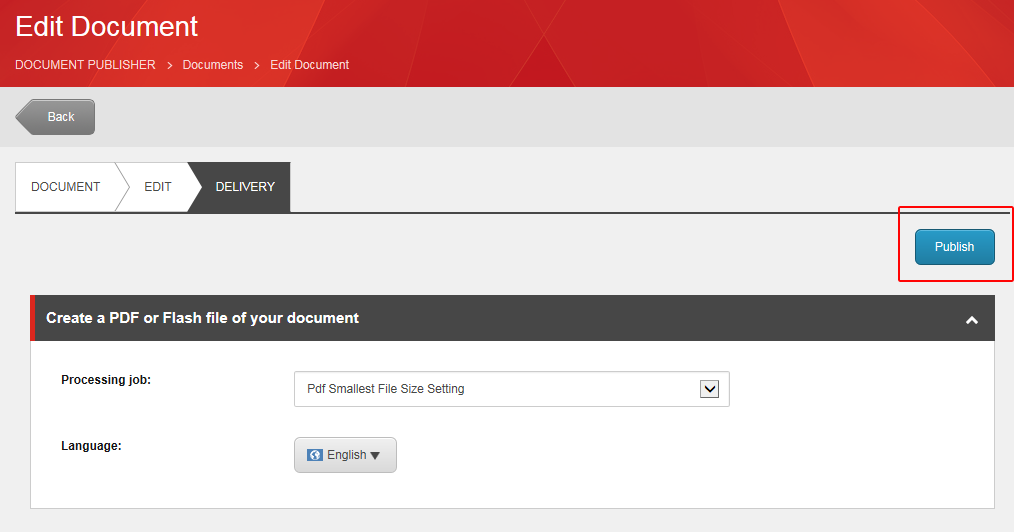
On the **Delivery** tab, you can publish your document when you have finished editing it. The Document Publisher uses processing jobs to create a PDF or Flash file of your document.
To publish the document:
- On the **Delivery** tab, select a processing job and language, and click **Publish**.