---
title: "Open and edit a document"
slug: "open-and-edit-a-document"
abstract: "Adobe InCopy integrates with Adobe InDesign."
---
# Open and edit a document
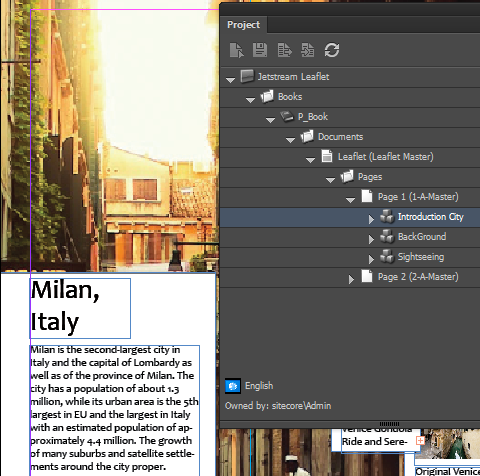
InDesign Connector allows you to work with Sitecore content from InDesign. InCopy Connector allows you to edit content in InCopy. With InCopy Connector you can open InDesign Connector projects and edit text or assign content items to items on your pages.
This topic describes how to:
- [Open a project from the Project panel](https://doc.sitecore.com/xp/en/users/print-experience-manager/open-and-edit-a-document.html#UUID-4d91ba5d-7aac-4f77-b6b7-bcae0378634e_id__Open_a_project "Open a project from the Project panel")
- [Open a project from the Workbox](https://doc.sitecore.com/xp/en/users/print-experience-manager/open-and-edit-a-document.html#UUID-4d91ba5d-7aac-4f77-b6b7-bcae0378634e_id__Open_a_project_1 "Open a project from the Workbox")
- [Edit a page](https://doc.sitecore.com/xp/en/users/print-experience-manager/open-and-edit-a-document.html#UUID-4d91ba5d-7aac-4f77-b6b7-bcae0378634e_id__Edit_a_page "Edit a page")
- [Assign Sitecore content to items](https://doc.sitecore.com/xp/en/users/print-experience-manager/open-and-edit-a-document.html#UUID-4d91ba5d-7aac-4f77-b6b7-bcae0378634e_id__Assign_Sitecore_content "Assign Sitecore content to items")
Open a project from the Project panel
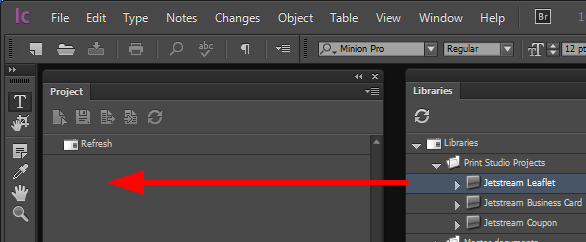
To start working on an InDesign project, you can open an existing project by dragging it from the **Libraries** panel to the **Project** panel.
To open a project from the **Libraries** panel:
1. In the **Libraries** panel, open the Print Studio Projects folder.
2. Locate the project you want to open and drag it to the **Project** panel. The project is loaded in the **Project** panel and you can start working on it.
Open a project from the Workbox
When InDesign project items (for example a document or a page) are passed through a workflow scenario to the InCopy user, the items are displayed in the workbox and you can open the project.
To open a project from the **Workbox** panel:
- In the **Workbox** panel, select the item that you want to edit and click **Open project**. The project is loaded in the **Project** panel and you can start working on it.
Edit a page
To edit a page:
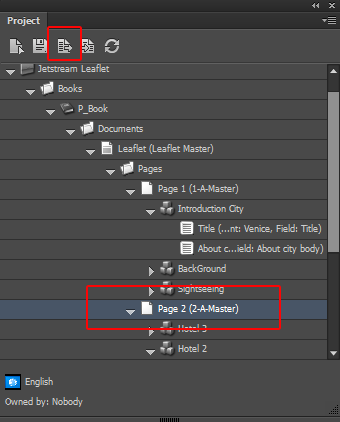
1. In the Project panel select the page item that you want to edit and click **Load**.
2. The page is loaded and displayed in InCopy.
3. Before you can edit an item, you need to check out the document. To check out the page item, click the page item and then click **Check out**.
> [!tip]
> You can double-click a page item in the tree to jump to the item on the corresponding page in InCopy.
4. In the Project panel, select the page item, and then click **Save** and **OK**.
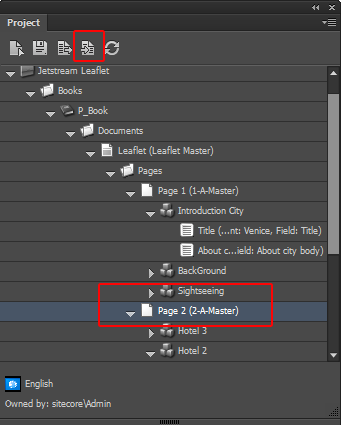
5. When you have finished editing the page, you need to check the page back in. This unlocks the page and its related content items, and makes them available for assigned users. To unlock the page, select the page item in the tree, and then click **Check in the current item** .
Assign Sitecore content to items
In addition to editing text, you can also assign different content items from Sitecore to items on the page.
To assign a content item to a snippet:
- Open the **Content** panel, click the content item and drag it to the page item.
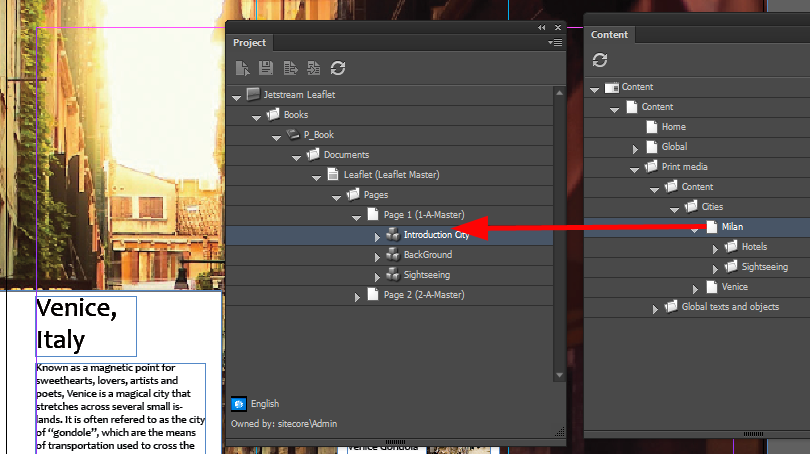
The content item is now assigned to the snippet and you can see the changes reflected in the text, for example, the introduction text of a travel brochure changes to reflect a different location.