---
title: "Reuse items"
slug: "reuse-items"
abstract: "Reuse pages, snippets, text frames, images, or groups."
---
# Reuse items
It can be very convenient to reuse pages, snippets, text frames, images, or groups. Depending on what you need, there are several ways to reuse items. You can quickly copy and paste an item or a few items or you can duplicate a group of items. You can also create master snippets to reuse in different documents or use a snippet or page from an existing project.
This topic outlines how to:
- [Copy and paste an item](https://doc.sitecore.com/xp/en/users/print-experience-manager/reuse-items.html#UUID-e3d20c1e-30bb-71cb-1bc5-bafa398219e3_id__Copy__paste "Copy and paste an item").
- [Duplicate a group of items](https://doc.sitecore.com/xp/en/users/print-experience-manager/reuse-items.html#UUID-e3d20c1e-30bb-71cb-1bc5-bafa398219e3_id__Duplicate_items_in "Duplicate a group of items")
- [Create a master snippet](https://doc.sitecore.com/xp/en/users/print-experience-manager/reuse-items.html#UUID-e3d20c1e-30bb-71cb-1bc5-bafa398219e3_id__Create_master_snippets "Create a master snippet").
- [Use an item from an existing project](https://doc.sitecore.com/xp/en/users/print-experience-manager/reuse-items.html#UUID-e3d20c1e-30bb-71cb-1bc5-bafa398219e3_id__Use_items_from "Use an item from an existing project").
Copy and paste an item
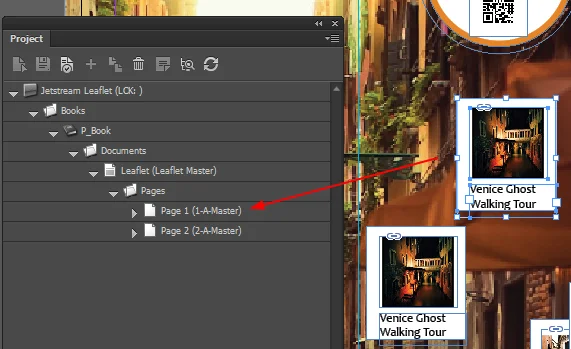
If you want to reuse an item or a selection of items, you can copy and paste the item or selection on the page and save it to a page or snippet by dragging it to the **Project** panel.
Duplicate a group of items
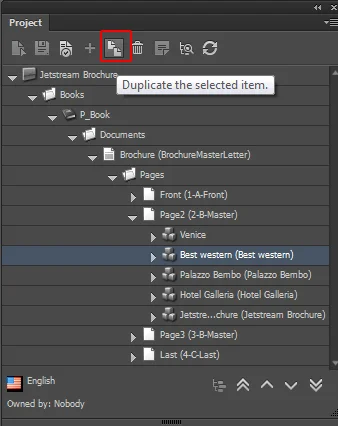
If you have several items you want to duplicate, you can save time by using the duplicate functionality in the **Project** panel.
To duplicate an item:
1. In the **Project** panel, navigate to the page or snippet that you want to duplicate and click **Duplicate the selected item**.
2. In the dialog box that appears, choose whether you want to include child items or not. To include the child items, click **Yes**. To just duplicate the selected item without its child items, click **No**.
3. In the **Duplicate** dialog box, enter the number of duplications that you need.
4. Click **OK** to duplicate the item. In this example, the snippet is duplicated twice in the tree. Now you can rename the snippets and assign a different content item.
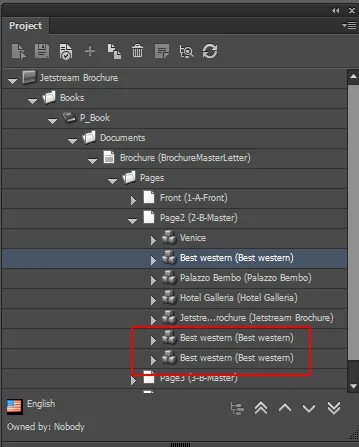
5. Load the page or document to rearrange the duplicated snippets.
Create a master snippet
If you want to reuse a specific snippet or page, it can be convenient to make it a master snippet, for example, if you know you will need the same snippet in different documents.
To save a snippet as a master snippet:
- In the **Project** panel, select the snippet item and drag and drop it to the appropriate folder in the master snippets section of the **Libraries** panel.
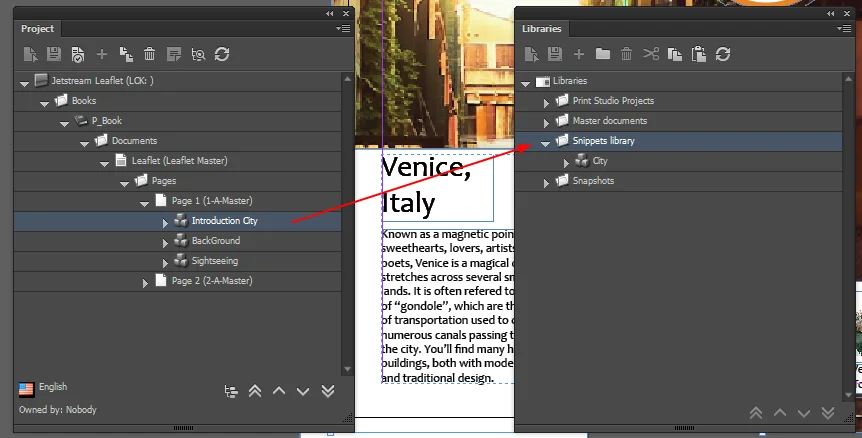
The page snippet is saved to the selected folder as a new master snippet where it is available for later usage.
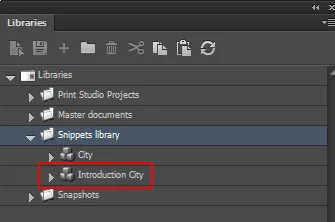
To use a master snippet:
- In the **Libraries** panel, select the master snippet and drag and drop it to the **Project** panel. The snippet is added to the page item in the Project structure. If you now load the page, the new snippet will appear. You can adjust the snippet without changing the master snippet that was used to create the new snippet.
Use an item from an existing project
To reuse items (for example, a document, page folder, page, snippet) from an existing project in a new project, drag the item that you want to use from the project in the **Libraries** panel and drop them in the opened project in the **Project** panel.
To drag and drop items on a page item:
- In the **Libraries** panel, select the page item that you want to reuse and drag and drop it to the **Pages** item in your new project in the **Project** panel.
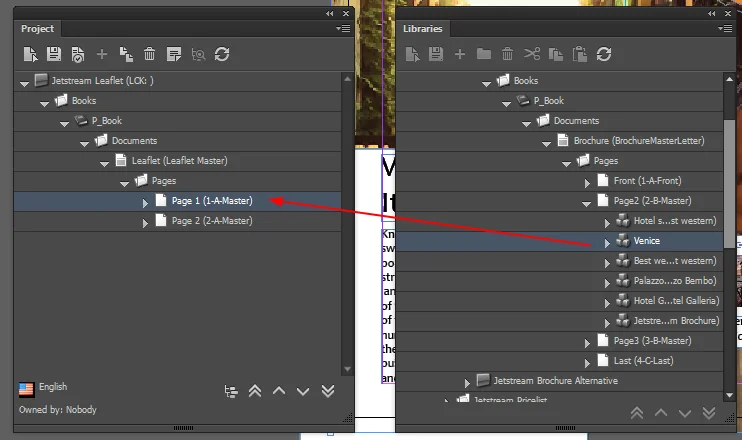
The selected page and all items on that page are added to the Pages folder.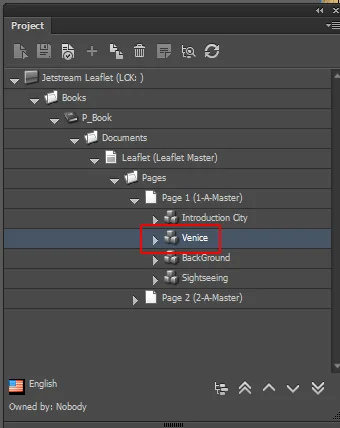
If you now load the page, the new items will be appear.