---
title: "Add an Event Calendar and an Event List rendering"
slug: "add-an-event-calendar-and-an-event-list-rendering"
abstract: "Use SXA renderings to display events on your site."
---
# Add an Event Calendar and an Event List rendering
Adding a calendar to your website is a great way to display upcoming events. SXA comes with two renderings that help you announce upcoming events on your website: Event List and Event Calendar.
The Event Calendar rendering displays events from event lists in a calendar. The Event List rendering displays lists of events with a name, description, place, start/end time, and a link.
Add and configure the Event Calendar rendering
The Event Calendar rendering lets you present your events using an interactive calendar widget. You can configure the calendar to operate in various modes. For example, you can choose to show a month, week, or day at a time and enable or disable browsing. You can also display events coming from an external source. For example, to fetch events from an existing Google Calendar feed.
To add and configure the Event Calendar rendering:
1. From the toolbox, in the **Events** section, drag the **Event Calendar** rendering to the page.
2. In the **Select the Associated Content** dialog box, click the content item that you want and click **Create** to create a new event.
3. In the **Control Properties** dialog box, you can set the following:
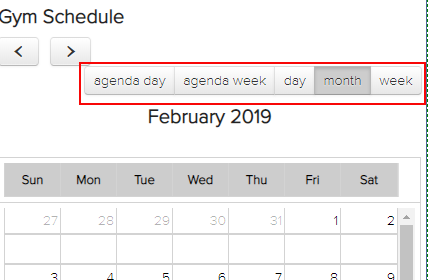
- **Calendar settings** - specify what the calendar view looks like by selecting **AgendaWeek**, **AgendaDay**, **Month**, **Week**, or **Day**. Each of these types adds specific controls to the calendar view. For example, adding types: **Month**, **Week**, **Day** adds buttons enabling the user to change the calendar view.
- **Show Previous Next** - select to add previous and next buttons (arrows) to the calendar.
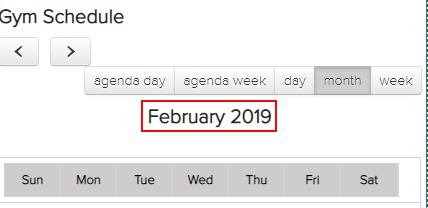
- **Show Month captions** - select to show current view captions.
- **Compact View** - select to show compact view. In compact view, events are marked in the calendar but will only display when a visitor hovers over the marked day.
This only works if there is no Google calendar XML feed URL specified for event calendar events. To check if there is a Google calendar feed URL specified, click the **Edit Google calendar properties** icon on the event calendar floating toolbar.
Add and configure the Event List rendering
The Event List rendering displays an enumeration of events. For each entry it shows the name and date of the occurrence, accompanied by any other details such as venue, description, or a web link. The list of events is editable and you can directly update the information on the page. Each event is represented as a content item in Sitecore, which makes them easy to manage.
To add and configure the Event List rendering:
1. From the toolbox, in the **Events** section, drag the **Event List** rendering to the page.
2. In the **Select the Associated Content** dialog box, click the content item that you want and click Ok or click **Create** to create a new event.
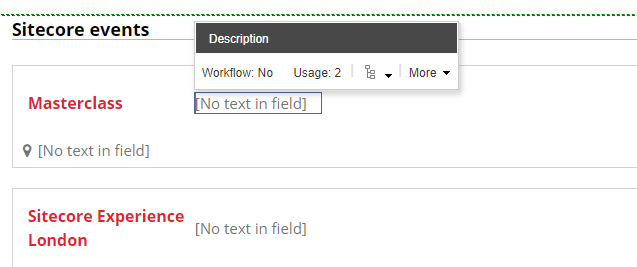
3. Click the event fields to edit the event directly on the page.
Add an event in the Content Editor
To add a new event:
1. In the Content Editor, navigate to */sitecore/content///Data*.
2. Right-click **Events**, click **Insert**, and click **Event List**.
3. Enter a name and click **OK**.
4. Specify the following details for the new event list:
| Field | Description |
| --- | --- |
| Title | The name of the event list as specified on creation. |
| Event Types | Select an available event type from the drop-down list. Event types are defined under the Presentation node. |
| Google Calendar API key | Enter the key for the calendar feed. If left empty, the calendar pulls data from the events defined under the event list item node. |
| Google Calendar ID | Enter the unique identifier of a calendar you own or have subscribed to in the Google Calendar application. |
5. To add an event, right-click the event you just created, click **Insert** and click **Calendar Event**. Enter a name and click **OK**.
Add an event type in the Content Editor
SXA lets you set specific styles for calendar events.
To add a new event type:
1. In the Content Editor, navigate to *sitecore/content///Presentation*.
2. Right-click **Event types**, click **Insert**, and click **Event type**.
3. Enter a name and click **OK**.
4. Specify the following details for the new event type:
| Field | Description |
| --- | --- |
| Value | Enter the class name. |
| Allowed Renderings | Select the components to which the class will apply. |