---
title: "Add a point of interest"
slug: "add-a-point-of-interest"
abstract: "Create specific point locations for maps."
---
# Add a point of interest
Points of interest (POI) are useful places on a [map](https://doc.sitecore.com/xp/en/users/sxa/105/sitecore-experience-accelerator/add-a-map.html "Add a map"), for example, restaurants, hotels, and shops. You can add POIs that are defined by a data source item and are always displayed. You can also select POIs to appear after a search request.
Create a POI
You can add POIs to the POI folder of your site in the Content Editor.
To create a point of interest:
- In the Content Editor, click the site and open the Data/POI folder. This folder lists all the POIs that are available for the site. You can group different POIs in POI folders. Define the POI by filling in the following fields:
| **Field** | **Description** |
| --- | --- |
| Title | Enter a title for the POI. |
| Type | You can [customize types of POIs](https://doc.sitecore.com/xp/en/users/sxa/105/sitecore-experience-accelerator/add-a-point-of-interest.html#UUID-fd3d1ca9-83ae-54a8-188f-99f5e4fd844f_id__Create_a_POI_2). For example, a standard POI type for train stations, restaurants, stadiums, and so on. |
| Description | Enter a description of the POI. |
| Image | Add an image for the POI. |
| Latitude | Either enter the latitude value directly in the field or use the map dialog to find it. To use the map dialog:
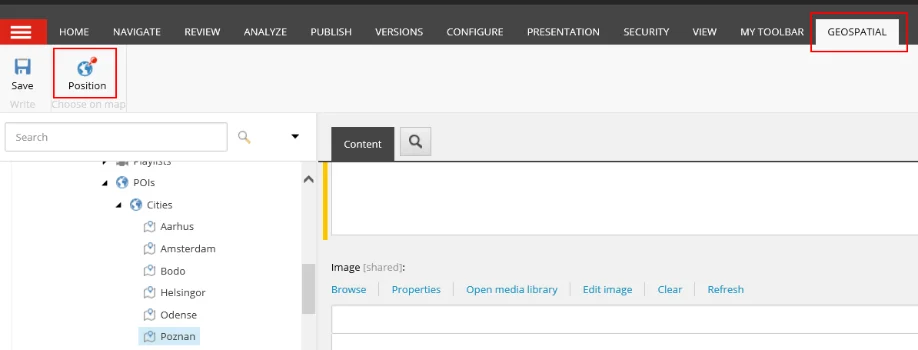
On the ribbon, click **Geospatial** and then click **Position**.
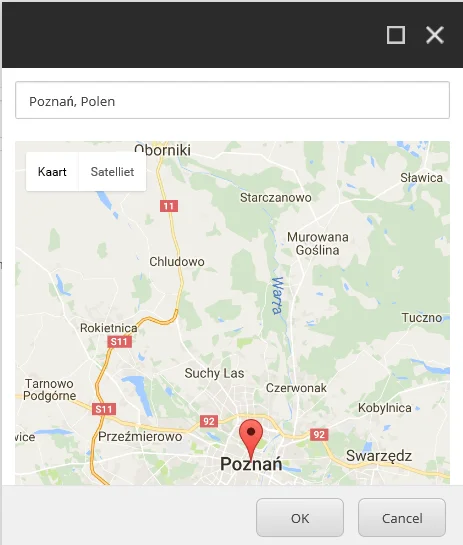
To select the position of the POI, click any point on the map, enter the name in the search box, or adjust the position of the currently selected point. Click **OK** to save the selected position as POI coordinates.
 |
| Longitude | Either enter the longitude value directly in the field or use the map dialog to find it. |
| POI Page | Link to a page that describes this POI. |
> [!note]
> If you want your website users to be able to see POIs after a search query, you must [add the following renderings](https://doc.sitecore.com/xp/en/users/sxa/105/sitecore-experience-accelerator/add,-edit,-and-delete-a-rendering-1064942.html "Add, edit, and delete a rendering") to your page: Search, Search Results, Location Filter, and Map. Optionally, if you expect many results, you can add the Page Selector rendering.
Create a POI type
You can customize the POIs on your site by adding your own icons for a specific POI type. For example, you might want to use your branding colors to point out the museums, restaurants, and theatres on a map.
To create a new POI type:
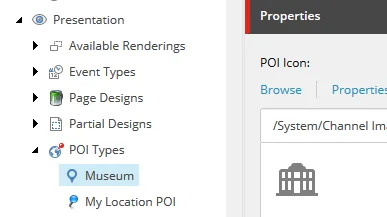
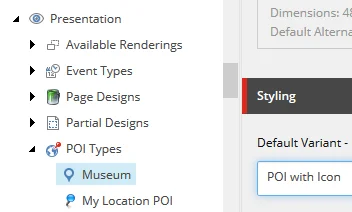
1. Go to Your Site/Presentation, right-click **POI Types**, click **Insert**, and click **POI Type**.
2. Enter a name and click **OK**.
3. In the **Properties** section, in the **POI Icon** field, add an icon from the Media Library for the POI type.
4. In the **Styling** section, select the default variant for the POI type. For example, for Museum POIs you might want an icon to appear on the map but for Park POIs you want a photo.
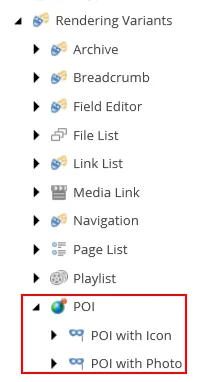
You can [create new rendering variants](https://doc.sitecore.com/xp/en/developers/sxa/105/sitecore-experience-accelerator/create-a-rendering-variant.html) in the Presentation/RenderingVariants folder.
Map a POI type to a rendering variant
You can use rendering variants to determine how to display the POI on a map. For example, you can use variant logic to generate a message when a user clicks the POI. For every POI, in the **Type** field, you can set the default component variant to use to render the information box for that POI.
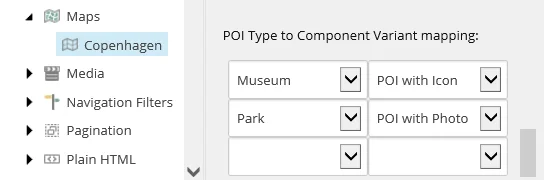
You can also map POI types to rendering variants in the map settings. You can configure which variants go with a specific type of POI. For example, you can set a POI type that includes a photo for all Park POIs.
To map a POI type to a rendering variant:
1. Go to Data/Maps and click the map.
2. In the **POI Type to Component Variant mapping** field, select the POI type and the variant.