---
title: "Add Carousel and Flip"
slug: "add-carousel-and-flip"
abstract: "Add the carousel or flip composite to your site."
---
# Add Carousel and Flip
Carousel and Flip, like Tabs, Accordion, and Snippet are composite renderings. A composite rendering enables you to compose a more complex rendering from other renderings.
Add the Carousel rendering
The Carousel rendering allows you to define a set of rotating slides – usually images – accompanied by descriptions and links. Carousels are often used at the top of home pages, but you can place them on any page. For example, you can use a carousel to display a number of featured pages, to describe a step–by–step process, or to display product images. The items in a carousel appear one at a time in a defined order. By default, the carousel rendering includes a slide image and a slide text item.

You can determine the carousel's appearance by defining the slide layout, navigation type, slide transition effect, and so on.
You can edit each slide and customize it by adding or removing elements (such as texts, links, images, and videos). You can modify the text and image by clicking the options in the floating toolbar.
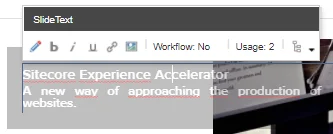
To add the Carousel rendering:
1. Drag and drop the Carousel rendering to the page.
2. In the **Select the Associated Content** dialog box:
- To select an existing content item, click **Select Existing Content**, click the content item that you want and then click **OK**.
For example, if you already have a Home Page section ready, the carousel automatically fills with the items in the Home Page:
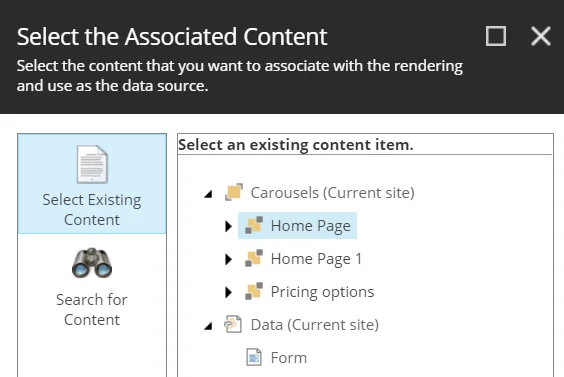
- To create a new content item for the carousel and add carousel slides directly on the page, click **Create New Content** and click **OK,** and then click the plus button:
Add the Flip rendering
The Flip rendering lets you work with two items: the front (visible) and the back (hidden). These two items are shown alternatively after you either click or hover over the item. For example, you can use the flip rendering for staff member photographs and profile information, or for coupons and redeem codes.
To add the Flip rendering:
1. Drag and drop the Flip rendering to the page.
2. In the **Select the Associated Content** dialog box:
- To select an existing content item, click **Select Existing Content**, click the content item that you want and click **OK**.
The flip rendering will automatically fill with the data in the content item:
- To add new content, click **Create.**
3. In the **Control Properties** dialog box, in the **Styling** section, you can select different transition modes, such as **Transition on hover** and **Transition - Rotate vertically**.