---
title: "Select, create, and modify associated content"
slug: "select-create-and-modify-associated-content"
abstract: "Select a data source for the component."
---
# Select, create, and modify associated content
> [!note]
> Use the Experience Editor for the steps described in this topic.
Most SXA components are designed for reusability and pull data from data source items or associated content. The content they display is not bound to the page on which they appear but is stored in data source items. When you add a component to a page, you can select an existing data source or create a new data source item. This gives you full control over the content architecture, naming conventions, and the level of reusability that you want.
## Select or create associated content
When you add a reusable component to the page in the Experience Editor, the items available for selection depend on the component you selected. This prevents you from associating data source items that do not match the requirements of the component.
To select associated content:
1. From the Toolbox, drag and drop a component that supports reusable content to the page.
2. Some components make the **Select the Associated Content** dialog box appear. If the dialog box does not appear, through the floating toolbar of the component, open the **Control Properties** dialog box and, under **General** > **Data Source**, click **Browse**.
3. In the **Select the Associated Content** dialog box, you have the following options to choose from:
| **Tab** | **Action** | **Description** |
| --- | --- | --- |
| **Select Existing Content** | Click an item | Click an item from a global or local folder directly and then click **OK**.
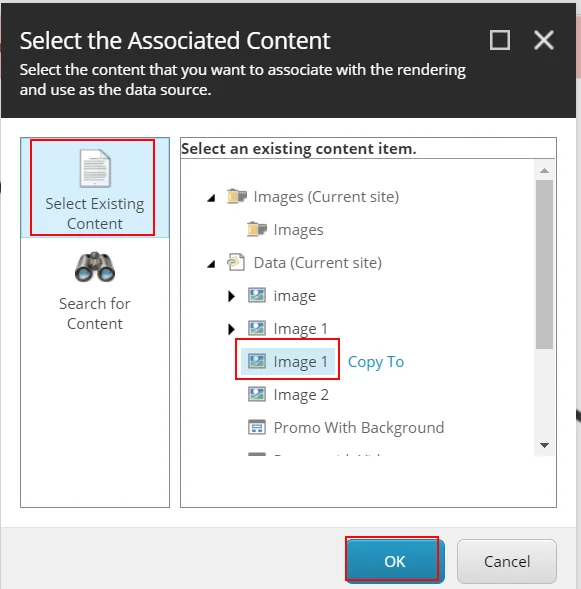 |
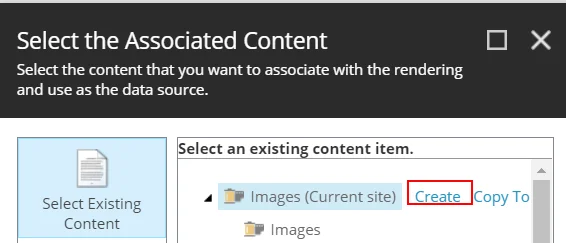
| | Component name (Current Site) **Create** | Adds and selects a new data source that you can use globally.
Click **Component name (Current Site)** and click **Create.** In the **Insert item** dialog box, click the place in the tree where you want to create the new data source, enter a name, and click **OK**.
Optionally, you can create a new folder for your data source.
 |
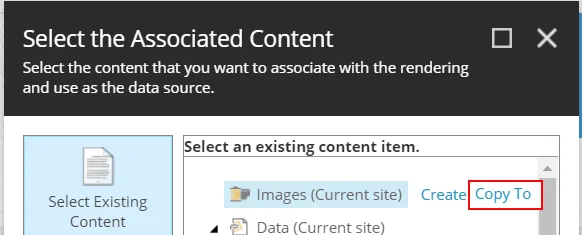
| | Component name (Current Site) **Copy to** | Creates a copy of a data source.
Select the root item **Component name (Current Site)** and click **Copy** to copy the new data source. Select the place in the tree where you want to add a copy of the data source, enter a name for the copy, and click **OK**.
 |
| | Data (Current Site) **Create** | Adds and selects a new data source that you can use locally.
Click **Data (Current Site)** and click **Create.** Enter a name for the new data source and click **OK**.
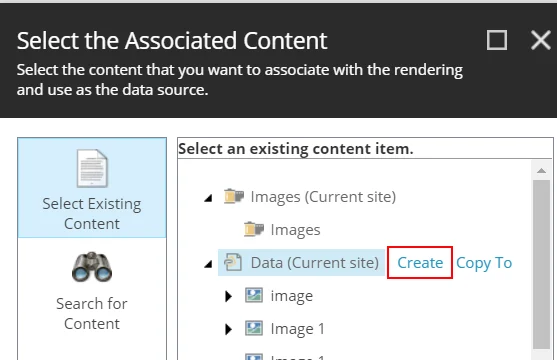
If you create the data source under the Page Data node it will be a local data source that is stored as a subitem of the page item. Any changes you make to local data sources will only affect the page you are working on. If you want to be able to reuse the data source and manage it globally, you must create the data source in the global folder.
> [!important]
> We recommend that you do not [rename local data source items](https://doc.sitecore.com/xp/en/developers/sxa/105/sitecore-experience-accelerator/data-sources.html) (/Data) manually. Changing the name of a local data source item can break the link with the component (because the links are stored as relative paths). |
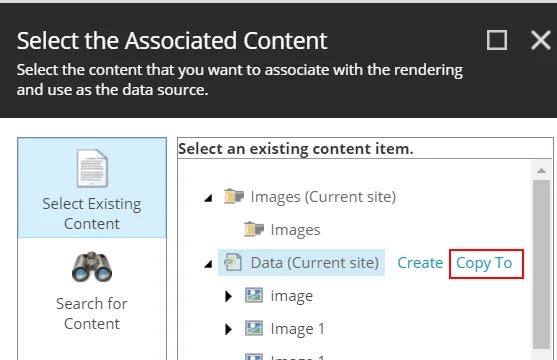
| | Data (Current Site) **Copy to** | Creates a copy of a data source that you can use locally. Select the root item, enter a name for the copy, and then click **OK**.
 |
| | **Page** | Lets you use a page as a data source.
This option is available for components that take content from the current page such as Page Content. |
| **Search for Content** | | In the **Search** field, enter the keywords that characterize the items that you want to search for, or build a query. |
## Modify associated content
You might want to change an associated item after it is placed on a page. For example, if you need to replace an image on the page.
To modify associated content:
1. On the floating toolbar of the component, click **More** > **Edit component properties**.
2. In the **General** section > **Data Source**, click **Browse**.
3. In the **Select the Associated Content** dialog box, select the item that you want to associate with the component and click **OK**.