---
title: "攻略:新しいScribanテンプレートの作成"
slug: "walkthrough--creating-a-new-scriban-template"
abstract: "新しいProduct Information Scribanテンプレートの作成方法の例。"
---
# 攻略:新しいScribanテンプレートの作成

Scribanテンプレートコードを修正して、ライブストアフロントでのコンテンツのレンダリング方法を変えることができます。このウォークスルーでは、StorefrontのサイトテンプレートとMaster\_Habitatカタログを使って簡単な例を示します。PDPの製品情報セクションを修正するのがデフォルトで次のようになります。
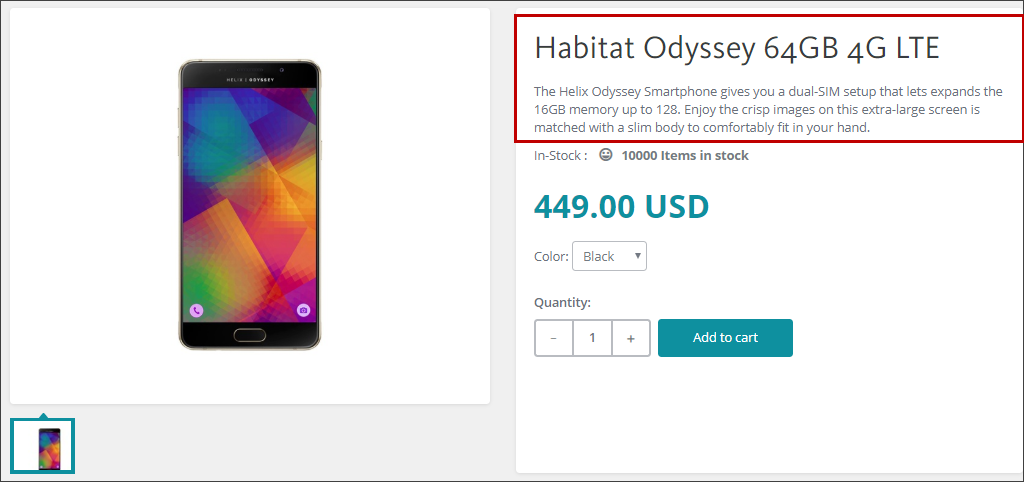
![Product Detail Page on the live storefront showing product information section before change.](https://doc.sitecore.com/api/markdown-image/xp/ja/developers/100/sitecore-experience-commerce/images/ProductinformationBefore.png)

新しいScribanテンプレートを作成して公開した後、本番情報セクションは以下のようになります:
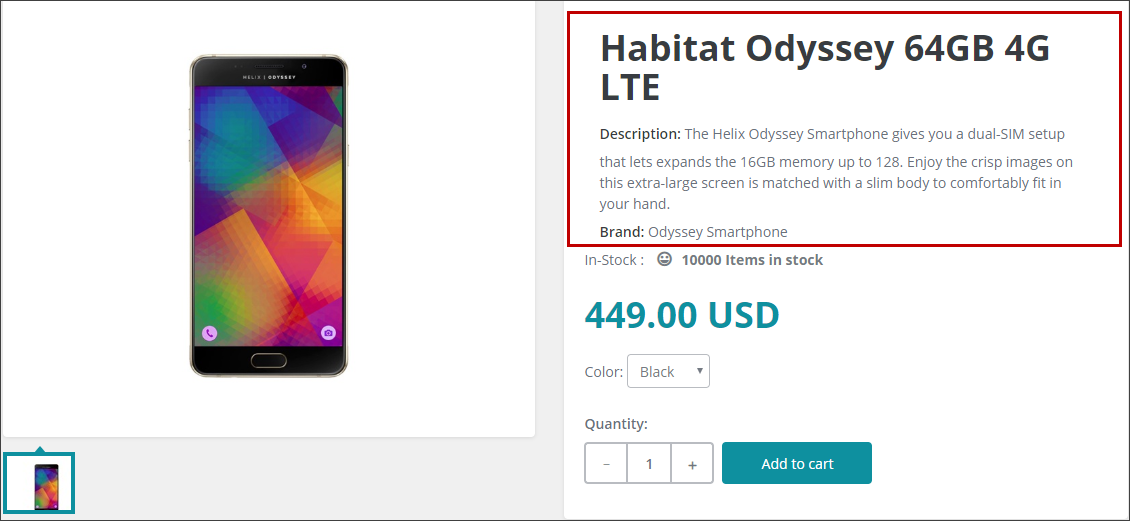
![Product Detail Page on the live storefront showing product information section after change.](https://doc.sitecore.com/api/markdown-image/xp/ja/developers/100/sitecore-experience-commerce/images/ProductInformationFinal.png)

このウォークスルーでは、以下の方法を説明します:

-   新しいScribanテンプレートを作成する
-   新しいレンダリングバリアントを部分的なデザインに追加します
-   Scribanテンプレートコードにロジックを追加する

> !注[Discover Sitecore](https://www.youtube.com/watch?v=HgwnRTYtTXs)チャンネルでScribanの使い方を説明する動画が見つかります。

## 新しいScribanテンプレートを作成する

新しいScribanテンプレートを作成するには:

1.  コンテンツエディターで*sitecore\\Content\\\\\\Presentation\\Rendering Variants*へ行ってください。
    
2.  右クリックで **「ページ内容**」をクリックし、「 **挿入」「バリアント定義** 」をクリックし、**メッセージ** ダイアログボックスで*Product Information Scriban*を入力して **「OK」**をクリックします。
    
3.  コンテンツツリーで新しく作成したProduct Information Scriban項目を右クリックし、「 **Scriban >挿入** 」をクリックし、**メッセージ** ダイアログボックスで**OK**をクリックしてデフォルト名(Scriban)を受け入れます。
    
4.  **コンテンツ**タブの**VariantDetails**セクションの**テンプレート**フィールドで、以下のコードを入力してください。
    
    <div class="product-name">
     <h1>{{i\_item.DisplayName}}</ha>
     </div>
    
     <div class="product-number">
     <label class="h5">{{sc\_translate 'Item Number'}}:</label>
     <span>{{i\_item.ItemNumber}}</span>
     </div>
    
    <div class="product-description">
     <label class="h5">{{sc\_translate 'Description'}}:</label>
     <span>{{i\_item.Description}}</span>
     </div>
    
    <div class="product-features">
     <label class="h5">{{sc\_translate 'Features'}}:</label>
     <span>{{i\_item.Features}}</span>
     </div>
    
    <div class="product-brand">
     <label class="h5">{{sc\_translate 'Brand'}}:</label>
     <span>{{i\_item.Brand}}</span>
     </div>
    
    <div class="product-Color">
     <label class="h5">{{sc\_translate 'Color'}}:</label>
     <span>{{i\_item.Color}}</span>
     </div>
    
5.  リボンメニューで **「保存** 」をクリックし、*F9*を押して変更を公開します。
    
6.  「 **Publish Site** 」ダイアログボックスの「 **Publishing** 」セクションで「 **Smart publish** 」オプションをクリックし、公開言語とターゲットを指定してから **「Publish**」をクリックします。
    

## 新しいレンダリングバリアントを部分的なデザインに追加します

新しいレンダリングバリアントを部分設計に追加するために:

1.  コンテンツエディターで */sitecore/Content/Sitecore/Storefront/Presentation/Partial Designs*に行き、「 **デフォルトのメインプロダクトページコンテンツ** 」を右クリックし、「 **エクスペリエンスエディター**」をクリックします。
    
2.  エクスペリエンスエディターで「製品情報レンダリング」をクリックし、ツールバーの「削除(X)」をクリックします。
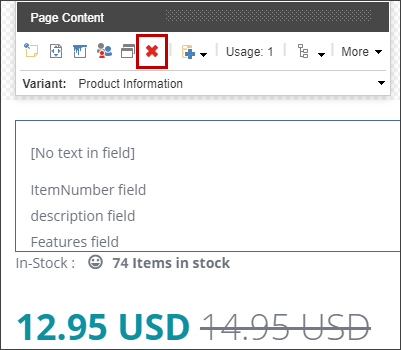
    
    ![Product Information rendering variant selected and Page Content dialog box displayed.](https://doc.sitecore.com/api/markdown-image/xp/ja/developers/100/sitecore-experience-commerce/images/ProductInformationDelete.png)
    
3.  **ツールボックス**の**ページコンテンツ**セクションで、**ページコンテンツ**レンダリングを選択し、在庫ステータスの上のページにドラッグし、リボンメニューで**保存**をクリックします。
    
4.  追加したページコンテンツレンダリングをクリックし、**バリアント** リストから **「Product Information Scriban**」をクリックしてください。新しいフィールドが見えます。
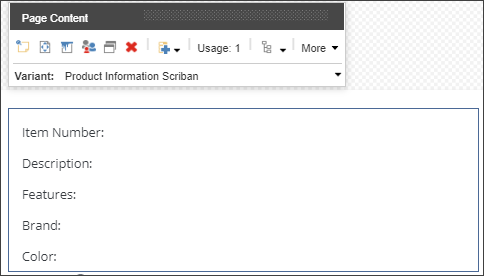
    
    ![Product Information section in the Experience Editor with changes.](https://doc.sitecore.com/api/markdown-image/xp/ja/developers/100/sitecore-experience-commerce/images/ProductInformationNewFields.png)
    
5.  リボンの上で「 **保存** 」をクリックして変更を公開してください。
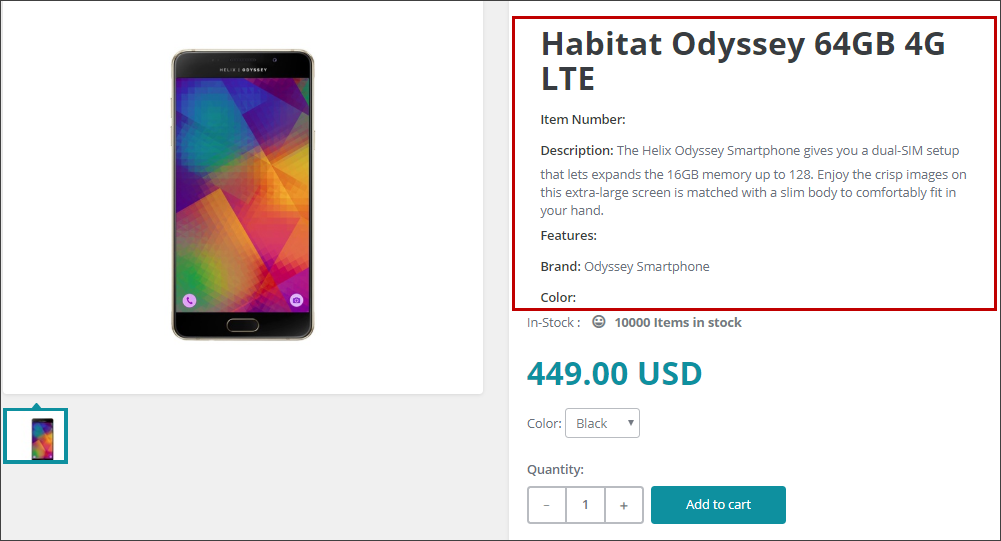
    
    ![Product Information section on the live storefront with changes.](https://doc.sitecore.com/api/markdown-image/xp/ja/developers/100/sitecore-experience-commerce/images/ProductInformationDetails.png)
    

## Scribanテンプレートコードにロジックを追加する

Scribanテンプレートコードに論理を加えると:

1.  Scribanテンプレートにロジックを追加し、アイテム **番号**、**特徴**、**色**などの空欄が表示されないようにするには、/sitecore/Content/Sitecore/Storefront/Presentation/Rendering Variants/Page Content/Product Information Scriban/Scribanに移動して次のコードをScribanテンプレートにコピーし、前のコードを置き換えます。
    
    {{ if o\_pagemode.is\_experience\_editor }}
     <div class="product-name">
     <h1>Lorem ipsum dolor sit amet</h1>
     </div>
     <div class="product-number">
     <label class="h5">{{ sc\_translate 'Item Number' }}:</label>
     <span>Lorem ipsum dolor sit amet</span>
     </div>
     <div class="product-description">
     <label class="h5">{{ sc\_translate 'Description' }}:</label>
     <span>Lorem ipsum dolor sit amet, consectetur adipiscing elit, sed do eiusmod tempor incididunt ut labore et dolore magna aliqua. Ut enim ad minim veniam, quis nostrud exercitation ullamco laboris nisi ut aliquip ex ea commodo consequat.</span>
     </div>
     <div class="product-features">
     <label class="h5">{{ sc\_translate 'Features' }}:</label>
     <span>Lorem ipsum dolor sit amet</span>
     </div>
     <div class="product-brand">
     <label class="h5">{{ sc\_translate 'Brand' }}:</label>
     <span>Lorem ipsum dolor sit amet</span>
     </div>
     <div class="product-Color">
     <label class="h5">{{ sc\_translate 'Colour' }}:</label>
     <span>Lorem ipsum dolor sit amet</span>
     </div>
    {{ end }}
    
    <div class="product-name">
     <h1>{{ i\_item.DisplayName }}</h1>
    </div>
    {{ if i\_item.ItemNumber | string.size > 0 }}
     <div class="product-number">
     <label class="h5">{{ sc\_translate 'Item Number' }}:</label>
     <span>{{ i\_item.ItemNumber }}</span>
     </div>
    {{ end }}
    
    {{ if i\_item.Description | string.size > 0 }}
     <div class="product-description">
     <label class="h5">{{ sc\_translate 'Description' }}:</label>
     <span>{{ i\_item.Description }}</span>
     </div>
    {{ end }}
    
    {{ if i\_item.Features | string.size > 0 }}
     <div class="product-features">
     <label class="h5">{{ sc\_translate 'Features' }}:</label>
     <span>{{ i\_item.Features }}</span>
     </div>
    {{ end }}
    
    {{ if i\_item.Brand | string.size > 0 }}
     <div class="product-brand">
     <label class="h5">{{ sc\_translate 'Brand' }}:</label>
     <span>{{ i\_item.Brand }}</span>
     </div>
    {{ end }}
    
    {{ if i\_item.Color | string.size > 0 }}
     <div class="product-Color">
     <label class="h5">{{ sc\_translate 'Colour' }}:</label>
     <span>{{ i\_item.Color }}</span>
     </div>
    {{ end }}
    
2.  リボンメニューで「 **保存**」をクリックし、F9キーを押して変更を公開します。
    
    現在、ライブストアフロントサイトでは、コンテンツのないラベルが表示されません。