Implement components to store migrated data
The xConnect developer documentation provides detailed instructions on how to build the following components.
Create facet
Create facet
A facet is needed to store the customer loyalty program information for a specific contact.
Create model
Create model
A custom model is needed to notify xConnect that the custom facet is available to contacts in xDB.
Deploy components to the Sitecore server
Deploy components to the Sitecore server
Build the project and deploy the assembly to your Sitecore server.
Register model with Data Exchange Framework
Register model with Data Exchange Framework
Registering the model with Data Exchange Framework (DEF) makes it easier to incorporate the model into the data migration process.
-
In Content Editor, navigate to system > Settings > Data Exchange > Providers > xConnect > Collection Models > xDB Data Migration Tool
-
Add the following item:
|
Template |
Compiled Collection Model |
|
Item name |
Custom Migration Model |
-
Set the following field values:
|
Field |
Value |
|---|---|
|
Collection Model Type |
|
-
Save the item.
-
Navigate to Facets. There should be two child items: Contact and Interaction.
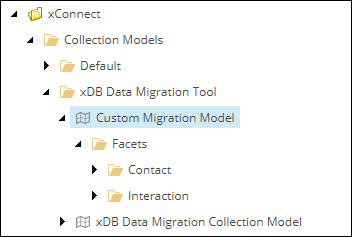
If no items appear under the Facets item, clear the cache for the master database, then refresh the Facets item.
-
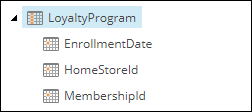
Navigate to Contact > LoyaltyProgram. There should be a child item for each of the properties you defined in the facet.
Deploy model to xConnect
Deploy model to xConnect
-
Navigate to the item Custom Migration Model.
-
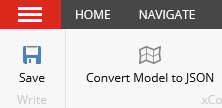
In the toolbar, click Convert Model to JSON.
-
Your browser will download a JSON file.
-
Copy the JSON file to the following locations:
|
Server |
Path |
|---|---|
|
xConnect |
|
|
xConnect Search Indexer |
|