
Add links and breadcrumbs
The Link, Link list, and Breadcrumb renderings are part of the navigation section. They help your visitors to navigate your site.
Add the Link rendering
Links are very useful for helping people to navigate your site. You can use internal links to help define the architecture and hierarchy of a website. You can also use external links to help people access other related websites, open a file, or send an email message.
To add the Link rendering to the page:
- In the Experience Editor, from the toolbox, in the Navigation group, click Link and drag it to the page.
- In the Select the Associated Content dialog box, to link to an existing item, click the content item that you want and click OK.
- Alternatively, to create a new link, in the Select the Associated Content dialog box, click Create New Content.
- Click
 Edits the link destination and appearance to open the Insert a link dialog box and select the link type:
-
Internal Link – adds a link to an item on your website. For example, to a different page on your website.
-
Media Link – adds a download link for a media file in your Media Library. For example, a video or a PDF file.
-
External Link – adds a link to a page on another site.
-
Anchor – adds a link to a particular section within a page.
-
Mail – adds a link that opens and creates a new email message in the visitor’s default email program.
-
JavaScript – adds a link that calls JavaScript code.
NoteTo delete the link, click
 Clears the link. To check the link, click
  Follow link.
 -
Add the Link List rendering
Link lists are very useful if you want to direct your users outside the page. For example, if you want to share a list of links to other websites and blogs that you have collected. The Link List rendering can display lists with items that are preceded by a title.
To add the Link List rendering to the page:
- In the Experience Editor, from the toolbox, in the Navigation group, click Link List and drag it to the page.
- In the Select the Associated Content dialog box, click the content item that you want and click OK.
- To set the link list properties, click
 Edit style and behavior.
 - In the dialog box, in the Styling section, you can select a variant and style.
Add the Breadcrumb rendering
A breadcrumb is a navigation help that reveals the user’s location in a website. Especially, if your website contains a lot of pages, breadcrumb navigation can greatly enhance the way users find their way around. Breadcrumbs reduce the number of actions a website visitor needs to take in order to get to a higher-level page, and they improve the findability of website sections and pages.
In their simplest form, breadcrumbs are horizontally arranged text links separated by the greater than symbol (>); the symbol indicates the level of that page relative to the page links beside it.
If you want the user to be able to use the breadcrumb for navigation:
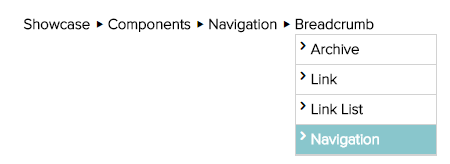
The Breadcrumb rendering generates a breadcrumb that lists all path items from the root to the current item. It supports rendering variants.
To add the Breadcrumb rendering to the page:
- In the Experience Editor, from the toolbox, in the Navigation group, click Breadcrumb and drag it to the page.
- To set the breadcrumb properties, click
 Edit style and behavior.
 - In the dialog box, in the Styling section, you can select a variant and style.
- In the Breadcrumb Settings section, set the following fields:
- Start Page – specify the starting point for the breadcrumb. If you leave this empty, by default the home page is used.
- Separator – specify the character that separates the breadcrumb items. For example, >, >>, /, //.
- Navigation Breadcrumb – select to include siblings as a drop-down menu.
- Navigation Filter – select Breadcrumb Navigation.
By changing the settings, you can create different styles of breadcrumbs. For example:
| Type | Screenshot | Settings |
|---|---|---|
| Simple breadcrumb |  | Rendering variant: Page title Separator: > Navigation Filter: Breadcrumb Navigation Styles: Indent Top, Indent Bottom, Indent Sides |
| Breadcrumb with ellipses |  | Rendering variant: Page title Separator: > Navigation Filter: Breadcrumb Navigation Styles: Indent Top, Indent Bottom, Hide intermediate items, Indent Sides |
| Breadcrumb with icons |  | Rendering variant: Icons Separator: > Navigation Breadcrumb: selected Navigation Filter: Breadcrumb Navigation Styles: Breadcrumb custom indicators |