Walkthrough: Creating a custom contact facet
In Sitecore Experience Platform, contact facets are used to store data on contacts. This walkthrough guides you through the process of creating a custom contact facet and configuring the synchronization process to populate the facet with data from Salesforce CRM.
In this example you will create a custom contact facet to store the name of the account the contact is associated with. The steps that you need to follow are:
Create a Visual Studio project
Create a Visual Studio project
In order to store custom data on a contact, a contact facet is needed. Contact facets are implemented in code. A Visual Studio project is needed before you can implement the custom contact facet.
-
In Visual Studio, create the following project:
Project type
Class Library (.NET Framework)
.NET version
.NET Framework 4.6.2
Project name
Examples.Connect.Salesforce
-
Add references to the following NuGet packages:
-
Sitecore.DataExchange.Tools.SalesforceConnect.NoReferences -
Sitecore.XConnect.NoReferences
-
Sitecore’s public NuGet feed is available at https://nuget.sitecore.com/resources/v3/index.json.
Implement a contact facet
Implement a contact facet
Each Salesforce contact is associated with an account. In order to store the account name on a contact, a contact facet is needed.
-
In Visual Studio, add the following class:
Implement a collection model
Implement a collection model
In xConnect, a collection model defines which contact facets are available. Before you can store data in a custom contact facet, you need a collection model that includes the custom contact facet.
-
In Visual Studio, add the following class:
Register a collection model
Register a collection model
You must register your custom collection model before it can be used. This involves updating the components and configuration on several Sitecore server roles.
Deploy custom components
The assembly that contains the custom contact facet and collection model must be deployed on your Sitecore server.
-
Build the Visual Studio project.
-
Copy
Examples.Connect.Salesforce.dllto your Sitecore server.
Add a collection model definition
The collection model must be defined within Sitecore.
A custom data provider exposes the facets defined in the collection model. This makes it easier to configure data mapping that involves xConnect entities by showing the user what is available and reducing the changes that the user will accidentally enter an invalid value.
-
In Sitecore, in the Content Editor, navigate to Sitecore/System/Settings/Data Exchange/Providers/xConnect/Collection Models.
-
Add the following item:
Template
Collection Model Folder
Item name
Custom Models
-
In the new item, add the following item:
Template
Compiled Collection Model
Item name
Custom Collection Model for Salesforce
-
In the new item, on the Content tab, in the Settings section, set the following field value:
Field
Value
Collection Model Type
Examples.Connect.Salesforce.SalesforceConnectCollectionModelEx, Examples.Connect.Salesforce
-
Save the item.
Deploy and convert the collection model
The collection model must be deployed to the xConnect before any custom data can be sent to xConnect. This is accomplished by copying a JSON file that describes the collection model.
-
Navigate to the custom collection model. On the ribbon, click Convert Model to Items. Then click Convert Model to JSON.

-
Save the model file.
-
Deploy the model file to the following servers:
-
xConnect collection
-
xConnect indexing
-
Configure the xConnect Client Endpoint
In order to make a connection to xConnect a collection model must be specified. This ensures xConnect and the xConnect client know exactly what to expect from one another.
-
In the Content Editor, navigate to Sitecore/System/Data Exchange.
-
Select your tenant.

-
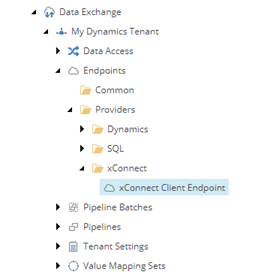
Navigate to Endpoints/Providers/xConnect/xConnect Client Endpoint.
-
On the Content tab, in the Collection Service section, set the following field value:
Field
Value
Collection Model
Collection Models/Custom Models/Custom Collection Model for Salesforce
-
Save the item.
Test the configuration
Testing the configuration ensures that the collection model is deployed and the xConnect client endpoint is configured properly.
-
On the ribbon, click Run Troubleshooter.

A message will appear, informing you a connection to the xConnect collection service was established.

Specify how to read from the Salesforce contact
Specify how to read from the Salesforce contact
The tenant must be configured to understand the structure of the data being read from Salesforce. This section describes how to update the tenant in order to incorporate this information.
Add a value accessor for the account on the contact
A value accessor is used to represent that the account is a property of the contact in Salesforce. This value accessor serves two purposes:
-
When you read contacts from Salesforce, you must tell Salesforce to include the account for the contact. The value accessors in the value accessor set are used to determine which fields on the contact object should be read. Adding a value accessor enables you to specify that you want to read additional fields from Salesforce.
-
When it is time to configure the mapping of data from Salesforce to Sitecore, the value accessor is used to specify which value to read from the Salesforce contact.
To add a value accessor for the account on the contact:
-
In the Content Editor, navigate to Sitecore/System/Data Exchange.
-
Select your tenant.
-
Navigate to
Data Access/Value Accessor Sets/Providers/Salesforce/Salesforce Contact Fields.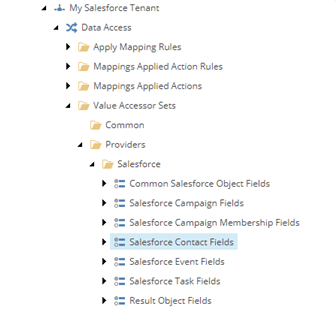
-
Add the following item:
Template
Salesforce Object Field Value Accessor
Item name
Account on Salesforce Contact
-
In the new item, on the Content tab, in the Field section, set the following field values:
Field
Value
Field Name
AccountField Name for Select
Account.Name -
Save the item.
Add a value accessor for the name on the account
In Salesforce, when you specify that you want to include the account name when you read contacts, Salesforce returns an account object. This account object has a field that represents the account name. A value accessor is needed in order to read the name on the account object. This value accessor is never used directly. It is created so that the value reader created in the next step can use it.
-
In the Content Editor, navigate to
Data Access/Value Accessor Sets/Providers/Salesforce.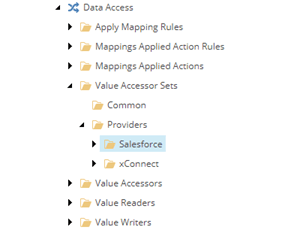
-
Add the following item:
Template
Salesforce Object Value Accessor Set
Item Name
Salesforce Account Fields
-
In the new item, add the following item:
Template
Salesforce Object Field Value Accessor
Item name
Name on Salesforce Account
-
In the new item, on the Content tab, in the Field section, set the following field value:
Field
Value
Field name
Name
-
Save the item.
Add a value reader for the account name
The purpose of this value reader will become apparent in a later step. For now, just follow the step below.
-
In the Content Editor, navigate to
Data Access/Value Readers/Providers/Salesforce.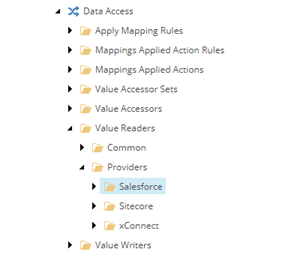
-
Add the following item:
Template
Value Accessor Value Reader
Item Name
Value Reader for Account Name Value Accessor
-
In the new item, on the Content tab, in the Settings section, set the following field value:
Field
Value
Value Accessor
Value Accessor Sets/Providers/Salesforce/Salesforce Account Fields/Name on Salesforce Account -
Save the item.
Specify how to write to the Contact facet
Specify how to write to the Contact facet
-
In the Content Editor, navigate to Sitecore/System/Data Exchange.
-
Select your tenant.
-
Navigate to
Data Access/Value Accessor Sets/Providers/xConnect.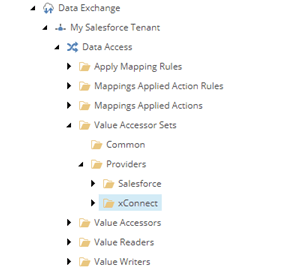
-
Add the following item:
Template
xConnect Entity Facet Value Accessor Set
Item name
xConnect Contact Salesforce Account Information Facet
-
In the new item, add the following item:
Template
xConnect Entity Facet Property Value Accessor
Item name
Account Name on Salesforce Account Information Facet on xConnect Contact
-
In the new item, on the Content tab, in the Settings section, set the following field value:
Field
Value
Facet Property
Collection Models/Custom Models/Custom Collection Model for Salesforce/Facets/Contact/SalesforceAccount/AccountName -
Save the item.
Map Salesforce data to the contact facet
Map Salesforce data to the contact facet
-
In the Content Editor, navigate to Sitecore/System/Data Exchange.
-
Select your tenant.
-
Navigate to
Value Mapping Sets/Salesforce to xConnect Contact Mappings.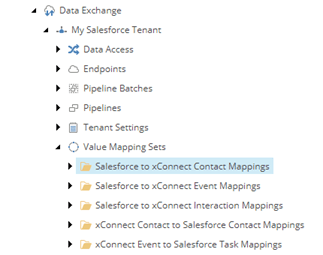
-
Add the following item:
Template
Value Mapping Set
Item name
Salesforce Contact to xConnect Contact Salesforce Account Information Facet
-
In the new item, add the following item:
Template
Value Mapping
Item name
Account Name
-
In the new item, on the Content tab, set the following field values:
Section
Field
Value
Source
Source Accessor
Data Access/Value Accessor Sets/Providers/Salesforce/Salesforce Contact Fields/Account on Salesforce ContactTarget
Target Accessor
Data Access/Value Accessor Sets/Providers/xConnect/xConnect Contact Salesforce Account Information Facet/Account Name on Salesforce Account Information Facet on xConnect ContactRules
Source Value Transformer
Value Readers/Providers/Salesforce/Value Reader for Account Name Value AccessorNoteIn the Specify how to read from the Salesforce contact section, a value reader was created for the account name. This value reader is set as the source value transformer on the value mapping. The source value transformer is a value reader that reads a value from the object read by the source value accessor. In this case, the source value accessor reads the account object from the Salesforce contact. However, the account name is needed, not the account object itself. So the source value transformer reads the name from the account object.
-
Save the item.
Map the contact facet to the contact
Map the contact facet to the contact
-
In the Content Editor, navigate to Sitecore/System/Data Exchange.
-
Select your tenant.
-
Navigate to
Data Access/Value Accessor Sets/Providers/xConnect/xConnect Contact.
-
Add the following item:
Template
xConnect Entity Facet Value Accessor
Item name
Salesforce Account Information Facet on xConnect Contact
-
In the new item, on the Content tab, in the Settings section, set the following field values:
Field
Value
Facet Definition
Collection Models/Custom Models/Custom Collection Model for Salesforce/Facets/Contact/SalesforceAccountMapping Set
Value Mapping Sets/Salesforce to xConnect Contact Mappings/Salesforce Contact to xConnect Contact Salesforce Account Information Facet -
Save the item.
-
Select your tenant.
-
Navigate to
Value Mapping Sets/Salesforce to xConnect Contact Mappings/Salesforce Contact to Contact Model.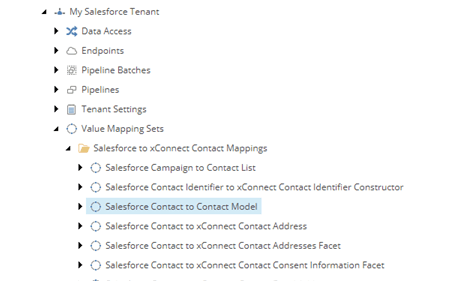
-
Add the following item:
Template
Value Mapping
Item name
Salesforce Account Information Facet
-
In the new item, on the Content tab, set the following values:
Section
Field
Value
Source
Source Accessor
Data Access/Value Accessors/Common/Value Accessor with Raw Value Reader SetTarget
Target Accessor
Data Access/Value Accessor Sets/Providers/xConnect/xConnect Contact/Salesforce Account Information Facet on xConnect Contact -
Save the item.
Add new facet to pipelines
Add new facet to pipelines
In order for the information in the new facet to be processed, you must add it to the Read Contacts from Salesforce and Process Single Contact from Salesforce pipeline steps.
To add the fields to the Read Contacts from Salesforce pipeline step:
-
In the Content Editor, navigate to Sitecore/System/Data Exchange.
-
Select your tenant.
-
Navigate to
Pipelines/Salesforce Contacts to xConnect Sync Pipelines/Read Contacts from Salesforce Pipeline/Read Contacts from Salesforce. -
On the Content tab, in the Object Settings sections, in the Fields to Read field, add Salesforce Account Fields to the Selected column.
-
Save the pipeline step.
To add the facet to the Process Single Contact from Salesforce pipeline step:
-
In the Content Editor, navigate to Sitecore/System/Data Exchange.
-
Select your tenant.
-
Navigate to
Pipelines/Salesforce Contacts to xConnect Sync Pipelines/Process Single Contact from Salesforce Pipeline/Resolve Contact Model by Id from xConnect. -
On the Content tab, in the xConnect Settings sections, in the Facets to Read field, locate
Collection Models/Custom Models/Custom Collection Model for Salesforce/Facets/Contact/SalesforceAccount. Add it to the Selected column. -
Save the pipeline step.