Page builder custom fields
The SitecoreAI Page builder custom field extension point lets you extend the data template of a content item or a page by adding your own custom field to it. SitecoreAI users can then populate that field with the data you provide in your Marketplace app.
A data template is a blueprint that contains fields defining the structure and types of data for content items. Title, Image Path, and Date are examples of fields that Sitecore provides out of the box. You can use the Marketplace to add your own custom fields.
Custom fields store raw data, such as JSON or plain text, making them ideal for loading third-party data such as icon libraries, gradient color pickers, or any other data from an external source using an API connection.
Sitecore does not validate the raw data your custom field stores. As the developer, it's your responsibility to ensure that the data is valid and that the extended content item or page can use it.
Creating a custom field
The typical workflow for creating a custom field includes the following activities:
-
In the Cloud Portal, enable the custom field extension point for your custom or public Marketplace app.
-
Develop your app's user interface and functionality.
-
Enable the custom field in the SitecoreAI Page builder by adding the field to a template in the Content Editor.
-
Get and set custom field values using the Marketplace SDK.
User interaction with a custom field
After enabling a custom field in the Page builder and installing the corresponding Marketplace app in your organization, users with app access can start working with the field.
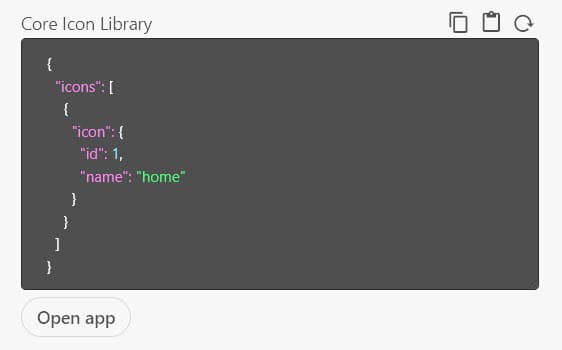
When the SitecoreAI user clicks Open app below the custom field, your Marketplace app appears in a modal. This is where the user selects a value, such as an icon, and confirms their selection.
Content item
When a SitecoreAI user selects the content item, the custom field appears in the panel on the right-hand side of the canvas.

Page
When a SitecoreAI user selects a page and clicks More actions  > Page content, the custom field for the page appears in the Page content panel to the left of the canvas.
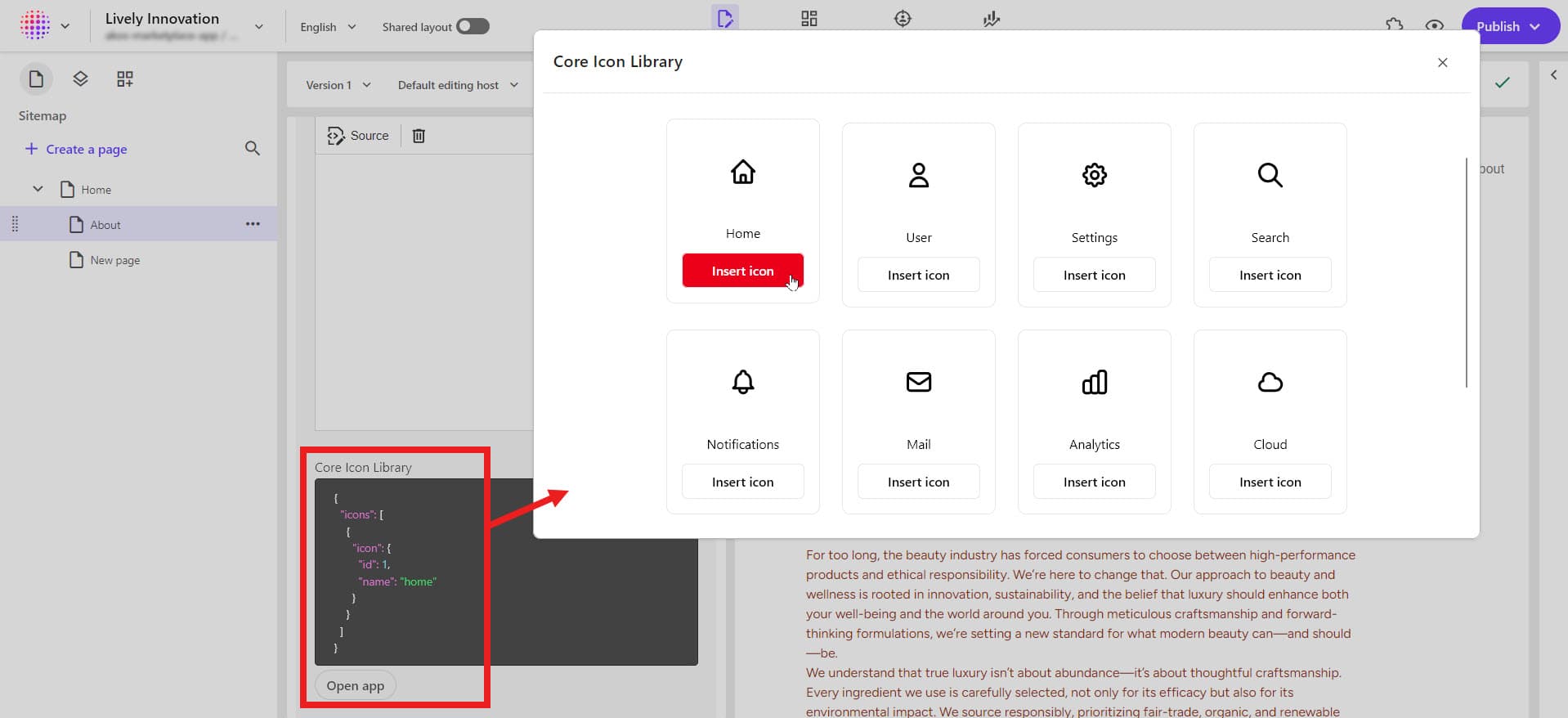
As the developer, it's your responsibility to display the values to the user and let them select and confirm the value they need.
SitecoreAI stores the selected value and lets the content item or page access it. The custom field displays the raw, stored data, such as the JSON representation of the selected icon. Users can copy the data from one custom field and paste it into another, allowing them to quickly work with multiple items. Alternatively, they can clear the field to remove the stored data.