Walkthrough: Creating a contact and an interaction
This walkthrough is part one of the Extending the xConnect collection model walkthrough series and describes how to create a contact and an interactions.
Before you can complete this walkthrough, you must install the full Sitecore Experience Platform, including xConnect and xDB.
This walkthrough describes how to:
- Create the
Sitecore.Documentationsolution and console app - Establish contact between the
Sitecore.Documentationapp and your XConnect instance - Create a contact with a known identifier
- Create an interaction with a single event
In Sitecore 9.1.0, in the Sitecore.Xdb.Common.Web namespace:
-
Certificate**WebRequest**HandlerModifierOptionsbecameCertificate**HttpClient**HandlerModifierOptions. -
Certificate**WebRequest**HandlerModifierbecameCertificate**HttpClient**HandlerModifier.
Create the Sitecore.Documentation solution and console app
To create the Sitecore.Documentation solution and console app:
-
In Visual Studio with administrator privileges, create a new solution and console app for .NET Framework project called
Sitecore.Documentation: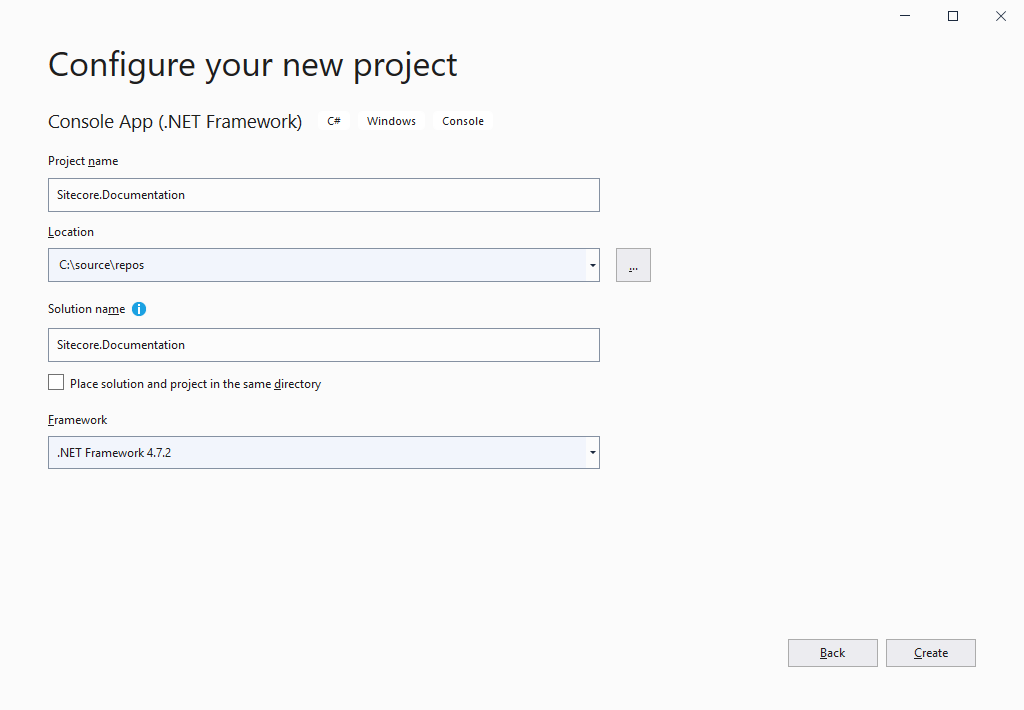
-
In Solution Explorer, right-click References and click Add Reference.
-
In the Reference Manager window, click Browse and add the following references from your
<xConnect instance>\bin\folder:Sitecore.Framework.Conditions.dllSitecore.XConnect.CoreSitecore.XConnect.dllSitecore.XConnect.Client.dllSitecore.XConnect.Collection.Model.dllSitecore.XConnect.Search.dllSitecore.Xdb.Common.Web.dll
-
In Solution Explorer, right-click References and click Manage NuGet Packages.
-
In the NuGet window, click Browse and add the following references:
Microsoft.AspNet.WebApi.Client- version: 5.2.6Microsoft.Extensions.Configuration.Abstractions- version: 2.1.1System.Interactive.Async.Providersversion: 3.1.1Newtonsoft.Json- version: 11.0.2
Establish contact between the Sitecore.Documentation app and your XConnect instance
To establish contact between the Sitecore.Documentation app and your xConnect instance:
-
In Solution Explorer, double-click the
Program.csfile and replace the content with the following code: -
Edit the
CERTIFICATE_THUMBPRINTand theXCONNECT_URLconstants. -
Save the
Program.csfile. -
Press F5 to run the app. If the connection is established, the app writes
END OF PROGRAMin the terminal: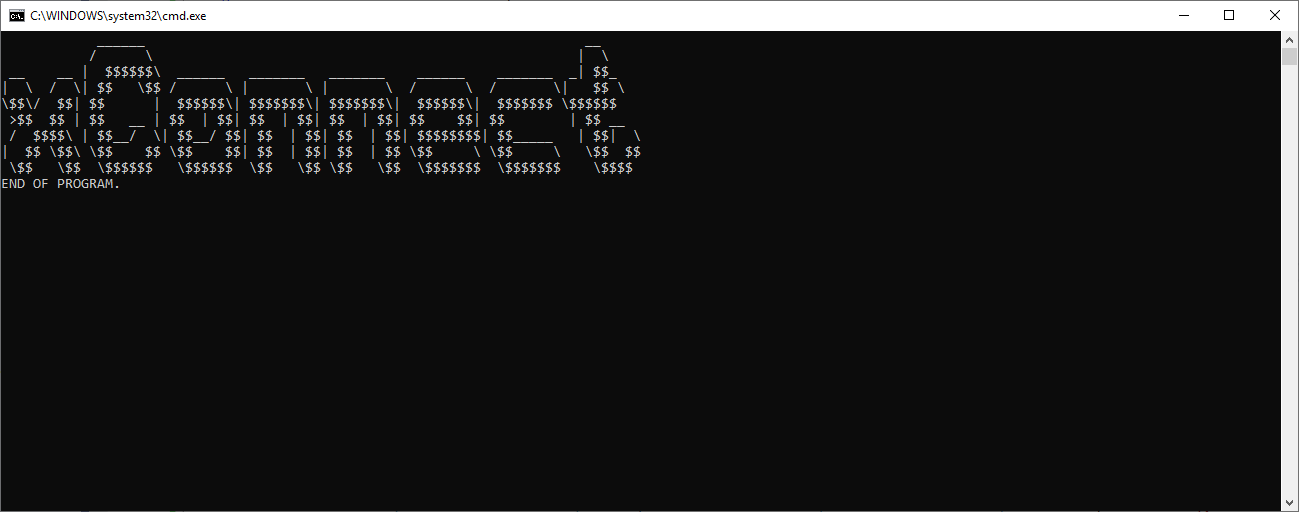
Create a contact with a known identifier
To create a contact with a known identifier:
-
In Visual Studio, in Solution Explorer, double-click the
Program.csfile and replace the content with the following code: -
Edit the
CERTIFICATE_THUMBPRINTand theXCONNECT_URLconstants. -
Save the
Program.csfile. -
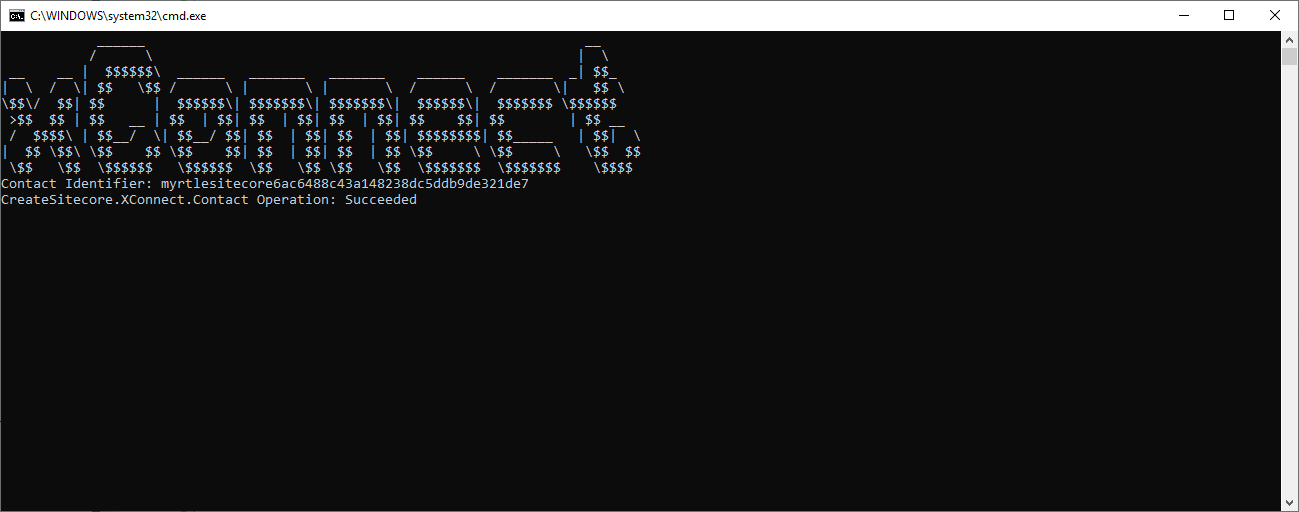
Press F5 to run the app. If the connection is established, the app writes the following in the terminal:
- The contact identifier.
- That the contact was added.
Create an interaction with a single event
The next step is to create an interaction with a single event such as a goal.
This code sample pollutes your database, because:
-
All interactions require a channel GUID. You define these in Sitecore, but xConnect lets you pass a random channel GUID.
-
All events require an event GUID. You define these in Sitecore, but xConnect lets you pass a random event GUID.
If you want to keep your database clean, you must manually delete the interaction and the event created here.
To create an interaction with a single event, for example, a goal:
-
In Visual Studio, in Solution Explorer, double-click the
Program.csfile and replace the content with the following code: -
Edit the
CERTIFICATE_THUMBPRINTand theXCONNECT_URLconstants. -
Save the
Program.csfile. -
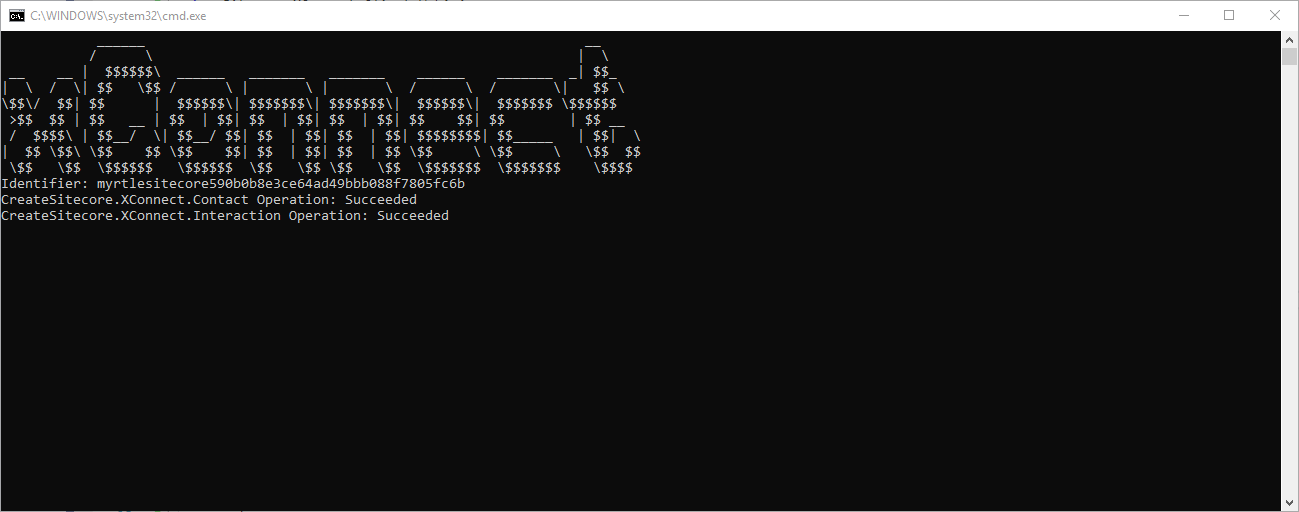
Press F5 to run the app. If the connection is established, the app writes the following in the terminal:
- The contact identifier.
- That the contact was added.
- That the interaction with the event was added.
Go to the next walkthrough to learn how to set contact and interaction facets.