Access rights
Use Windows Authentication with SQL Server
You can configure Sitecore to use Windows Authentication for a SQL connection and remove the user name and password from the connectionStrings.config file.
This only applies to the Core, Master, Web, and Reporting SQL databases, and not to xDB and xConnect.
To configure Sitecore to use Windows Authentication:
-
In Windows, launch the IIS Manager.
-
Select the application pool that Sitecore is running under, click Advanced Settings and in the Identity field, set the identity to the domain user.
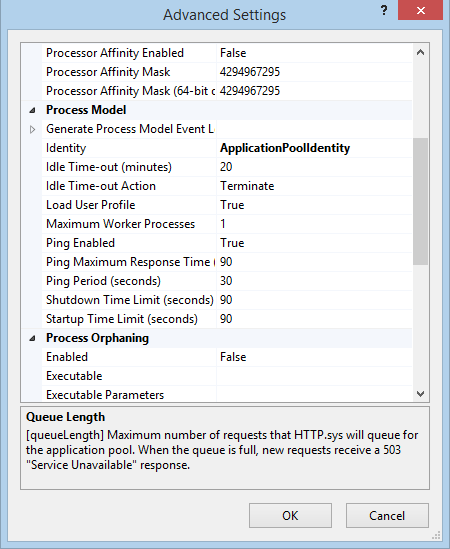
-
In SQL Server, register the domain user and grant the appropriate security permissions to the Sitecore databases for the domain user.
-
On the computer that hosts Sitecore Experience Platform, add the domain user to the IIS_IUSRS group.
For more information about changing the permissions for the IIS_IUSRS group, see the section Server file system requirements.
-
In a text editor, edit the
\App_Config\ConnectionStrings.configfile and replace the user id and password parameters withtrusted_connection=Yes. -
Prepare your identity so that it can be used as a service account with the
aspnet_regiis.exefile and the-gaswitch.
Use Windows performance counters
Sitecore Experience Platform contains built-in functionality that reads and updates the Windows performance counters that you can use to monitor and troubleshoot the Sitecore application. This functionality requires access to Windows registry keys. You can grant access by making the application pool identity a member of the built-in Performance Monitor Users group.
For more information, see Microsoft’s documentation about Application Pool Identity.
If the required registry permissions are not granted, whenever the application attempts to access Windows performance counters, the Access to the registry key 'Global' is denied error is registered in the Sitecore log files.
To avoid this error, you must prevent Sitecore from updating the performance counters.
To prevent Sitecore from updating the performance counters:
- In a text editor, open the
\App_Config\Sitecore.configfile and set theCounters.Enabledsetting to false.