Common issues
This section contains solutions to issues you might encounter.
I cannot upload a Translations file to the website root folder
If the Upload Files dialog hangs during the upload operation, the following errors are written to the log file:
This happens because the Import language dialog uploads translation files to the website root folder by default, and for security reasons write access is denied for this folder.
To solve this issue, upload the translation files to the upload folder, where write access is enabled.
To upload a translations file:
-
In the Open Language File dialog, select the
uploadfolder and click Upload.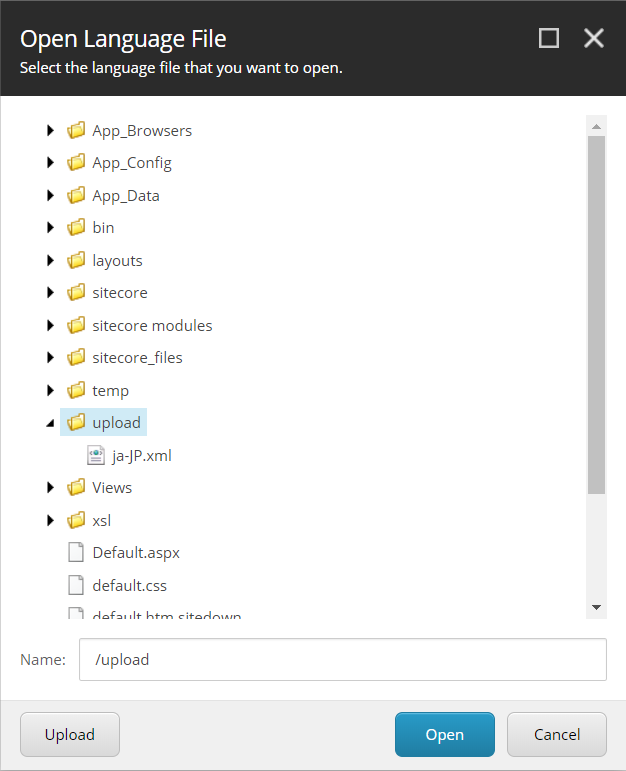
-
In the Upload Files dialog, you can now upload the translations file to the
uploadfolder. -
Use the Import language dialog to import the translation file from the
uploadfolder.
The translation .xml file is saved to the Media library. You can delete it after you have imported the translation.
Only the main Sitecore log is exposed for Sitecore roles containers
Sitecore uses the LogMonitor tool to collect and output log files for containers. By default, the tool is configured to monitor the following log files:
- System event log – Error level entries.
- IIS logs
- Primary Sitecore log (
log.*.txtfiles) – for Sitecore roles - xConnect log (
xconnect-log-*.txtfiles) – for xConnect roles
Auxiliary Sitecore logs, such as for search, crawling, or publishing, are not monitored on Sitecore containers.
To reconfigure the LogMonitor tool to include logs for other roles:
-
Create a Dockerfile with the corresponding role image.
-
In the
C:\LogMonitor\LogMonitorConfig.jsonfile, change the filter for the source from thec:\\inetpub\\wwwroot\\App_data\\logsdirectory. For example: -
Use the Dockerfile to build a new Docker image for the role.
You can also view all the Sitecore log files directly from a container’s file system by connecting to the container from a PowerShell or command prompt terminal.
When I request SSC, problems occur if there are underscores in header names
For example, the following GET request results in a bad request error:
- url: https://cm.globalhost/sitecore/api/ssc/aggregate/content/Items
- add the header:
- key: sc_apikey
- value: id of the created item
This occurs because Nginx does not allow underscores in header names.
You can solve this problem in two ways:
-
Add
sc_apikeyas a parameter to every request. For example: -
Allow underscores in header names by introducing a ConfigMap for the ingress configuration. For more information, see the Kubernetes ConfigMap documentation.
When I reference a CM service from my container, the connection fails
Use a fully qualified domain name instead of a service name. For example, if the CM service is in the default namespace, and the domain name for your cluster is cluster.local, use the service's DNS name cm.default.svc.cluster.local.