Deploy Sitecore Connect for Content Hub in an existing PaaS environment
You can deploy Sitecore Connect for Content Hub (SCCH) in an existing Azure PaaS Environment.
To deploy in an existing PaaS environment, you must have an existing Sitecore XM or XP Azure PaaS Environment and Microsoft Web Deploy installed.
If you are deploying a new Sitecore Azure PaaS environment, use the instructions in Deploy Sitecore Connect for Content Hub in a new PaaS environment instead.
This walkthrough describes how to:
Prepare an installation folder
To prepare an installation folder:
-
Create a local folder in your file system, for example,
C:\Temp\SCCHInstallation. -
Download the Sitecore Connect for Content Hub WDP Package from the and store it in the local folder you created.
-
In the local folder, create a new file and name it
Deploy.ps1. -
Open the new file with an editor such as notepad or VS Code and paste the following script inside:
-
If you are installing SCCH on a version earlier than Sitecore Experience Platform (SXP) 10.1, using
dacpacfiles, remove the$skipDbFullSqland$skipDbDacFxparameters in the script. The script line will look like this:After you remove the parameters, update the connection strings for the Core and Master admin parameters:
NoteYou can find the connection strings in Azure Portal by connecting to your Azure SQL database.
-
Save and close the file.
Prepare the script input
To successfully run the script and install and configure the connector, you must prepare the following parameters:
-
ResourceGroupName- the resource group name in Azure you want to install to. -
WebAppName- the name of the Web App in Azure you want to install to. -
CHClientIdandCHClientSecret- a Content Hub OAuth Client ID and Client Secret. (See Authentication for how to create these). -
CHUserNameandCHPassword- a Content Hub username and password that is used as the identification of Sitecore to access Content Hub. -
CHUri- the URI to your Content Hub instance, for example,https://mysandbox.stylelabs.io/. -
CHServiceBusEntityPathInandCHServiceBusEntityPathOut- to find these connection strings, in Content Hub, create a new action of the type M Azure Service Bus. Make a note of the connection strings in Hub out forCHServiceBusEntityPathInand Hub in forCHServiceBusEntityPathOut. For example: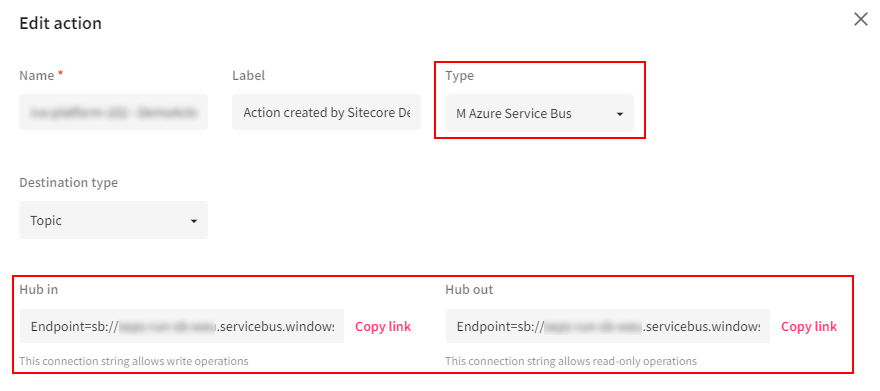
-
CHServiceBusSubscription- the name of your Sitecore subscription. -
CHSearchPage- the URI to the Search Page you want to use to select DAM Assets, for example,https://mysandbox.stylelabs.io/en-us/sitecore-dam-connect/approved-assets.
Install and configure the connector
To run the installation of the connector and apply the configuration:
-
Open a PowerShell window with administrator access.
-
Navigate to your local folder. For example:
-
Run the following command:
-
Run the following command with the parameters you have prepared:
NoteYou must run this command against both your CM and your CD Azure PaaS Web Applications.
-
If you use the DAM functionality in SCCH, to allow the connector to select assets from Content Hub, add all hostnames to the
Content-Security-Policytag.NoteEnsure you have enabled CMP or DAM.
Troubleshoot installation errors
You might encounter the following error(s) when installing SCCH in an existing Azure PaaS environment.
Error: Could not load file or assembly ‘System.Runtime.CompilerService.Unsafe’
This error can occur when you have configured an Azure redis cache. If you get a version conflict error for System.Runtime.CompilerService.Unsafe version 4.0.4.1, add the following node to your webconfig file: