Create a template for a pipeline step
In this example, a pipeline step is used to read data from a text file. A template is needed to allow a user to specify which text file (endpoint) to read from.
Create a template
Create a template
To create a template:
-
In the Content Editor, navigate to Templates.
-
On the menu ribbon, on the Home tab, in the Insert group, click New Template to add a new template.

-
In the Select name dialog, enter the following values:
Field
Value
Name
Read Text File Pipeline Step
Base template
Templates/Data Exchange/Framework/Pipeline Steps/Base Pipeline Steps/Base Pipeline Step
-
Click Next.
-
In the Location dialog, select Templates/Data Exchange/Providers/File System/Pipeline Steps. Click Next.
-
On the confirmation dialog, click Close.
Set an icon for the pipeline step template
Set an icon for the pipeline step template
To set an icon:
-
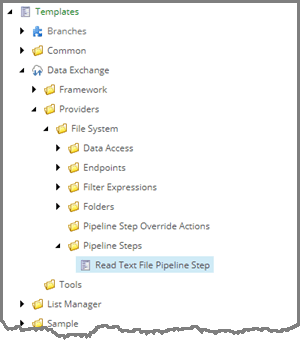
In the Content Editor, in the content tree, select the new template, for example, Templates/Data Exchange/Providers/File System/Pipeline Steps/Read Text File Pipeline Step.
-
On the Content tab, click the icon next to the title.
-
Click the icon next to the title.

-
In the Change Icon dialog, in the Icon field, enter
Office/32x32/element.png -
Click OK.
Add a field to a pipeline step template
Add a field to a pipeline step template
To add a template field:
-
In the content tree, select the pipeline step template. Add a template section, and name it Endpoints.
-
In Endpoints, add a template field, and name it EndpointFrom. Fill in the following fields:
Field
Value
Name
EndpointFrom
Type
Droptree
Source
query:./ancestor-or-self::*[@@templateid='{327A381B-59F8-4E88-B331-BEBC7BD87E4E}']//descendant-or-self::*[@@templateid='TEMPLATE-ID']Shared
selected
ImportantIn the Source field, you must replace
TEMPLATE-IDwith the Item ID for the template named File System Endpoints Root. This template represents the folder used to store endpoint items for your provider.This template was created automatically when you used the Data Exchange Framework SDK to create the provider. The template is located at /sitecore/templates/Data Exchange/Providers/File System/Folders/File System Endpoints Root. You can find the ID on the Content tab.
The query in the Source field limits the droptree field type to the endpoints in the current tenant that are in the folder used to organize endpoints for this provider.
The ID
{327A381B-59F8-4E88-B331-BEBC7BD87E4E}is for the tenant template that is provided with the framework. You must not change this value. -
Select the Shared check box. Save the item.
NoteWhen you save the item, a message tells you that the item contains broken links. This is expected behavior related to the expression set in step 2. Click OK to continue.