Create a template for value accessors
In this walkthrough, each row from the input text file is split into an array of values. The individual values in the array can be used in a data synchronization process. You must configure a template that lets a user specify which value in the array to read.
Create a template for value accessors
To create a template:
-
In the Content Editor, navigate to Templates.
-
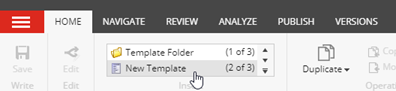
On the menu ribbon, on the Home tab, click New Template.
-
In the Select name dialog, enter the following values:
Field Value Name Array Value Accessor Base template Templates/Data Exchange/Framework/Data Access/Value Accessors/Value Accessor -
Click Next.
-
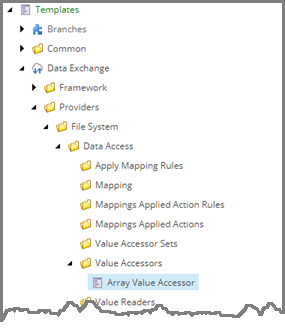
In the Location dialog, select Templates/Data Exchange/Providers/File System/Data Access/Value Accessors. Click Next.
-
In the confirmation dialog, click Close.
Set an icon for a value accessor
To set an icon:
-
In the Content Editor, in the content tree, select the new template, for example, Templates/Data Exchange/Providers/File System/Data Access/Value Accessors/Array Value Accessor.
-
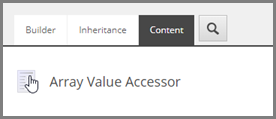
In the right-hand pane, on the Content tab, click the icon next to the title.
-
Click the icon next to the title.
-
In the Change Icon dialog, in the Icon field, enter, for example, Office/32x32/radio_button_selected.png.C
-
Click OK.
Add a field
To add a field:
-
On the new template, add a template section and name it Settings.
-
Add the following fields:
Field Value Name Position Type Integer Shared selected -
Save the item.