Create a new manager root
A manager root contains all the settings that control how users work with the Email Experience Manager. A manager root is created when you configure the EXM default settings for the first time after installation. If you need more than one manager root, for example, in a multisite environment, you can create a manager root manually.
To create a new manager root:
-
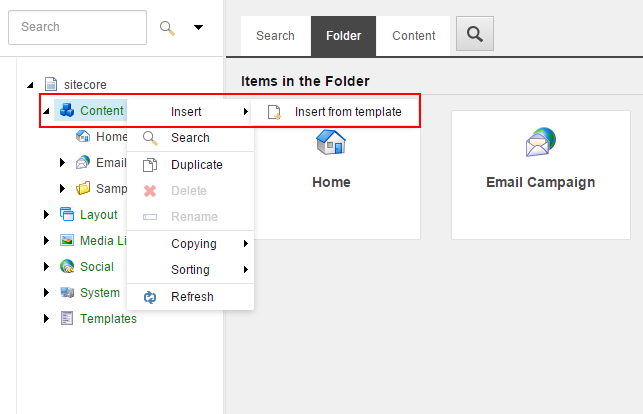
In the content tree, right-click the Content item, click Insert, and then click Insert from Template.
-
In the Insert from Template dialog box, navigate to
Templates/Branches/System/Email, and select Manager Root. If necessary, modify the default item name.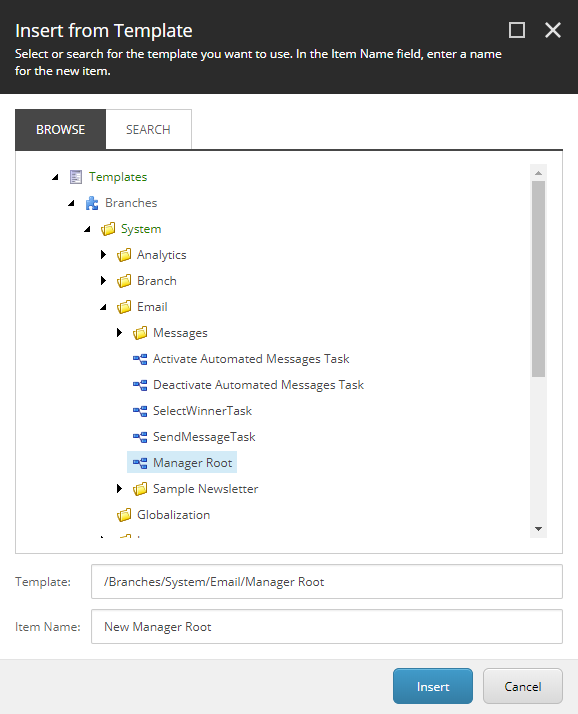
-
Click Insert.
-
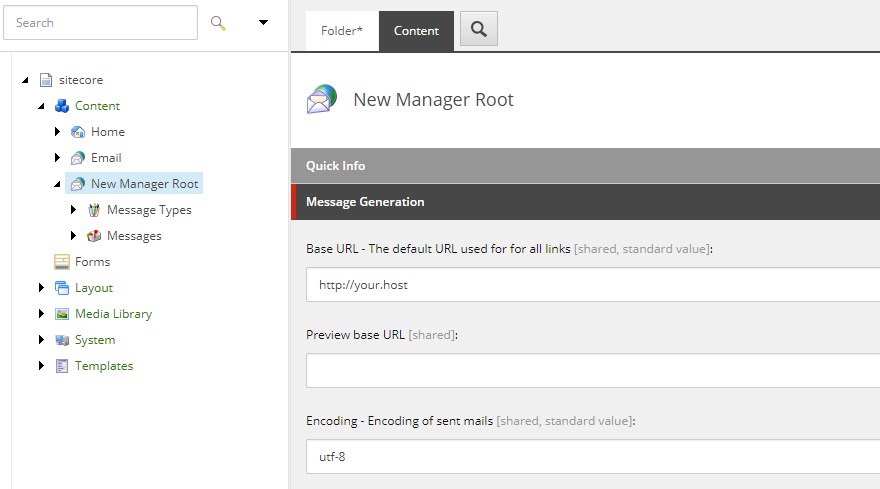
Open the new manager root item and on the Content tab, configure the manager root settings.
When you create a new email campaign, select the manager root from which you want to send email messages using the drop-down list in the left corner of the dashboard. Having multiple manager roots enables you to create email campaigns that use different branding standards.