The export settings
In Sitecore, the Export Settings folder (/sitecore/Print Studio/Export Settings) enables you to define the export settings for PDF, Flash, and print.
This topic describes the export settings for:
Flash
The Flash folder contains the item Default Setting. The Default Setting item is used to define Flash publishing options.
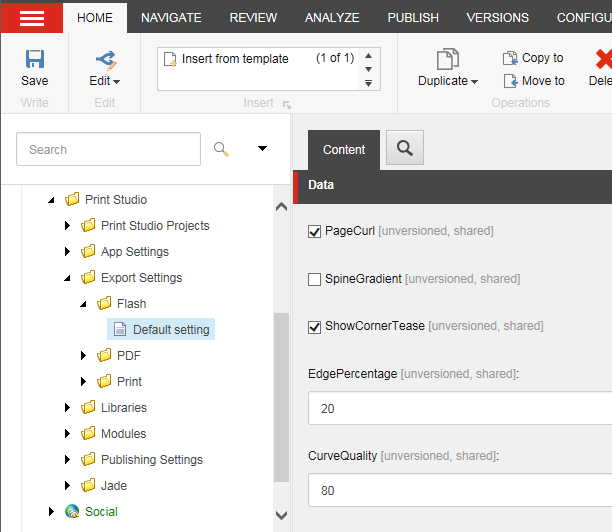
The Section Data contains the following fields:
| Field | Description | Default |
|---|---|---|
| PageCurl | Select to apply page curl in flash page presentation. | Selected |
| SpineGradient | Select to apply spine gradient in flash page presentation. | Cleared |
| ShowCornerTease | Select to apply corner tease in flash page presentation. Shows teaser animation when the user hovers over a corner. | Selected |
| EdgePercentage | Specifies the softness of the edge in percentage. Determines the width/height for the grabber area. | 20 |
| CurveQuality | Specifies the accuracy of the Bezier curves in percentage. | 80 |
| MediaHandling | Specify whether you want interactivity presented. Choices are IncludeAll ( objects and interactivity are presented) and AppearenceOnly (only objects are presented). | IncludeAll |
| FrameRate | Specify the number of frames per second to determine the speed at which the animation is played. | 24 |
| GenerateHTML | Select to add a HTML file to a flash file to open in browser. | Selected |
| TranspBack | Select to make the background transparent. If you clear this setting, the background is paper color. | Cleared |
| IncludePreloader | Select to show the preloader when loading. | Selected |
| JpegQuality | Specify the value for conversion images. | Medium |
| Compression | Specifies the value for compressing. | Automatic |
| Resolution | Specify the value for resolution. | 72 |
| Spreads | Select to merge in spreads. | Selected |
| Threshold | Threshold resolution for downsampling images. | 72 |
| Resampling Type | Specify how you want images resampled: Select Average, Bicubic, None, or Subsample. | Average |
| Sizing | Select FitTo, Scale, or Size. | FitTo |
| FitToValue | Specify the screen resolution. | 1280 x 800 |
| Width | When sizing is set to Size, specify the width of the page in real numbers. | 100 |
| Height | When sizing is set to Size, specify the height of the page in real numbers. | 100 |
| ScaleValue | Specify the scaling percentage. | 100 |
| TextExport | Select Vectorize, Live, Rasterize, or Vellum to set how to export text. | Live |
| Transparency | Specify how you want to handle transparency on a page or spread. Select Ignore, Flatten, or Native. | Ignore |
| UseNetwork | Select to allow access to resources over the network. | Selected |
| ViewAfterExport | Select to open the file in a browser after exporting. | Selected |
PDF
The PDF folder contains the PDF export items. These items are used for defining PDF Settings that correspond with .joboptions for PDF conversions. For example: [SmallestFileSize.job options]
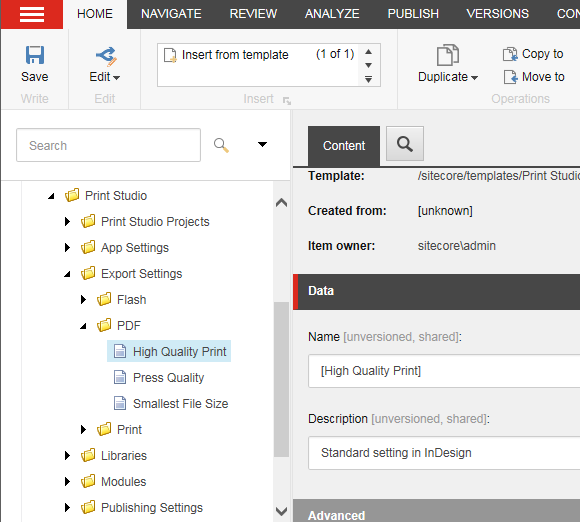
By default, the following items are created by installation:
- High Quality Print
- Press Quality
- Smallest File Size
The Section Data contains the following the Name and Description fields:
- Name — the name corresponds to a .joboption as used for PDF Settings.
- Description — the general description of the item usage.
Print
The Print folder contains by default the Printer item. The Section Data contains the following fields:
| Field | Description |
|---|---|
| Copies | Specify the value for the number of copies to print. |
| Duplex | Select to set to duplex. Default is cleared. |
| Paper source | Specify the value for the paper source. This setting depends on the printer type. |
| Paper type | Specify the value for paper source. Depending on printer type. |