Configure the Salesforce Connected App
Version:
To make Salesforce Connect communicate with Salesforce, you must configure the Salesforce Connected app.
Note
These instructions assume you are using the Salesforce Classic user interface. The same configuration is available using the Salesforce Lightning user interface. We recommend you switch to the Salesforce Classic user interface temporarily to complete these steps.
To configure the Salesforce Connected app:
-
Log in to your Salesforce account.
-
On the top menu, click Setup.

-
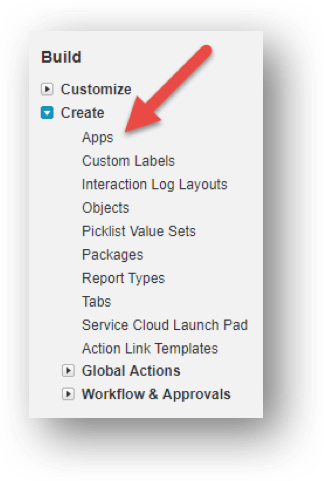
In the left menu, click Create and then click Apps.
-
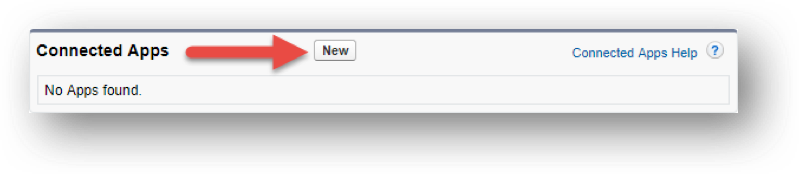
In the Connected Apps section, click New.
-
Enter the following values:
Field name Value Notes Connected App Name Sitecore Data Exchange App The specific value does not matter. API Name Sitecore_Data_Exchange_App Salesforce generates this value based on the app name. It is recommended that this value not be changed. Contact Email [your email address] The specific value does not matter. Enable OAuth Settings Selected Callback URL http://localhost This value is not used, so the value you enter does not matter. Selected OAuth Scopes Access and manage your data (api) Require Secret for Web Server Flow Selected -
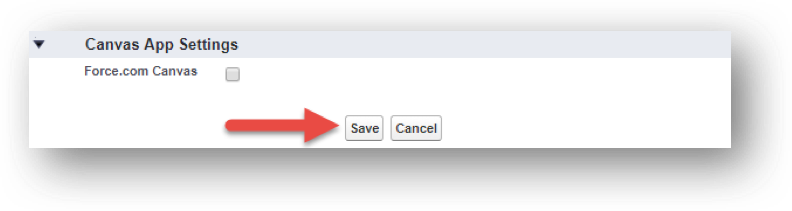
At the bottom of the screen, click Save.
-
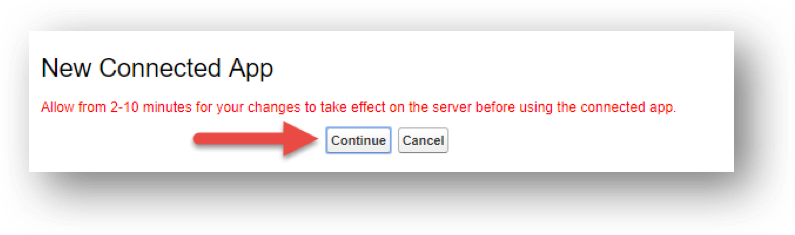
Salesforce informs you that a new connected app was created. Click Continue.
If you have suggestions for improving this article, let us know!