Customize rendering HTML per site
All SXA renderings come with default HTML views. If you want to change the HTML for a rendering, SXA lets you specify site-specific views for renderings. For example, if you have a site that uses the Promo rendering a lot, but you don't like the HTML view, you can create a custom Promo rendering with a different HTML view. SXA will try to find overridden views under the specified path and if a site-specific view file exists, this file will be rendered. Otherwise, the functionality will fallback to the view from default views location.
To create the site-specific view folder:
-
Navigate to
C:\inetpub\wwwroot\<site>\and create a new folder to store the site-specific views. For example, create a Custom Views folder for a customized component HTML for the Promo rendering:C:\inetpub\wwwroot\<site>\MyCustomViews\ -
Your new folder must have the same structure as in the root folder. Therefore, you must add a Views folder:
C:\inetpub\wwwroot\<site>\MyCustomViews\Views\ -
If, for example, you want to customize the Promo component, go to
C:\inetpub\wwwroot\<site>\Views, copy the Variants folder and paste it in theViewsfolder you just created:C:\inetpub\wwwroot\<site>\MyCustomViews\Views\Variants\Promo.cshtml -
Navigate to
C:\inetpub\wwwroot\<site>\Views, copy theweb.configfile and paste it in the folder you just created.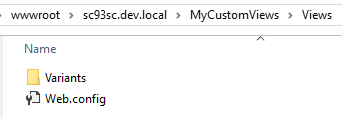
-
Modify the HTML.
-
In the Content Editor, navigate to sitecore/Content/
/ and in the Site Configuration section, in the/Settings CustomRenderingViewPathfield specify the relative path to the main custom views folder that you just created.