Show or hide renderings in the Experience Editor
Use the Content Editor for the steps described in this topic.
You can configure your renderings to be available in the Experience Editor toolbox only when your pages are based on a particular page template. You can configure this feature on individual sites or, globally, under Layout > Renderings. The site settings override the global settings.
This topic describes how to show or hide renderings for a specific site. To make a rendering available for all page templates, no action is required.
Example
Suppose your Sitecore instance has Site A, Site B, and Site C. These sites share a number of page templates, for example Article and Product. To ensure that content authors only use the Promo rendering on the product pages of Site B, you go to the Site B settings and configure the Promo rendering to only be available for pages that are based on the Product page template.
To show a rendering for a specific page template:
-
Navigate to sitecore/Content/[site collection]/[site]/Settings.
-
Right-click Component Configurations, and then click Insert > Component Configuration.
-
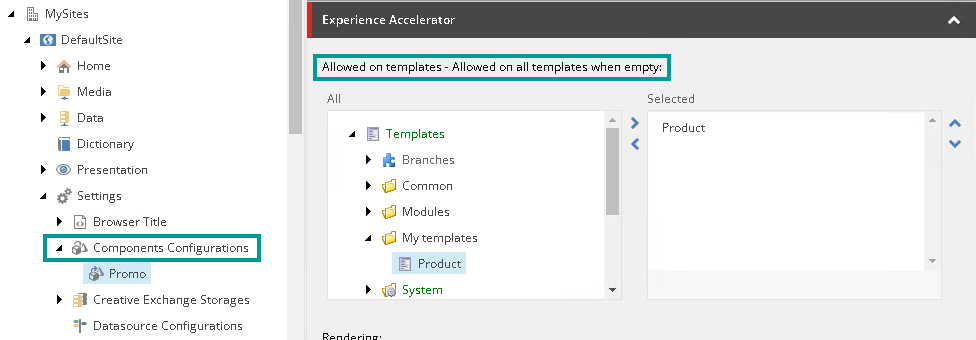
In the dialog box, navigate to Feature > Experience Accelerator and select the component you want to configure, for example Promo. The component configuration item is added.
-
In the Experience Accelerator section, in the Allowed on templates field, navigate to Templates/Project.
-
Add the page templates that you want the rendering to be allowed for. Then the rendering will appear in the toolbox when you open a page that is based on one of those page templates.
 Note
NoteThe rendering is hidden for page templates that you do not add.
If you do not add any page templates, the rendering is allowed on all page templates.
-
To test the configuration, you can open a page that is based on a page template where the rendering is not allowed. If successful, the rendering is not shown.