Add modules to site and site collection scaffolding
Scaffolding lets you add modules to sites and tenants. SXA modules are stored in the Feature or Foundation folder:
- /sitecore/System/Settings/Foundation/Experience Accelerator/
- /sitecore/System/Settings/Feature/Experience Accelerator/
To define your new module, you must add the Site Setup, Site Collection Setup, or Grid Setup item to the module and add action types from the Scaffolding folder (sitecore/Templates/Foundation/Experience Accelerator/Scaffolding/).
Add a module scaffolding definition
To add your own module scaffolding definition:
-
Navigate to /sitecore/System/Settings/Foundation/ or /sitecore/System/Settings/Feature/ and add a folder.
-
Right-click the new folder, and click Insert from template.
-
In the Insert from template dialog box, navigate to sitecore/Templates/Foundation/Experience Accelerator/Scaffolding/Roots and, depending on the type of module that you want to add, click Grid Setup, Site Setup, or Site Collection Setup, and then click Insert.
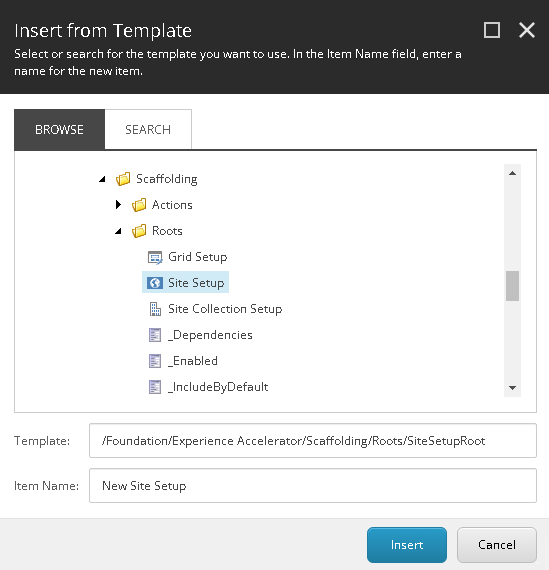
-
In the Data section, depending on the type of module that you want to install, fill in the following fields:
Setup Field Descriptions Site Setup Name The name of the site module as you want it to display in the site creation wizard. Dependencies Specify the order in which the modules are installed. Include by default Select to enable the module by default in the site creation wizard. Include if installed Depending on whether the selected action was applied to the current site collection, the module will be automatically included.
If the Selected field is empty, you can decide whether to install this module in the new-site creation wizard.Is system module Select to install the module automatically. In this case, the module does not appear in the dialog box. Site Collection Setup Name The name of the site collection module as you want it to display in the site collection creation wizard. Include by default Select to enable the module by default in the site collection creation wizard. Is system module Select to install the module automatically. In this case, the module does not appear in the site collection creation wizard. Grid Setup Name The name of the grid system as you want it to display in the site creation wizard. Dependencies Specify the order in which the modules are installed. Grid Definition Refers to the Grid Definition item. For example, for the Foundation grid system: Settings/Feature/Experience Accelerator/Foundation/Foundation
Add scaffolding actions
You can use various action types to define modules. You can add items, edit the template, and execute PowerShell scripts. The available actions are stored in the Actions folder (sitecore/Templates/Foundation/Experience Accelerator/Scaffolding/Actions):
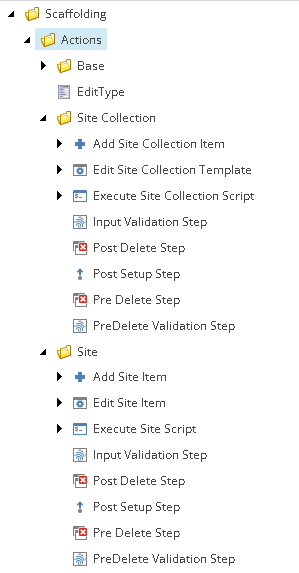
To add a scaffolding action:
-
Navigate to your new module and right-click the setup item that you added for your new module. For example, right-click the Site Setup item and insert the Add Site Item action.
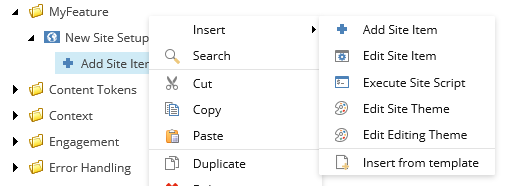
The following actions are available:
- Action type: Field
- Add Site Collection Item: Location
- Template: Template used to create the new site collection item.
- Name: Name of the item.
- Fields: Field/value mapping to set the fields of the new item after creation.
- Edit Site Collection Template: Template
- Type of action: Select the action type.
- Base templates or insert options templates: Select items to use as an argument for the action selected in the previous field.
- Execute Site Collection Script: Script
- Add Site Item: Location
- Template: Template used to create a new site item.
- Name: Name of the new site item.
- Fields: Field/value mapping to set the fields of the new item after creation.
- Edit Site Item: Template
- Type of action: Select the action type.
- Insert options: Define the insert options for the item.
- Execute Site Script: Script
- Edit Editing Theme: Base Themes
- Edit Site Theme: Base Themes
- Post Setup Step: Script
- Input Validation Step: Script
- Post Setup Step: Script
- Input Validation Step: Script
- Pre Delete Step: Script
- Post Delete Step: Script
- Pre Delete Validation Step: