Trigger Creative Exchange from your CI server
To quickly change the styling of your SXA sites, you can trigger Creative Exchange from your Continuous Integration (CI) server. Continuous integration enables you to integrate code changes routinely into the main branch of a repository, and to test the changes, as early and often as possible.
Before you start working on automating your Creative Exchange deployment, you must understand how to use the Sitecore PowerShell Extensions Web API.
Trigger export and import
To trigger export and import using a simple web request:
-
Create endpoints for the Creative Exchange import and export. For examples, go to:
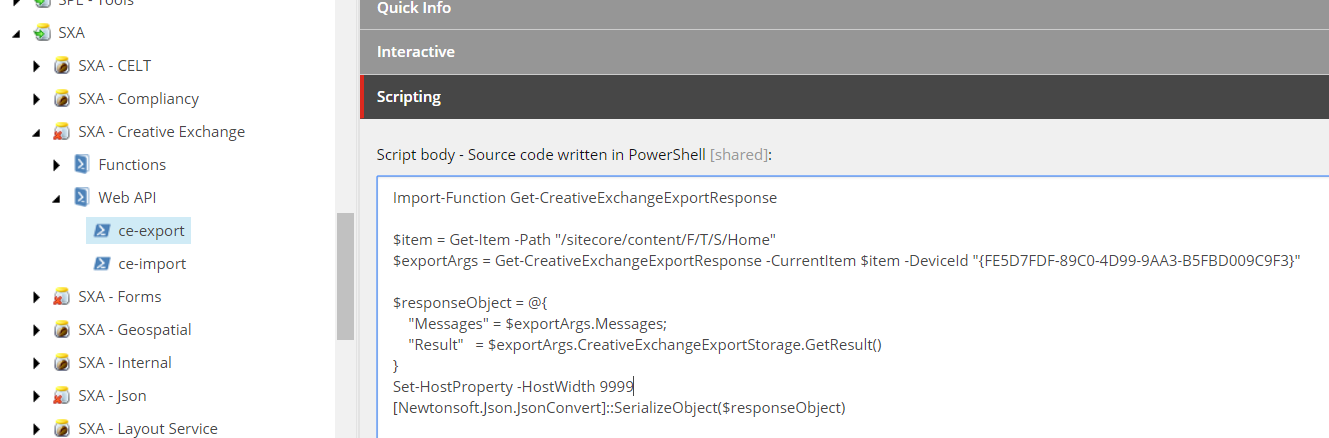
Do not save your web request items under any of the SXA roots as they might be overwritten in the next release.
-
In the import section, import the cmdlets:
Get-CreativeExchangeExportResponseGet-CreativeExchangeImportResponse -
Specify the path. For example:
$item = Get-Item -Path "/sitecore/content/SiteCollection/Site/Home" -
Specify the cmdlet and its parameters. For example:
$exportArgs = Get-CreativeExchangeExportResponse -CurrentItem $item -DeviceId "{FE5D7FDF-89C0-4D99-9AA3-B5FBD009C9F3}"You can modify the parameters to change the import/export options.
-
When the export/import is complete, you get the
$exportArgs/$importArgsobject as a result:$exportArgs(Sitecore.XA.Feature.CreativeExchange.Pipelines.Export.Export.ExportArgs)$importArgs- (
Sitecore.XA.Feature.CreativeExchange.Pipelines.Export.Export.ImportArgs)
-
Use the
$responseObjectobject to retrieve the content for the parameters.You can use it to fetch necessary information and return it as a Web API response. In the following example, we have built a dynamic object and serialized the specified object to JSON format:
Change export options using the Get-CreativeExchangeExportResponse cmdlet
The following table describes the available Get-CreativeExchangeExportResponse cmdlet parameters.
To change the export options:
-
Modify the parameters of the
Get-CreativeExchangeExportResponsecmdlet.Type Name Mandatory Default [Item]CurrentItem true [Sitecore.XA.Feature.CreativeExchange.Storage.CreativeExchangeStorageDefinition]StorageDefinition false "Folder on server"[Sitecore.XA.Feature.CreativeExchange.Enums.MarkupMode]MarkupMode false [Sitecore.XA.Feature.CreativeExchange.Enums.MarkupMode]::AgencyDrop[Sitecore.XA.Feature.CreativeExchange.Enums.ExportScope]ExportScope false [Sitecore.XA.Feature.CreativeExchange.Enums.ExportScope]::Site[Sitecore.XA.Feature.CreativeExchange.Enums.BucketExportMode]BucketExportMode false [Sitecore.XA.Feature.CreativeExchange.Enums.BucketExportMode]::OneOfTemplate[string]Language false "en"[int]FileSizeLimit false 0[Sitecore.Data.ID]DeviceId false "{FE5D7FDF-89C0-4D99-9AA3-B5FBD009C9F3}"[string]UserName false "sitecore\\admin"
Change import options using the Get-CreativeExchangeImportResponse cmdlet
The following table describes the available Get-CreativeExchangeImportResponse cmdlet parameters.
To change the import options:
-
Modify the parameters of the
Get-CreativeExchangeImportResponsecmdlet.Type Name Mandatory Default [Item]CurrentItem true [Sitecore.XA.Feature.CreativeExchange.Storage.CreativeExchangeStorageDefinition]StorageDefinition false "Folder on server"[int]FileSizeLimit false 0[Sitecore.Data.ID]DeviceId false "{FE5D7FDF-89C0-4D99-9AA3-B5FBD009C9F3}"