Cancel active tests
Page tests and basic content tests stop automatically after enough data has been gathered for a winner to be picked. However, multivariate and personalization tests will continue running if the user who started the test does not take action to finalize it. Therefore, you might sometimes want to manually cancel active tests. For example, before upgrading your Sitecore solution, you must cancel all active tests.
To stop active tests:
-
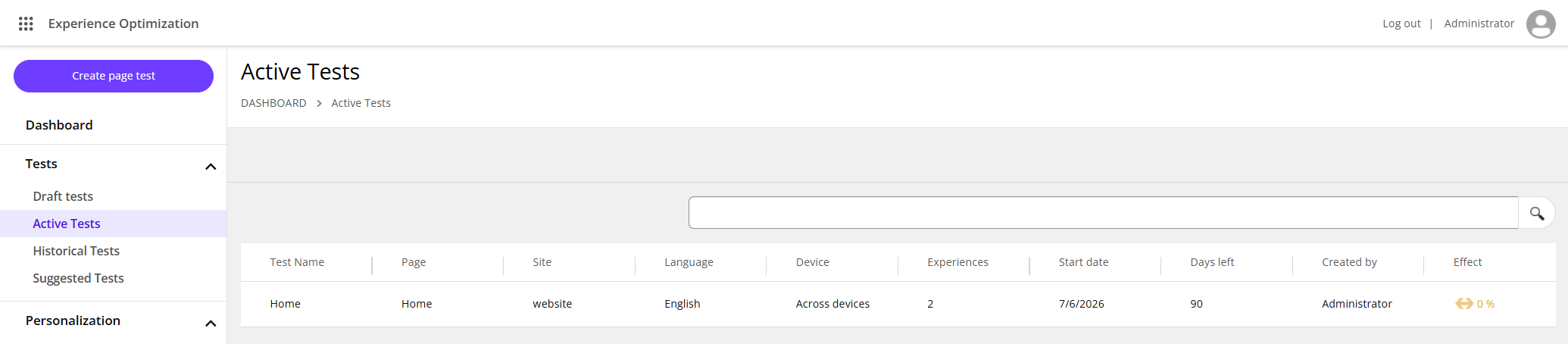
In the Experience Optimization application, open the Active Tests list.
-
In the list, click a test that you want to cancel then click Cancel Test.
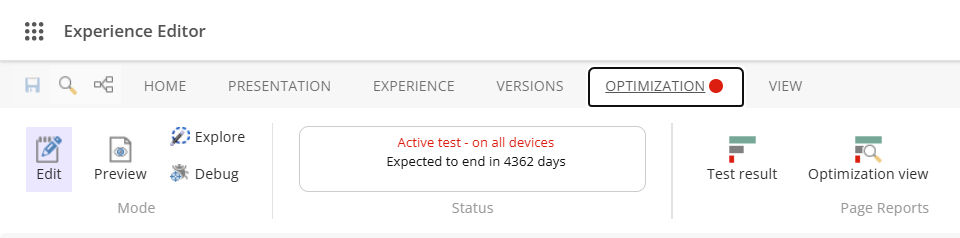
Alternatively, in the Experience Editor, open the page that contains an active test.
-
On the Optimization tab, in the Page Reports group, click Test result:
-
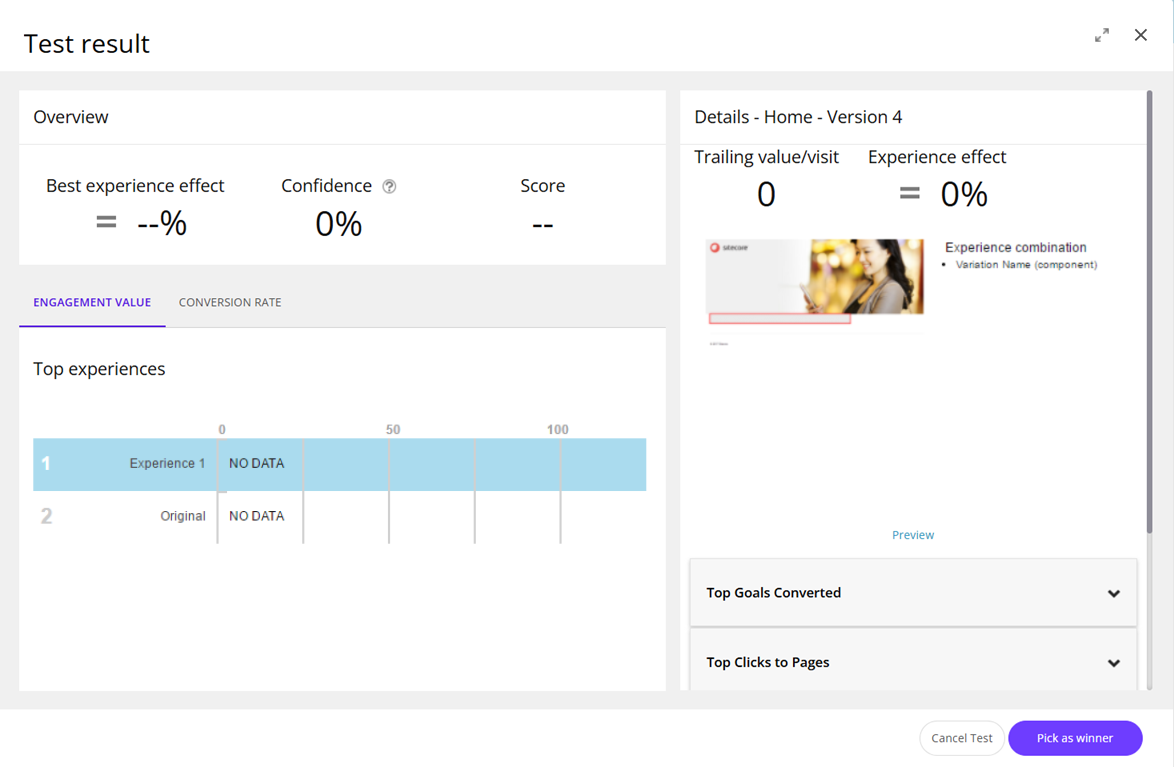
In the Test result dialog box, to use the original experience, click Cancel Test. To use another experience, select an experience in the Top experiences list and click Pick as winner.
-
Return to the Experience Optimization application and repeat steps 1-4 to cancel as many tests as you want.