Save and print an analytics report
In Engagement Analytics, you can save a report in a number of different formats, such as Microsoft Word, PDF, XML, Excel, Text file format, and so on. You can also print out any analytics report.
To save and print a report:
-
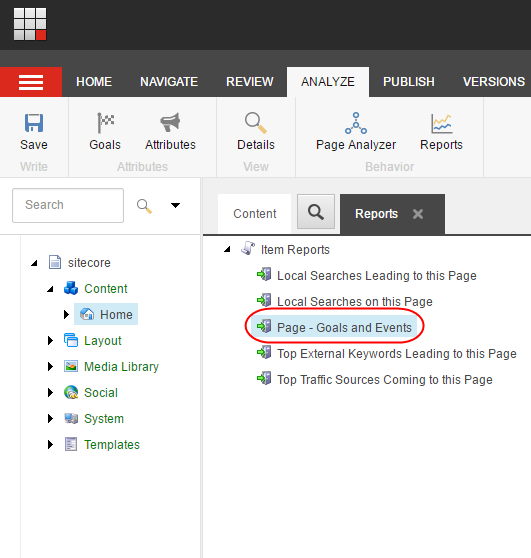
In the Content Editor, on the ribbon, on the Analyze tab, in the Behavior group, click Reports.
-
In the right pane, expand the Item Reports tree, and click the report that you want to save or print, for example, the Page - Goals and Events report.
-
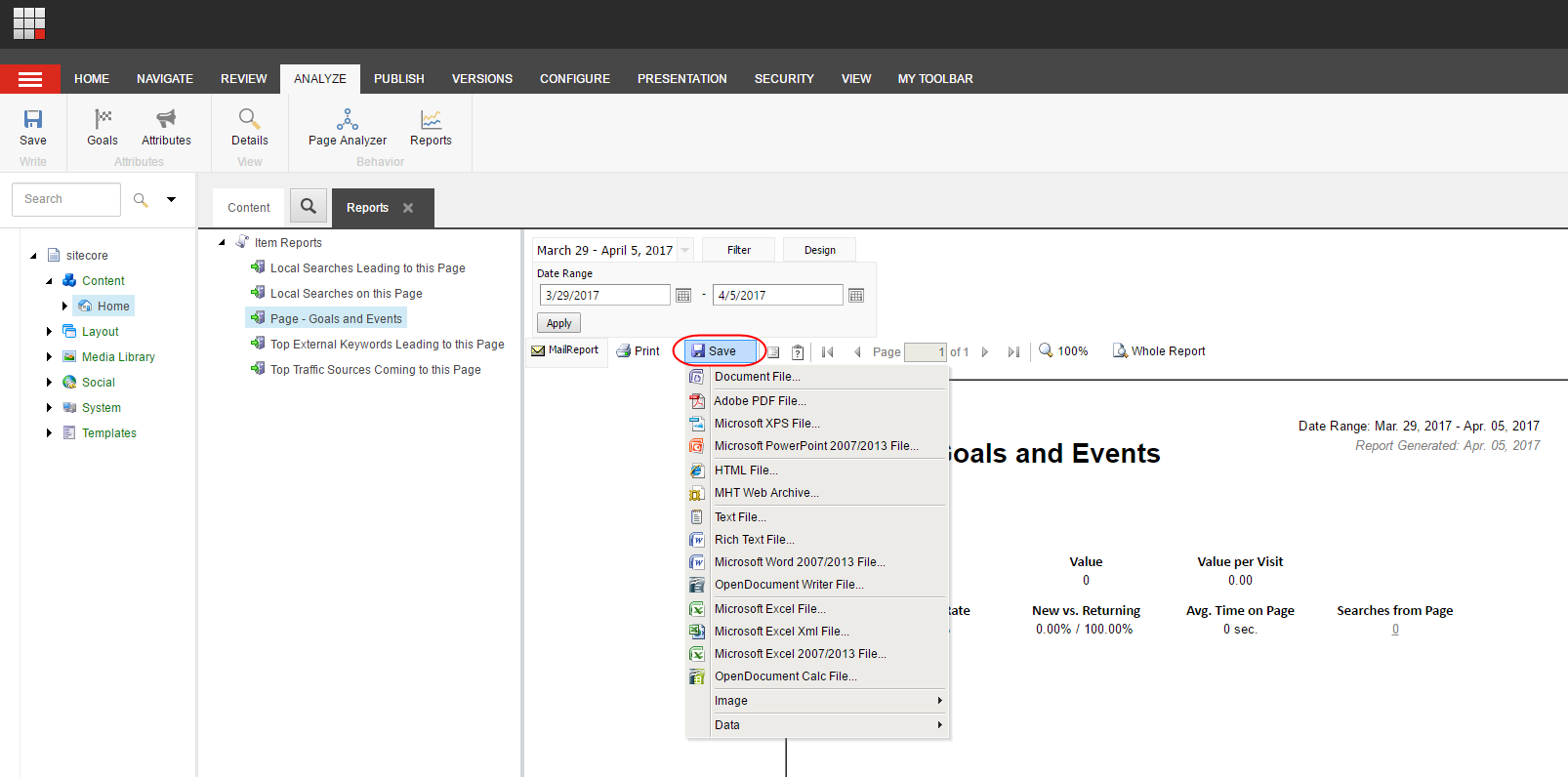
In the pane to the right-hand side of the Item Reports tree, to see the different formats that you can save the report in, click Save.
-
Select the file format that you want to save your report in. Specify the export settings for the relevant file format, and then click OK.
-
To print the report, click Print.