Set up the Storefront Abandoned Cart marketing automation campaign
Using marketing automation campaigns, you can re-engage with customers who have visited your storefront but not completed a purchase. When you add the Commerce Abandoned Cart Marketing Automation Campaign to a storefront site during site creation, a new marketing automation campaign is created using the Commerce Abandoned Cart template.
To use the Abandoned Cart marketing automation campaigns, you must have xDB installed and enabled.
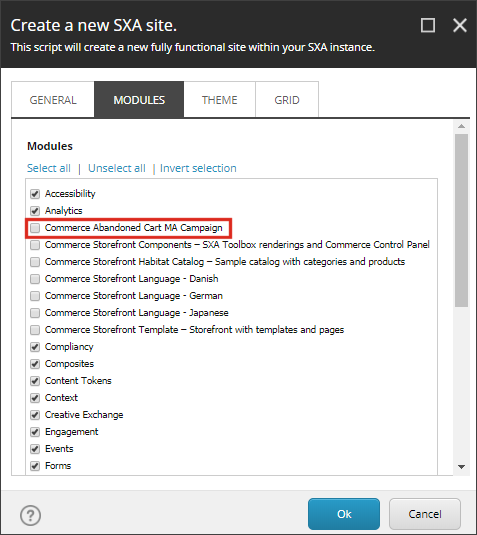
The Storefront Abandoned Cart marketing automation campaign template is a pre-configured Commerce campaign that references an automated email campaign so, in the Email Experience Manager, ensure you have created an automated email campaign from scratch or using a template.
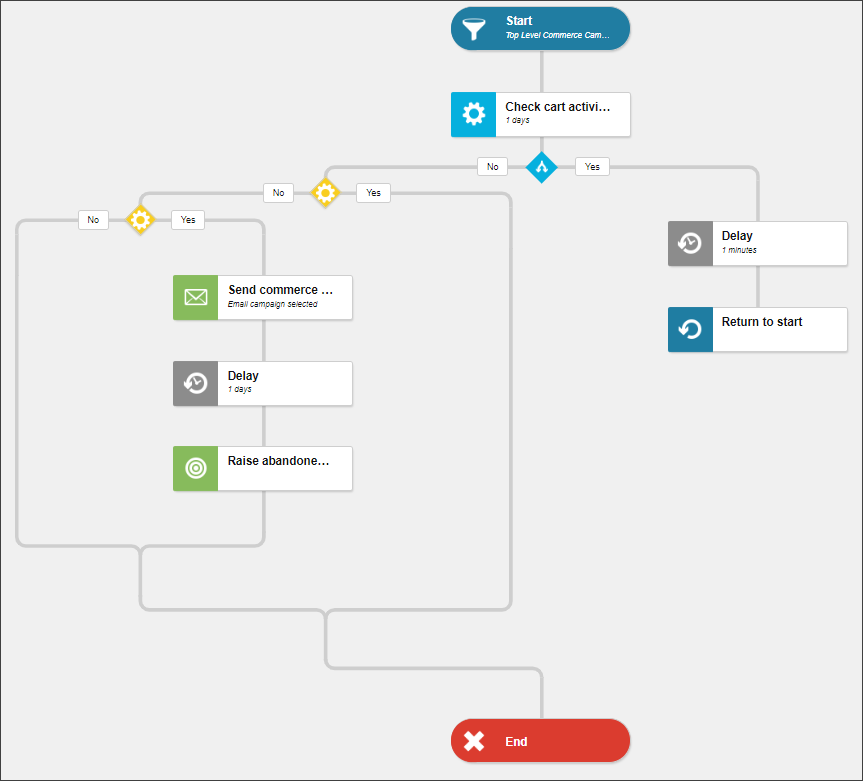
This campaign uses:
-
three specific commerce conditions: Check cart activity, Is the contact cart empty, and Does the contact have an email.
-
two specific storefront actions: Send commerce email and Raise abandoned cart event. The Send commerce email marketing action differs from the standard Send email action in that it includes the shopping cart information needed to personalize the email with the content from the customer’s cart. Shopping cart information is included as a custom value in the marketing automation campaign when the customer is enrolled in the campaign.
If the customer has created an account for the storefront and is logged in, cart activity on the storefront automatically enrolls the contact into a marketing automation campaign:
-
When a customer enters the campaign, there is a delay before the customer starts moving through the campaign. By default, it is one day.
-
In the course of the campaign, there are three decision points: Did the customer manipulate the shopping cart? Is the shopping cart empty? Is an email address available for the customer? If the customer has actively updated the cart, the cart is not considered to be abandoned and the customer is returned to the starting point and further processing is delayed for another day.
-
If the cart is not empty but no purchase has been made and an email address is available, a commerce email campaign is initiated to persuade the customer to return to the storefront to make a purchase.
-
If a purchase still is not made within the given time from (delay), the raise abandoned cart event tags the customer as having abandoned the shopping cart and the customer is removed from the campaign.
If a purchase is made at any point, the customer is removed from the campaign and does not receive an email.
You can also configure the Abandoned Cart marketing automation campaign using Connect.
For an overview of marketing automation actions, see Discover Sitecore channel.
Create an automated email campaign
Create an automated email campaign
The automated email campaign used by the Abandoned Cart marketing automation campaign requires that the email body be formatted and stylized.
-
On the Sitecore Launchpad, click Email Experience Manager.
-
From the Change Root Manager list in the upper left corner, select the email folder for the storefront site (for example, Emails).
-
To the right of the application window, click Default settings and, in the Default Settings dialog box, define the following parameters, and then click OK. At a minimum, specify the Base URL and the From email parameters.
Setting
Description
Example
Base URL
The website address of the Content Delivery server.This URL is used in all the links in the email message.
https://sxa.storefront.com
Preview base URL
In a scaled environment, internal links from test email messages point to the Base URL by default.To point the links to a different server, specify its URL in this setting.
From email
The email address that you want to appear in the From field of your email messages.
From name
The name that you want to appear as the From name on your email messages.
Reply to
The email address that you want the replies from recipients sent to.
Global opt-out list
A static contact list that contains contacts who click the Unsubscribe from all link. The contacts in this list never receive another email message from EXM, even if the contact appears in a list that you have included in an email campaign.
-
On the sidebar, click Create and, in the Create email campaign window, click Automated email campaign.
-
In the Automated email campaign window, in the Templates section, click the template you want to use, specify a name for the campaign, and click Create.
-
Click the Message tab and then click the body of the email.
-
In the Edit body dialog box, as required and then click Save and close.
-
On the Delivery tab, click the Activate message option.
-
In the Confirm prompt, click OK.
Modify a marketing automation campaign
Modify a marketing automation campaign
Finally, you must add the email campaign to the Storefront Abandoned Cart campaign.
For an overview of marketing automation actions, see Discover Sitecore on YouTube.
To modify the marketing automation campaign:
-
On the Sitecore Launchpad, click Marketing Automation.
-
On the Marketing Automation dashboard, click the <site name> Storefront Abandoned Cart campaign. A new campaign is created with each new site.
-
On the canvas, select Send commerce email and, on the details pane, select the email campaign you just created, and click Apply.
-
Save your changes.