The InDesign Connector workspace
In the InDesign Connector workspace, you work with the Sitecore panels (1), the main panel menu (2), and the buttons (3) in the Sitecore panels.
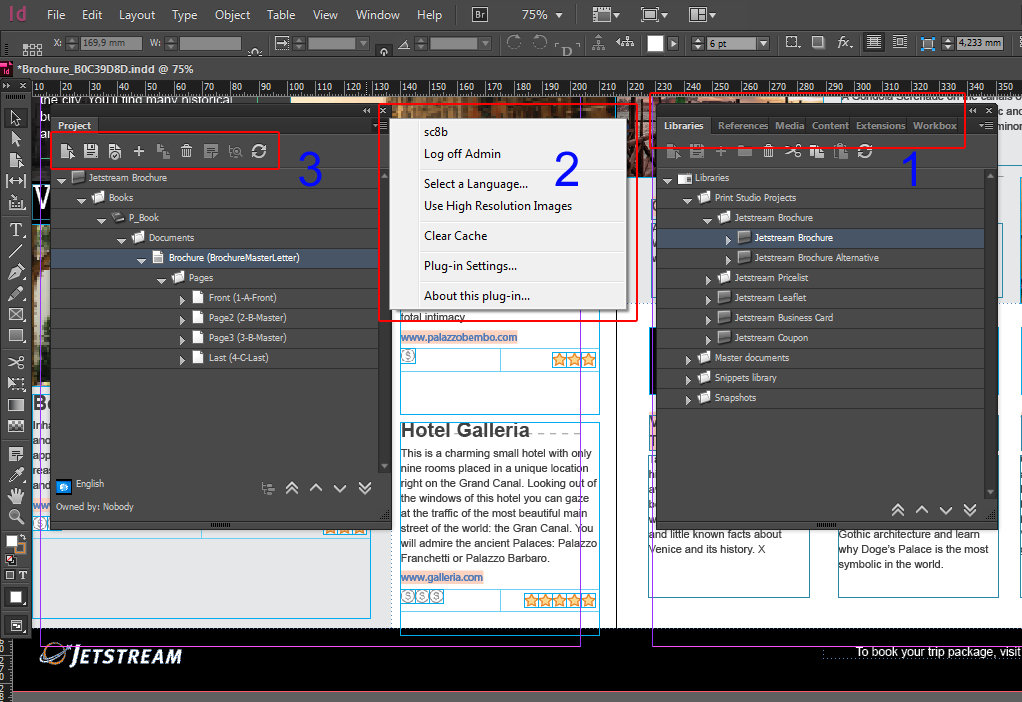
Main panel menu
Main panel menu
The main panel provides quick access to commonly used tools and features. To open the panel menu, click the upper-right corner of one of the Sitecore panels.
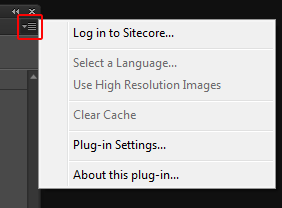
The main panel menu contains the following commands:
| Command | Description |
|---|---|
| Log in | Log in to a web server.If you are logged in, displays the name of the web server you are logged in with. |
| Log off | Log off a web server.Displays the user name you logged in with. |
| Select a Language | Select a language from the list of available Sitecore language versions. |
| Use High or Low Resolution Images | Select the resolution for your images. |
| Clear Cache | Clear the cache of the image viewer subfolder on your local hard drive. Sitecore is set up to automatically cache data. |
| Plug-in Settings | Change the web server connection(s). |
| About this plug-in | Check the version number of the plug-in. |
Sitecore panels
Sitecore panels
To open the Sitecore panels, on the Window tab, select Sitecore.
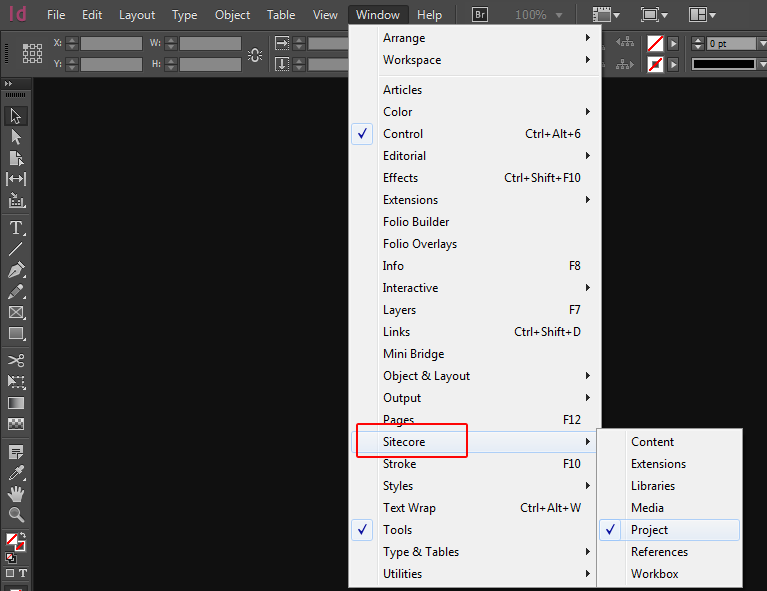
There are seven panels available from the Sitecore menu:
| Panel | Description |
|---|---|
| Content panel | Gives access to the content repository. |
| Extensions panel | Gives access to the available extensions. |
| Libraries panel | Gives access to all InDesign library items. |
| Media panel | Gives access to image media items. |
| Project panel | Lets you work on the InDesign project. |
| References panel | Lets you update the CMS data in your documents. |
| Workbox panel | Shows the workflow stages and items. |
Note
Before you can start working with the InDesign Connector, you must log in to Sitecore first.
The buttons in the Sitecore panels
The buttons in the Sitecore panels
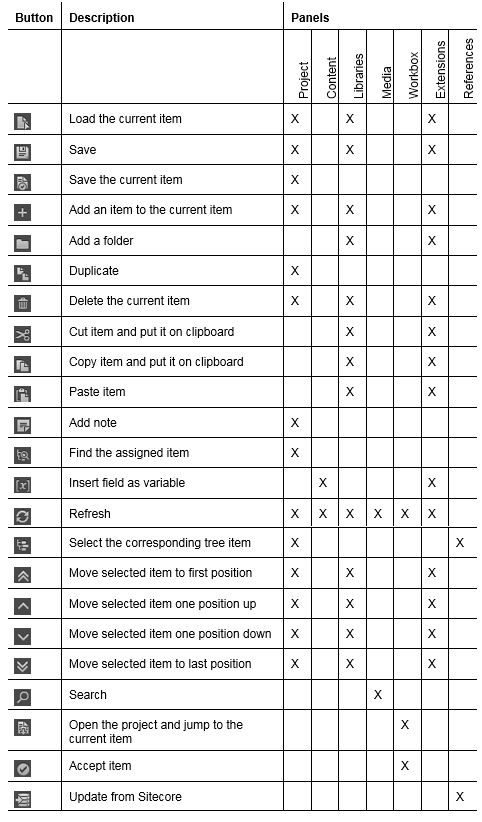
This table displays an overview of the buttons in the different Sitecore InDesign Connector panels.
If you have suggestions for improving this article, let us know!