
Add a background image to a component
Use the Experience Editor for the steps described in this topic.
Adding background images to pages can add depth and visual interest to the design of your web pages.
-
SXA provides two background-image workflows. For the data-source-based workflow, add
_Background Imageas a base template to the component’s data source template, and use a data source item that inherits from it. In Experience Editor, this enables Assign Background Image on the component toolbar, where you can select a background image and stretch mode. Refer to Enable adding a background image to a rendering for more details.The Container rendering also has a separate Background Image rendering parameter in its Styling section. Edit this parameter using Edit the style and behavior of the component. This Container parameter is separate from the
_Background Imagedata-source workflow. -
Add at least one component inside the Container component. Otherwise, the background image is not rendered.
To add a background image to a component:
-
Click the Container component.
-
On the floating toolbar, click Edit the style and behavior of the component
 .
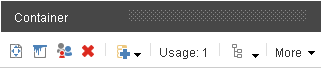
-
In the dialog box, in the Styling section, click Browse to find the image in the media library.
-
Select the image, and then click Select.
-
Use the available options to style the image as needed.
-
Click OK.