Work with versions
To publish different versions of the same webpage over a defined time period (for example, during the holiday season or for a special promotion), it is helpful to create alternate versions of the page.
You can create, edit, and publish different versions of a page in the Editor tab of Page builder.
You can create, edit, and publish different versions of a content item in the Content mode of Page builder, as well as in the right-hand configuration panel in Editor mode.
Create an additional version of a page
To create an additional version of a page:
-
In the page builder, on the Editor tab, navigate in the site tree to the page you want to create a new version for.
-
In the top toolbar, click Version. You can see a list of the different versions of the page you have currently opened in the editor area.
-
Click Create version. You can choose to name the new versions - otherwise, they are automatically numbered.
-
Click Create.
The version list now has an additional page version that you can edit. A Live tag indicates which version is currently saved on Experience Edge to be live on your website.
Create an additional version of a content item
There are two ways to create a version of a content item in Page builder:
-
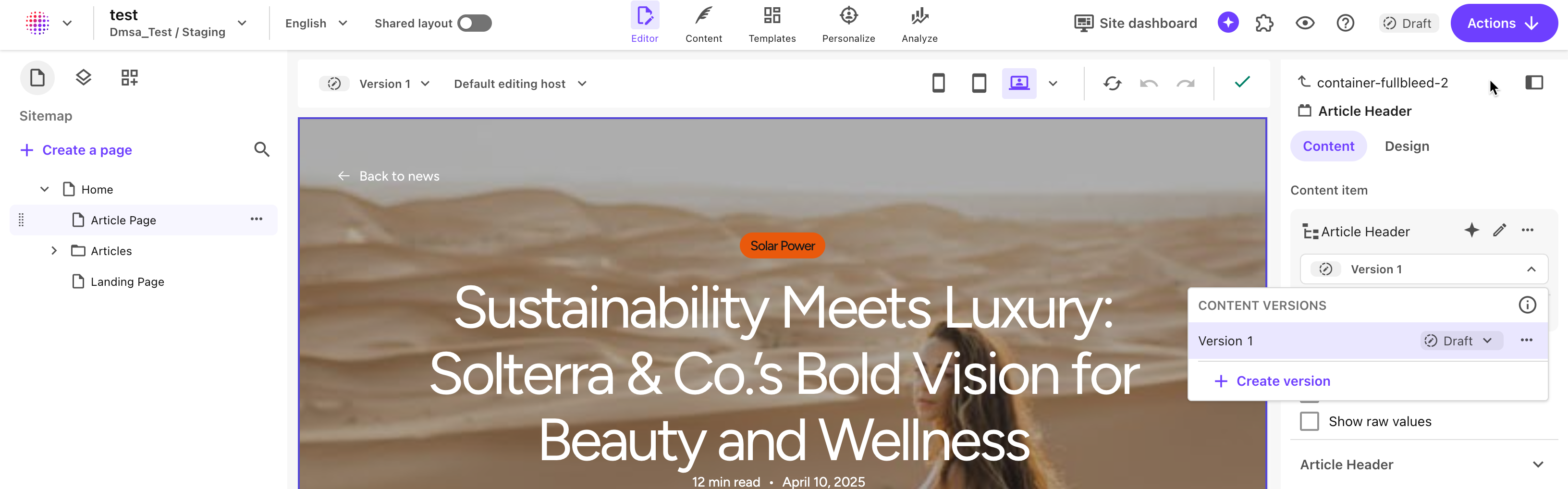
In Editor mode, select the item, then in the right-hand configuration panel, open the version drop-down and click Create version.
-
In Content mode, in the local top navigation header, open the version drop-down and click Create version.
Move a version through a workflow
If your site has been assigned a workflow, the new page version is automatically assigned the first workflow state, for example Draft. You must then assign a different state to the version to eventually be able to publish it.
To move a page or a content item to a different state of a workflow:
-
In the top navigation toolbar, click Actions, then click the relevant workflow state.
-
In the right-hand configuration panel, you can also create a new version of a content item and change its workflow status
Edit and publish a page version
You can edit a page version, as well as duplicate, or delete it.
You can also set dates where the version is available for publishing. Only one version of a page can be available for publishing at once. It is usually the latest version (as long as it has been approved if it depends on a publishing workflow), but you can set the latest version to be unavailable for publishing either until you change the status, or until a defined date, or for a specific time period.
To edit a version of a page:
-
In the versions list, for the version you want to edit, click
 and then click one of the following options:
-
Rename - change the version name.
-
Schedule publishing availability - specify the date and time when this version of the page is available for publishing. You can set a version to be unavailable for publishing until you manually change this status.
NotePublishing of a specific version is not automatic, but must be done by clicking Publish during the specified time interval.
-
Duplicate - duplicate a specific page version, for example to set different publication dates.
-
Delete - remove a page version from the version list.
-