- Preview search
The basic preview search widget template
A basic preview search widget template shows search results based on visitor query. Changes in input in the search input field triggers requests to Sitecore Search.
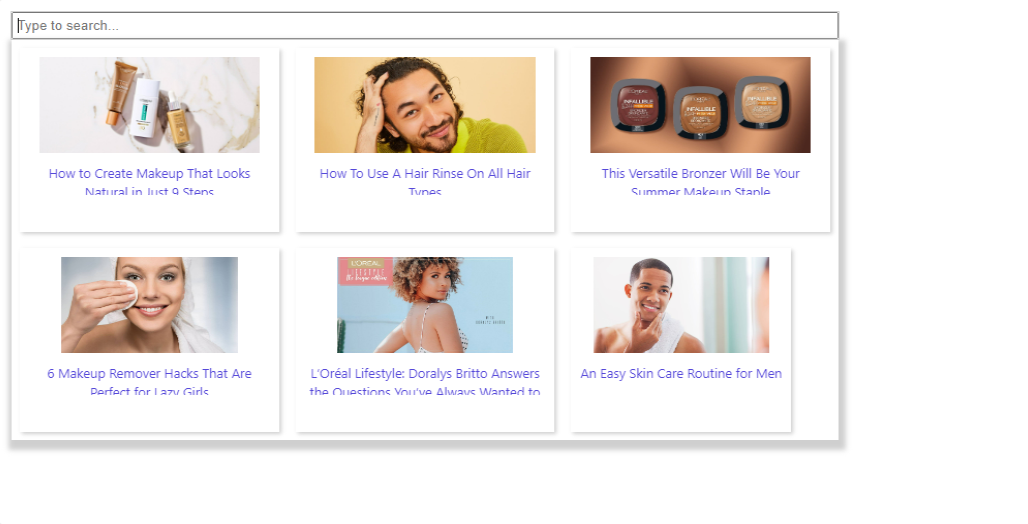
The following sections describe the basic preview search widget template, and contains an API reference, and instructions on how to create code blocks that you can add to the WidgetsProvider in your React project using Search JS SDK for React. The widget uses the preview search query hook to request and retrieve data.
To create a widget component, you can choose to use Search UI components CLI, a command line interface, or copy and paste code blocks manually.
Generate or create the component
This component is available in the plain or unstyled, styled, CSS-styled, and CSS module-styled variants. The following sections are instructions to generate or manually create the component in Typescript and JavaScript.
Remember to adjust the entity model in the widget template to match your implementation.
Plain component
Plain widget templates are unstyled and ready to be customized with CSS styles or a theme. You have complete control over the design and content of the component.
TS CLI
With the Sitecore Search CLI you can replicate all necessary files of the widget template in your React project. The following procedure includes instructions for installing the CLI in your project and specifying the location where widget components are created.
If you have previously installed the CLI in your project and have a location defined in a file called .sc-search-settings.json, you can proceed directly to step 3.
To install the UI Components CLI in your project:
-
To install the Search UI Components CLI, open the terminal of your IDE or command prompt and run the following command:
-
To define the location of where widget components will be created, at the root of your project, in a file called
.sc-search-settings.json, specify the location as shown in the following code block. -
To create the widget component, go to the location you defined in the
.sc-search-settings.jsonfile then open the terminal of your IDE or command prompt and run the following command:
TS manual
When you manually create widget templates in your React project, you need to ensure that you install any required dependencies and create all necessary files.
if you have previously installed the required NPM packages, you can skip the dependency installation steps.
To create the widget component using this widget template in your project:
-
In a folder for the widget component, create a file called
index.tsxthen in the file, paste following code block.
JS CLI
With the Sitecore Search CLI you can replicate all necessary files of the widget template in your React project. The following procedure includes instructions for installing the CLI in your project and specifying the location where widget components are created.
If you have previously installed the CLI in your project and have a location defined in a file called .sc-search-settings.json, you can proceed directly to step 3.
To install the UI Components CLI in your project:
-
To install the Search UI Components CLI, open the terminal of your IDE or command prompt and run the following command:
-
To define the location of where widget components will be created, at the root of your project, in a file called
.sc-search-settings.json, specify the location as shown in the following code block. -
At the location listed in
.sc-search-settings.json, to create the widget component in anindex.jsxfile, paste the following command in the terminal of your IDE.
JS manual
When you manually create widget templates in your React project, you need to ensure that you install any required dependencies and create all necessary files.
if you have previously installed the required NPM packages, you can skip the dependency installation steps.
To create the widget component using this widget template in your project:
-
In a folder for the widget component, create a file called
index.jsxthen in the file, paste following code block.
Styled component
Styled widget templates are built with styled UI primitives. To customize them, you need to edit the styled component. You can control the design and content of the component in the styled file.
TS CLI
With the Sitecore Search CLI you can replicate all necessary files of the widget template in your React project. The following procedure includes instructions for installing the CLI in your project and specifying the location where widget components are created.
If you have previously installed the CLI in your project and have a location defined in a file called .sc-search-settings.json, you can proceed directly to step 3.
To install the UI Components CLI in your project:
-
To install the Search UI Components CLI, open the terminal of your IDE or command prompt and run the following command:
-
To define the location of where widget components will be created, at the root of your project, in a file called
.sc-search-settings.json, specify the location as shown in the following code block. -
To create the widget component in
index.tsxandstyled.tsfiles, go to the location you defined in the.sc-search-settings.jsonfile then open the terminal of your IDE or command prompt and run the following command:
TS manual
When you manually create widget templates in your React project, you need to ensure that you install any required dependencies and create all necessary files.
if you have previously installed the required NPM packages, you can skip the dependency installation steps.
To create the widget component using this widget template in your project:
-
In your project, to install development dependencies, open the terminal of your IDE or command prompt and run the following command:
-
In your project, to install the development dependency, open the terminal of your IDE or command prompt and run the following command:
-
In a folder for the widget component, create files called
index.tsxandstyled.tsthen in respective files, paste following code blocks.
JS CLI
With the Sitecore Search CLI you can replicate all necessary files of the widget template in your React project. The following procedure includes instructions for installing the CLI in your project and specifying the location where widget components are created.
If you have previously installed the CLI in your project and have a location defined in a file called .sc-search-settings.json, you can proceed directly to step 3.
To install the UI Components CLI in your project:
-
To install the Search UI Components CLI, open the terminal of your IDE or command prompt and run the following command:
-
To define the location of where widget components will be created, at the root of your project, in a file called
.sc-search-settings.json, specify the location as shown in the following code block. -
To create the widget component in
index.jsxandstyled.jsfiles, go to the location you defined in the.sc-search-settings.jsonfile then open the terminal of your IDE or command prompt and run the following command:
JS manual
When you manually create widget templates in your React project, you need to ensure that you install any required dependencies and create all necessary files.
if you have previously installed the required NPM packages, you can skip the dependency installation steps.
To create the widget component using this widget template in your project:
-
In your project, to install development dependencies, open the terminal of your IDE or command prompt and run the following command:
-
In your project, to install the development dependency, open the terminal of your IDE or command prompt and run the following command:
-
In a folder for the widget component, create files called
index.jsxandstyled.jsthen in respective files, paste following code blocks.
CSS styled component
CSS styled widget templates use UI primitives which are styled using a styles.css. To customize, you can edit the component and CSS.
TS CLI
With the Sitecore Search CLI you can replicate all necessary files of the widget template in your React project. The following procedure includes instructions for installing the CLI in your project and specifying the location where widget components are created.
If you have previously installed the CLI in your project and have a location defined in a file called .sc-search-settings.json, you can proceed directly to step 3.
To install the UI Components CLI in your project:
-
To install the Search UI Components CLI, open the terminal of your IDE or command prompt and run the following command:
-
To define the location of where widget components will be created, at the root of your project, in a file called
.sc-search-settings.json, specify the location as shown in the following code block. -
To create the widget component in
index.tsxandstyles.cssfiles, go to the location you defined in the.sc-search-settings.jsonfile then open the terminal of your IDE or command prompt and run the following command:
TS manual
When you manually create widget templates in your React project, you need to ensure that you install any required dependencies and create all necessary files.
To create the widget component using this widget template in your project:
-
In a folder for the widget component, create files called
index.tsxandstyles.cssthen in respective files, paste following code blocks.
JS CLI
With the Sitecore Search CLI you can replicate all necessary files of the widget template in your React project. The following procedure includes instructions for installing the CLI in your project and specifying the location where widget components are created.
If you have previously installed the CLI in your project and have a location defined in a file called .sc-search-settings.json, you can proceed directly to step 3.
To install the UI Components CLI in your project:
-
To install the Search UI Components CLI, open the terminal of your IDE or command prompt and run the following command:
-
To define the location of where widget components will be created, at the root of your project, in a file called
.sc-search-settings.json, specify the location as shown in the following code block. -
To create the widget component in
index.jsxandstyles.cssfiles, go to the location you defined in the.sc-search-settings.jsonfile then open the terminal of your IDE or command prompt and run the following command:
JS manual
When you manually create widget templates in your React project, you need to ensure that you install any required dependencies and create all necessary files.
To create the widget component using this widget template in your project:
-
In a folder for the widget component, create files called
index.jsxandstyles.cssthen in respective files, paste following code blocks.
CSS module styled component
CSS module styled widget templates use UI primitives which are styled using a CSS module. To customize, you can edit the component and CSS module.
TS CLI
With the Sitecore Search CLI you can replicate all necessary files of the widget template in your React project. The following procedure includes instructions for installing the CLI in your project and specifying the location where widget components are created.
If you have previously installed the CLI in your project and have a location defined in a file called .sc-search-settings.json, you can proceed directly to step 3.
To install the UI Components CLI in your project:
-
To install the Search UI Components CLI, open the terminal of your IDE or command prompt and run the following command:
-
To define the location of where widget components will be created, at the root of your project, in a file called
.sc-search-settings.json, specify the location as shown in the following code block. -
To create the widget component in
index.tsxandstyles.cssfiles, go to the location you defined in the.sc-search-settings.jsonfile then open the terminal of your IDE or command prompt and run the following command:To create the widget component in
index.jsxandstyles.cssfiles, go to the location you defined in the.sc-search-settings.jsonfile then open the terminal of your IDE or command prompt and run the following command:
TS manual
When you manually create widget templates in your React project, you need to ensure that you install any required dependencies and create all necessary files.
To create the widget component using this widget template in your project:
-
In your project, to install the development dependency, open the terminal of your IDE or command prompt and run the following command:
-
In a folder for the widget component, create files called
index.tsxandstyles.module.cssthen in respective files, paste following code blocks.
JS CLI
With the Sitecore Search CLI you can replicate all necessary files of the widget template in your React project. The following procedure includes instructions for installing the CLI in your project and specifying the location where widget components are created.
If you have previously installed the CLI in your project and have a location defined in a file called .sc-search-settings.json, you can proceed directly to step 3.
To install the UI Components CLI in your project:
-
To install the Search UI Components CLI, open the terminal of your IDE or command prompt and run the following command:
-
To define the location of where widget components will be created, at the root of your project, in a file called
.sc-search-settings.json, specify the location as shown in the following code block. -
To create the widget component in
index.jsxandstyles.cssfiles, go to the location you defined in the.sc-search-settings.jsonfile then open the terminal of your IDE or command prompt and run the following command:
JS manual
When you manually create widget templates in your React project, you need to ensure that you install any required dependencies and create all necessary files.
To create the widget component using this widget template in your project:
-
In your project, to install the development dependency, open the terminal of your IDE or command prompt and run the following command:
-
In a folder for the widget component, create files called
index.jsxandstyles.module.cssthen in respective files, paste following code blocks.
Component properties
Items per page
defaultItemsPerPage sets the maximum number of items displayed in this component.
Default: 6