Modules upgrade
To upgrade a Sitecore solution that has some modules installed, you must build custom mssql- upgrade image.
To build custom mssql-upgrade image, you must download the latest Sitecore XP, XM mssql-upgrade image from the container registry and create a custom Docker file on top of it.
The Sitecore XP, XM mssql-upgrade image contains configuration presets for each of the available upgrades paths.
If a module requires you to run SQL scripts, you must modify the corresponding configuration file.
The name of the configuration files has the following pattern: <DatabaseUpgradeFromVersion>-<DatabaseUpgradeToVersion>.json.
All the configuration files have the same structure:
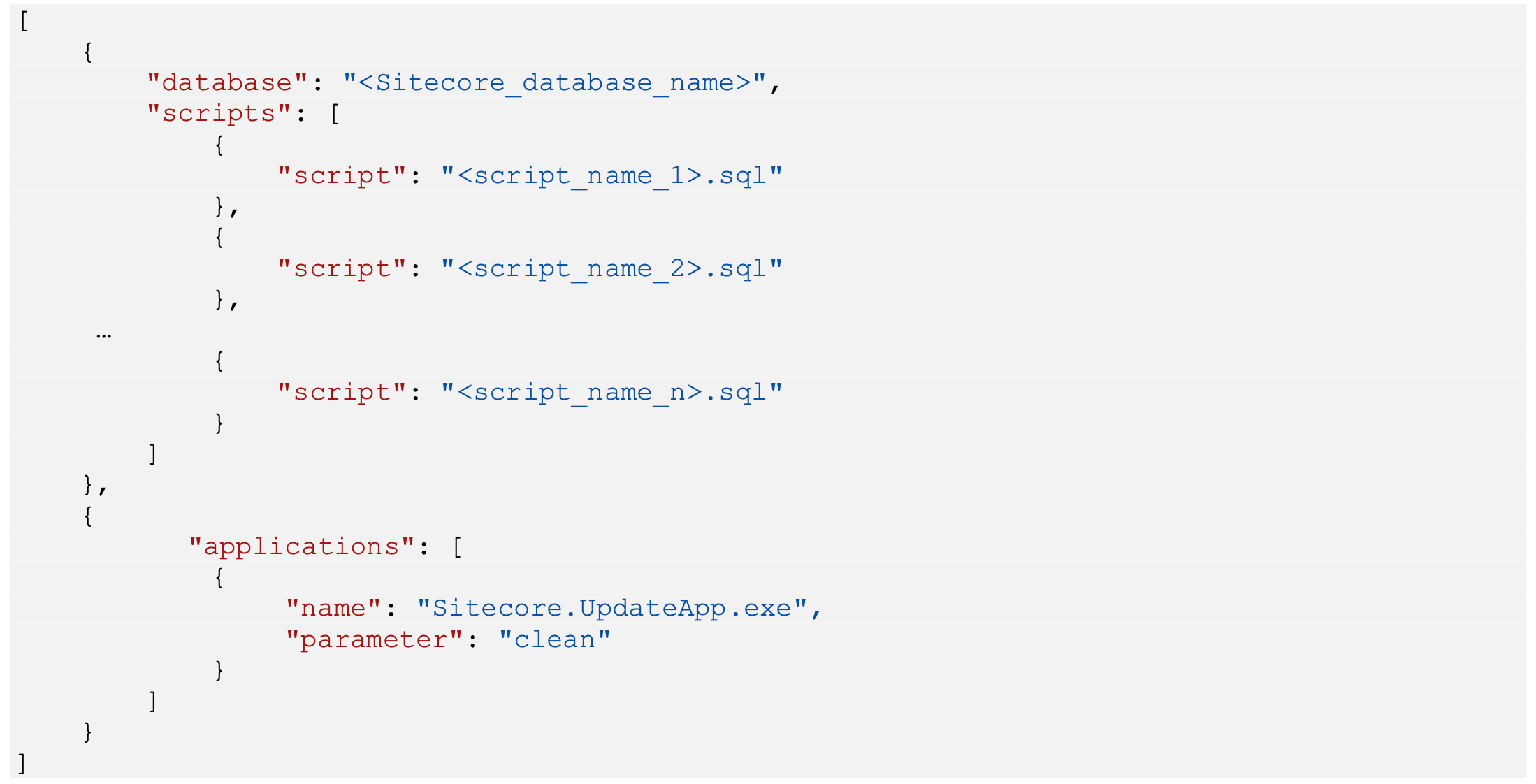
If a module requires you to execute some custom SQL scripts, you must store the scripts in the C:\data\DatabaseUpgradeScripts\<DatabaseUpgradeToVersion>\<custom SQL scripts> folder.
To enable the mssql-upgrade container to run the script:
-
Create a powershell script that modifies the
C:\data\<DatabaseUpgradeFromVersion>-<DatabaseUpgradeToVersion>.jsonfile.The script must add your instruction to the
<DatabaseUpgradeFromVersion>- <DatabaseUpgradeToVersion>.jsonfile which is going to run sql statements to modify the databases. -
Save the configuration with your modifications.
-
In the Dockerfile, add a URL command that downloads the Items as Resources packages for the modules.
-
Extract the Items as Resources files from the downloaded module to a temporary folder.
The package for each module contains folders for the different versions of the module.
-
Select the Sitecore version from which you are going to upgrade and copy the content of the Data folder for the module version you are upgrading from into the
C:\data\ResourceItems\<DatabaseUpgradeFromVersion>\modules\folder. -
Build a custom mssql-upgrade image.
You can now run the mssql-upgrade container and use the custom upgrade image that you have just built.
To run the mssql-upgrade container with a custom image for Docker compose:
-
Update all the required parameters in the
upgrade.envenvironment variable file.Modify the
docker-compose.upgrade.ymlfile to use the image you built earlier and update the value of the image node with your image:image: <custome mssql-upgrade image> -
To run the mssql-upgrade container, use the following Docker Compose command:
docker compose -f .\docker-compose.upgrade.yml --env-file .\upgrade.env up
To run the mssql-upgrade container with a custom image for Kubernetes:
-
Update the secrets
.txtfiles in the./configurationfolder. -
Modify the K8s specification files to use the image you built earlier and update the
mssql-upgrade.yaml, kustomization.yamlfile. -
From the root folder of the desired topology, run the following command:
kubectl apply -k .\